Canva Craft is available on the Free plan, but planning a month of work around “20 AI uses” needs a closer look. That number is not a promise of 20 finished designs, or a separate pot reserved for Craft.
The useful question is how much work you need after the first image appears. A social post that needs several revisions and editable layers is a different job from a background you can use immediately.
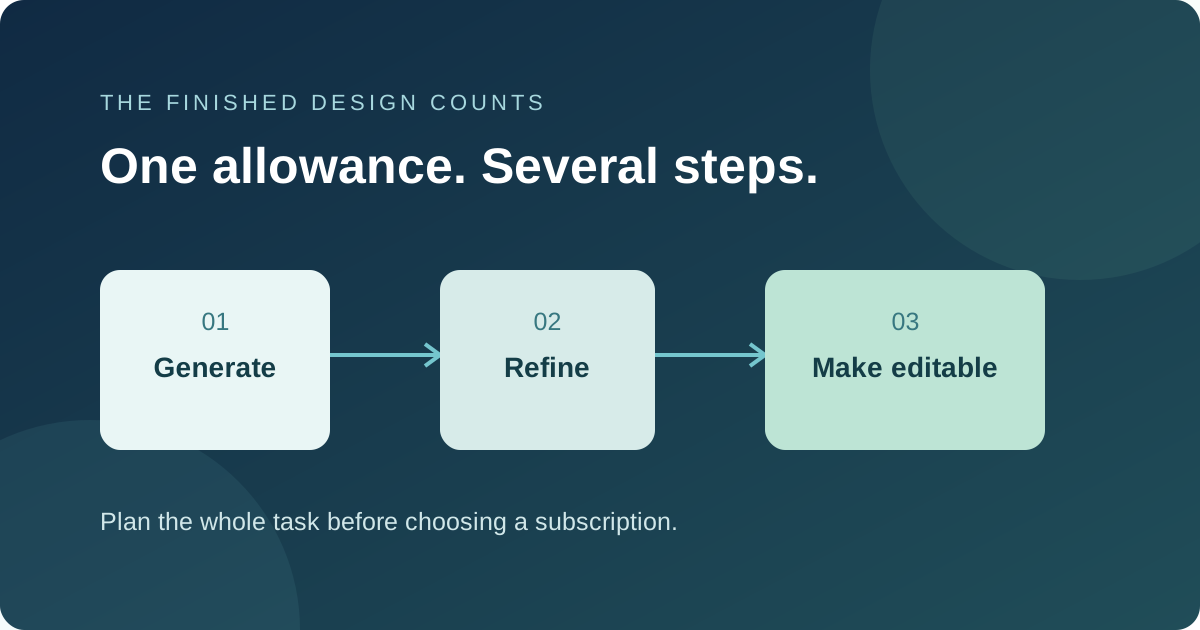
Separate images, requests and finished designs
Canva announced Craft on 22 October 2026, with global access through Dream Lab. Canva's Dream Lab instructions describe up to four image options from a prompt, followed by optional refinements, reference images and editing.
Four options are alternatives to inspect. They are not necessarily four usable deliverables. Nor does that output count establish a fixed charge against your allowance. A good-looking image can still need a corrected date, more space for a headline or a different crop.
For planning, keep three counts: requests you make, image options you receive and finished designs you can actually publish. Only the last count answers whether the tool got the job done.
Free, trial and paid Pro are different
Canva's AI usage guide lists up to 20 Standard or Premium uses for Free, and up to 200 Premium or 20 Ultra uses for paid Pro. A Pro trial has the smaller, up-to-20 allowance. These are shared monthly estimates, not separate allowances for each feature or numbers you can add together.
The estimates assume simple tasks and the least demanding tool in a category. More complex work can consume more allowance. Magic Layers is a Premium tool too, so turning a generated image into editable elements needs to be considered alongside generation.
Canva describes short pauses between Free-plan Standard and Premium generations after the allowance is reached. This is not a simple 20-image hard stop. Plan for timing as well as quantity.
Plan one complete design before a batch
Try this worksheet for a hypothetical three-post campaign. It is an editorial planning example, not a measured credit calculation:
- First pass: one generation request per post means three requests to start.
- Correction pass: allowing one AI revision per post adds three more possible requests.
- Layer pass: converting each chosen image with Magic Layers adds three processing tasks.
That is nine planned AI tasks before any extra attempts. It does not mean nine credits, and it does not establish how much of a Canva plan will remain.
Complete one representative post first. Check Settings > Billing > AI usage. Note your plan or trial, the displayed balance before and after, the operations performed and whether the result was usable. Repeat with a more difficult example before committing to a deadline. Treat those observations as estimates for your work, not a universal rate.
Choose the required wording and dimensions before generating. Once you have a usable background, consider adding the headline and date as ordinary text in the editor. A spelling correction then need not become another image-generation attempt.
Editable layers do not guarantee a finished file
Canva's Magic Layers help says the tool works best with graphic designs and illustrations. It supports single-page PNG and JPG images; PDFs and vector graphics are not accepted directly. Photorealistic images may separate less cleanly, and images over 5,000 pixels on the longest edge are unsupported.
For a poster with exact prices or dates, inspect the text and the objects after conversion. If the task is simply changing a date in an existing editable template, start there. Regenerating the artwork introduces another opportunity for errors without necessarily improving the design.
Compare the subscription with the job
On 25 October 2026, Canva's public pricing pages listed individual Pro at US$144 per year and A$165 per year. These are annual prices, not monthly subscriptions or verified checkout offers. Check the billing period and total shown to your account before purchasing.
Start with Free if you are exploring occasional images. Consider paid Pro when your own complete-design experiment shows a recurring need and the broader plan features justify the price. If you need a guaranteed number of finished images on a tight deadline, the published AI allowance alone is not enough to establish capacity.
Method: AI assisted research and writing, edited against Canva's public documentation on 25 October 2026. No hands-on Craft usage or credit-consumption test was performed. The worksheet is hypothetical. Cover: original conceptual vector illustration, not a Canva screenshot. No sponsorship or affiliate links.
Sources
- Introducing Canva Craft — Canva
- Generate images with Dream Lab — Canva
- Understanding your AI usage — Canva
- Turn images into editable layers with Magic Layers — Canva
- Canva pricing — US — Canva
- Canva pricing — Australia — Canva