ChatGPT image slash commands are short labels people use to describe a visual style or edit. You may see prompts such as /cinematic, /portrait or /remove_background shared as quick ways to transform an image. They are informal prompt shortcuts, not a built-in catalogue of image commands. This guide explains what the labels mean, gives you a practical list to adapt, and separates them from ChatGPT’s documented image controls.
A slash label can help communicate an idea, but the useful instruction is the meaning behind it. Describe the subject, the change you want, and the details that should stay the same. The examples below translate common labels into plain language so you can use them as-is or adapt them to your image.
Which image commands are official?
OpenAI’s published slash-command reference describes a menu of ChatGPT desktop app actions. It does not list /4K, /8K, /suit_up or image-style shortcuts. OpenAI’s Images help page instead says to describe the image you want, upload an image and describe an edit, use the selection tool for a target area, or choose an aspect ratio in the image editor. Those are the documented image workflows.
In other words, the official slash menu and viral image “commands” are two different things. The app’s slash menu contains selectable actions that can vary with your environment and access. A label such as /suit_up is text in your prompt: it can be a handy shorthand, but it is not a registered command with a fixed definition.
What the popular labels are asking for
Think of the slash word as a compact art-direction note. The descriptions below translate common labels into plain instructions. They are examples, not an official or exhaustive command registry, and results can vary by model, image and prompt.
Detail and resolution cues
/4K— Ask for a crisp, high-detail result. Specify the actual dimensions or use case; inspect the saved file rather than assuming 4K output./8K— Ask for very high detail or a large-looking image. It is still a prompt cue, not proof of 8K pixel dimensions.
Portraits, people and lighting
/portrait— Make a portrait the main focus. Specify headshot or full-body, background and crop./professional_headshot— Create a polished business portrait. Keep identity and natural facial features; choose a neutral background./studio— Use controlled studio lighting. Describe backdrop colour and soft or dramatic light./dramatic_lighting— Add stronger shadows and contrast. State which side the light comes from and how dark the background should be./golden_hour— Use warm, low-angle sunset light. Choose indoor or outdoor setting and time-of-day mood./flash_photo— Mimic a direct on-camera flash snapshot. Ask for natural skin texture and specify the setting./suit_up— Try a formal suit look. Specify cut, colour, shirt and tie, and whether to change only the clothes./change_hair— Preview a different haircut or colour. Keep the face, expression and framing consistent./change_outfit— Try a different outfit. Name the garments, materials and colours; preserve the person’s pose.
Visual styles
/cinematic— Use film-like lighting and composition. Describe the light source, mood and framing./film_grain— Add a subtle analogue-film texture. Name fine or coarse grain and avoid obscuring the subject./black_and_white— Convert the image to monochrome. Specify contrast, shadows and whether to preserve a film look./anime— Render the subject in an anime-inspired style. Describe line work, colours and expression rather than naming a living artist./watercolor— Use a painted watercolour appearance. Ask for paper texture, soft edges or vivid pigment./oil_painting— Use layered brushwork and an oil-painted finish. Specify realism, palette and visible brush texture./comic_book— Use bold comic-style outlines and colours. Choose panel layout, ink weight and speech-bubble text if needed./pixel_art— Use a deliberately low-resolution pixel aesthetic. Describe the pixel scale and palette./claymation— Make the scene look like a stop-motion clay set. Ask for visible fingerprints, miniature props or soft studio light.
Camera and composition
/miniature— Make a subject or scene look like a small model. Specify a macro viewpoint and shallow depth of field./isometric— Show a neat three-dimensional scene from an angled view. Describe the objects, layout and background./top_down— Show the scene from directly above. State how objects should be arranged and spaced./close_up— Frame a tight detail or face close-up. Identify the detail and how much context to retain./wide_angle— Show more of the environment around the subject. Set the viewpoint and avoid unwanted distortion./macro— Focus on a tiny subject or surface detail. Name the material, focus point and depth of field.
Photo edits and restoration
/new_background— Replace the background while retaining the subject. Describe the new setting and ask to preserve pose, face and clothing./remove_background— Remove the background or make it transparent. Ask for clean edges around hair and other fine details./retouch— Make restrained corrections to an existing photo. Name only the edits wanted and say what should not change./restore— Repair visible damage in an old photograph. Ask to retain original features and avoid inventing unseen detail./colorize— Add plausible colour to a monochrome photo. Describe known colours; flag guesses as estimates./before_after— Show a comparison of the original and edited look. Ask for matched framing and clearly separated panels./together— Place people or objects from references into one scene. Identify each reference and where each subject belongs.
Design and product images
/product_photo— Make a product-focused image. Give the background, lighting and camera angle; preserve labels and logos accurately./food_photo— Style a dish for a menu or recipe image. Describe the dish, plate, surface and light direction./editorial— Use a polished magazine-style composition. Name the audience, subject placement and intended crop./poster— Arrange the image like a poster. Supply exact text, hierarchy, aspect ratio and safe margins./thumbnail— Make a bold small-screen thumbnail composition. Use a clear focal subject and a short, readable title./sticker— Create a simplified sticker-like cutout. Ask for a clear outline and transparent background if needed./transparent— Request a transparent background. Check the exported file supports transparency./color_palette— Build a coordinated palette from a reference. Ask for labelled swatches only if you need text in the image.
A better way to use these prompts
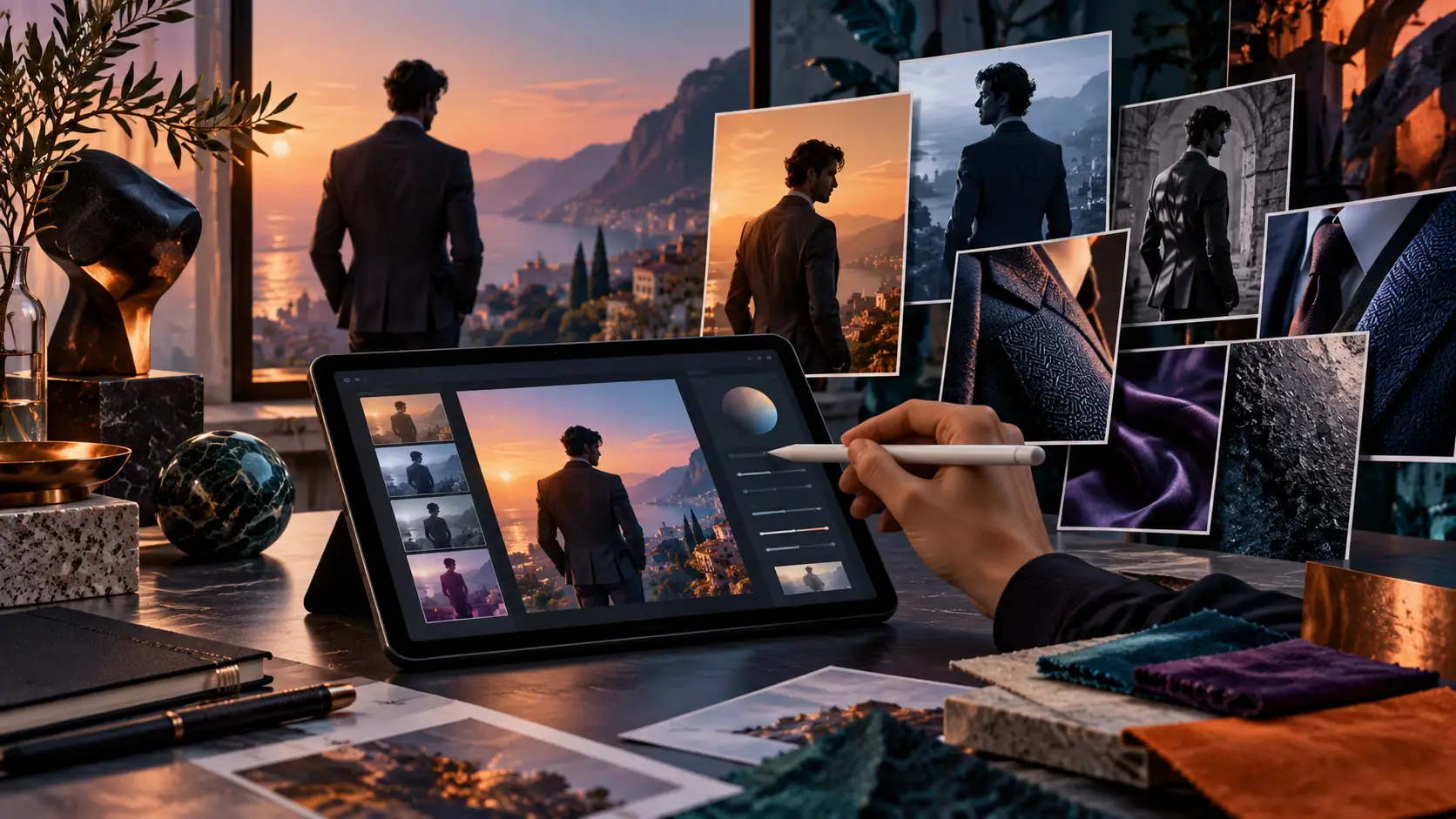
Upload a photo if you are editing one, then name the change and the details that must remain stable. For example: “Change only the jacket to a tailored navy suit. Keep the person’s face, expression, hair, pose and background unchanged. Use soft studio lighting.” You can put /suit_up at the front as a reminder, but the plain-language instruction does the real work.
For a new image, describe the subject, setting, composition, lighting, style, aspect ratio and any text. “/cinematic” is less specific than “Create a wide editorial portrait of a cyclist at dusk, with the subject on the right, warm rim light, a dark blue city background and room for a headline on the left.” Use the editor’s aspect-ratio controls when available.
For an edit to one area, use the selection tool where it is available and describe the change in the prompt. OpenAI notes that selected regions are not always precise and edits can spill outside the highlighted area, so inspect the result and ask for a correction if the subject or surrounding details changed unexpectedly.
Does /4K really make a 4K image?
Not by itself. A prompt can express a quality preference, but the label is not an export setting or a resolution guarantee. Check the downloaded image’s width and height in its file properties. If the image is smaller than your intended use requires, request a larger version or use a dedicated upscaling workflow, then check for invented texture and altered fine details.
Likewise, “8K” can be interpreted as a visual-quality phrase rather than a literal pixel specification. When dimensions matter, state the target dimensions and aspect ratio explicitly, use the available image controls, and verify the exported file. The exact controls and output can depend on the current ChatGPT experience.
What to expect and what to avoid
These labels are not guaranteed presets, and similar words can produce different results across models or even across attempts. The list is a practical starting point, not a promise of repeatable one-word editing. If a result misses, replace the label with a concrete instruction, split a complex edit into smaller changes, and check details such as hands, text, product marks and background boundaries.
When editing a real person’s photo, make sure you have permission to use the image and avoid presenting a generated change as an authentic photograph of an event or product. If likeness or accuracy matters, compare the output with the source rather than assuming the model preserved every feature.
The takeaway
There is no official, complete list of ChatGPT image slash commands. These labels are user-created prompt shortcuts, so spellings and meanings can vary and new ones can be invented at any time. Use this practical catalogue as a starting vocabulary for styles, camera angles, lighting, design and edits. When precision matters, add a clear plain-language instruction about what to change and what to preserve.
Cover image is an AI-generated conceptual illustration and does not show an actual ChatGPT interface.
Sources and method
- OpenAI’s slash-command reference documents app actions; the official Images in ChatGPT guide describes image creation, editing and aspect-ratio controls.
- Viral image labels are an informal, changing prompt convention. Examples were cross-checked against a community list, a prompt-code guide and shared photo-edit examples; they are not represented as official OpenAI syntax or proven presets.
Editorial note: AI tools assisted with research synthesis and drafting; Techotick Editorial reviewed and revised the article. The cover image is AI-generated concept art.
Sources
- Images in ChatGPT — OpenAI Help Center
- Slash commands — ChatGPT Learn
- 300+ ChatGPT Image Commands: The Full List (And How to Use Them) — Gaznil
- 10 prompts to transform your photos in ChatGPT Images — Reddit community post
- ChatGPT Image Prompt Codes That Work Like Slash Commands — Arjav Jain