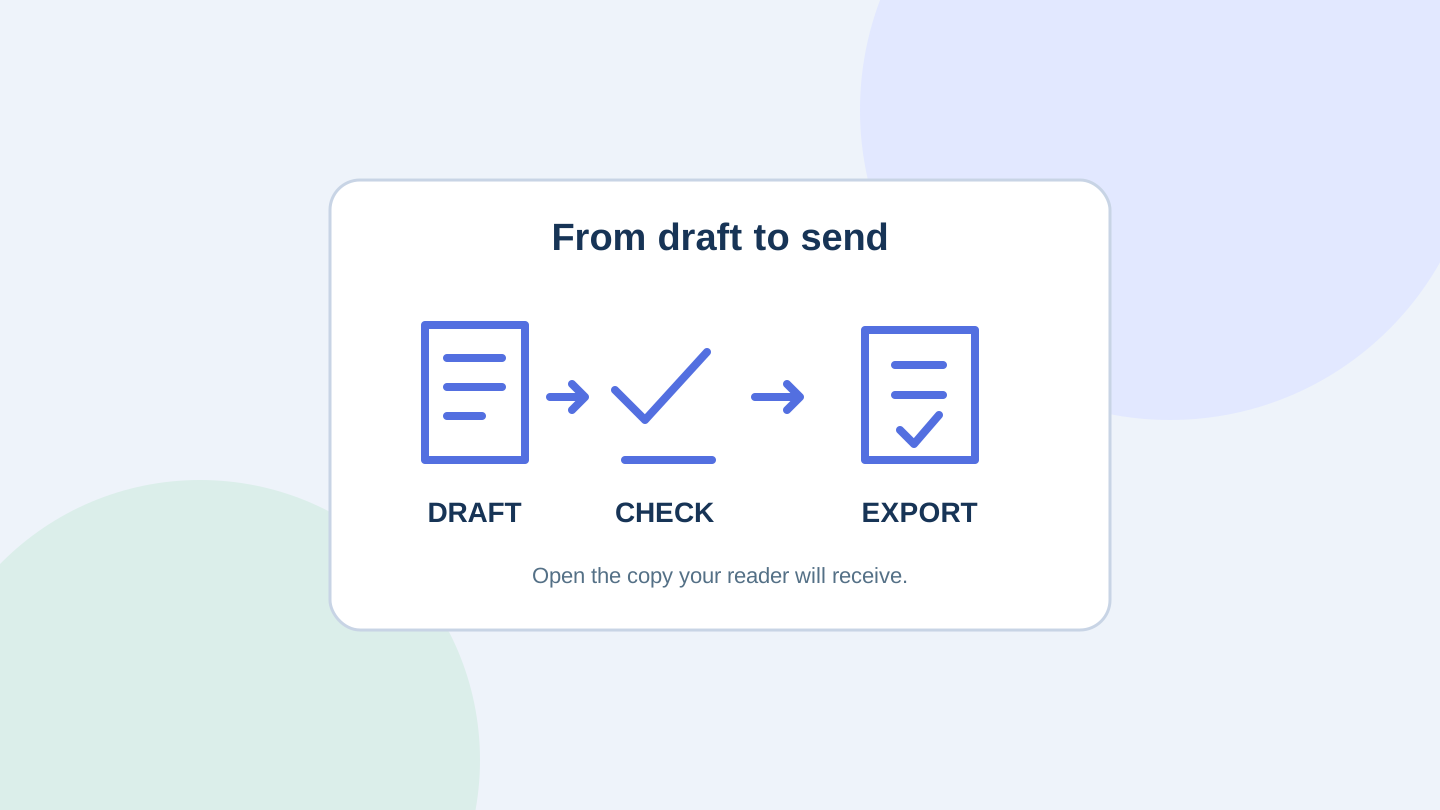
A polished PDF can still contain a wrong date, a missing condition or a table that breaks across pages. Gemini now lets you revise files inside a chat. Before sharing one, open the exported copy and check both its content and its pages.
Google's 29 October announcement adds in-chat previews, direct typing in a full-screen view and edits requested against highlighted text. PDF preview and editing work on web and mobile; Google lists Docs, Sheets, slide decks, Markdown, text files and code as web-only for this editing experience. File generation itself was already available.
For a short meeting brief, club notice or study handout, work from a small source document to a checked final copy. This guide is based on current documentation, not a hands-on test of the new editor.
Choose where the finished file needs to go
Start with the recipient's needs. If someone must change the wording, keep an editable document. If they need a printable handout, prepare a PDF and check its pages. If they need to recalculate figures, keep a spreadsheet rather than sending only an image of a table.
| Your next task | Suggested approach |
|---|---|
| Revise a short handout on a phone | Try the PDF workflow; check the saved result in a PDF viewer. |
| Make substantial text revisions | Use the web editor and retain an editable master. |
| Send a document for team review | Export to the agreed destination and check its sharing permissions there. |
Google's Gemini Apps guide lists file generation formats including DOCX, XLSX, CSV and PDF, with downloads or Drive exports for most formats. That export list is broader than the new announcement's editing list. Do not assume every downloadable format has the same in-chat editor.
Give the draft a brief you can check
Use a copy of material you are allowed to upload. For a first attempt, choose a short document whose facts you can verify yourself. Google's upload guidance warns that large files can produce answers that miss details or connections. A successful upload is not proof that every page was understood.
Suppose you are making a fictional community workshop notice. Your notes contain a start time, a venue, three activities and one unresolved accessibility question. Name the file format and the facts that must stay unchanged:
Create a one-page PDF notice from these notes. Keep the supplied time, venue and activity names exactly as written. Put missing information under “To confirm”; do not fill it in. Use the paper size I specify. Before generating the file, list any contradictions in the notes.
Treat this suggested prompt as a starting point and inspect what it produces. Choose A4 or US Letter to match the intended printer or recipient, rather than relying on an unstated default. Read the factual content before spending time on colour and typography.
Make one change at a time
In the new preview, use direct typing for a precise correction you already know. For an AI rewrite, select the relevant passage and limit the request: shorten the introduction, preserve the venue and time, and leave the activity list alone. Compare the result with the version you had before.
For example, a request to “make this more inviting” could accidentally turn a provisional activity into a firm promise. A narrower instruction is easier to check: “Shorten this paragraph to two sentences without adding facts. Keep the final sentence saying the schedule is provisional.”
Save a copy before a major rewrite. Ask for a change summary, but check the changed section yourself; a model's own account of its edits is not independent verification. If the result repeatedly changes wording you asked it to preserve, finish that section manually in your usual editor.
Check the file you will actually send
Download or export the finished version, then open that exact copy. Our suggested final check has four parts:
- Facts: compare every name, date, number and condition with the source notes. Resolve the “To confirm” items or leave them clearly marked.
- Pages: inspect each page for clipped text, isolated headings, split tables and missing footers. Use print preview if it will be printed.
- Use: click the links and try selecting the text. For a spreadsheet, inspect formulas and totals separately. Visual polish does not establish accessibility or calculation accuracy.
- Delivery: give the file an unambiguous version name and verify that the recipient can open the attachment or access the shared document.
If only the layout fails, correct it in the destination editor. Rewriting accurate content again to fix a page break introduces another change to review. Keep the source notes, editable master and sent version together so a later correction starts from the right file.
Check access before changing plans
Google says the new capability is available to users in supported Gemini locations and languages. Its web availability list includes Australia and the United States. We have not verified its appearance in individual accounts, and upload limits still apply.
This is separate from the Gemini side panel inside Google Docs. Google's Docs guidance describes eligible Workspace or Google AI plans and experimental access for that experience. Seeing a plan requirement in Docs does not by itself establish that you must upgrade to use file editing in the Gemini chat app.
For workplace files, use your organisation's approved account and rules. Google's consumer privacy guidance explains human review and activity controls; do not treat a personal chat as an approved destination for confidential work. Start with non-sensitive sample notes if you are simply exploring the editor.
Researched and drafted with AI assistance, then separately revised and checked against the linked sources on 30 October 2026. The suggested workflow and fictional example were not tested in a Gemini account. The cover is an original conceptual diagram, not a product screenshot. No affiliate links or paid product placement are included.