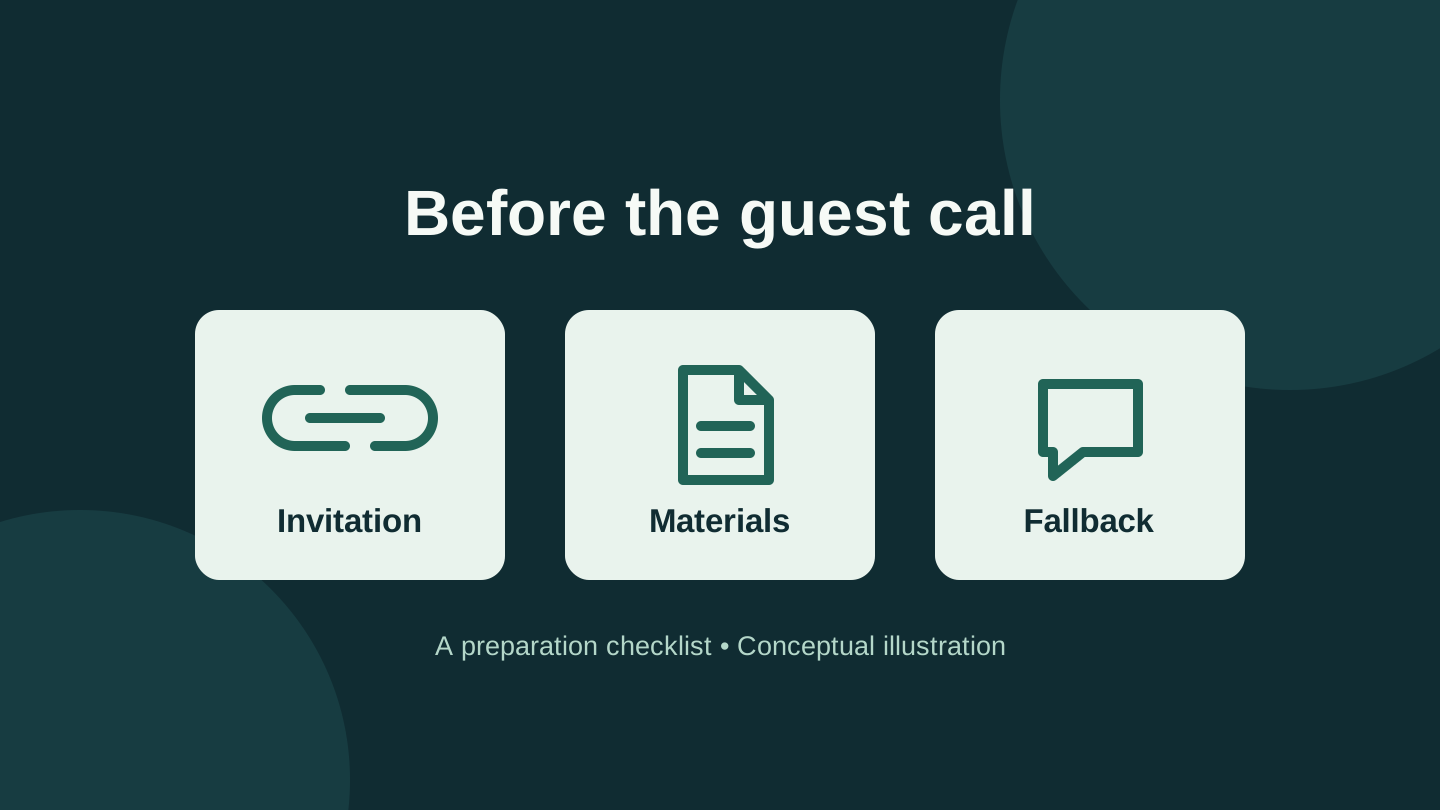
Before arranging a WhatsApp call with someone who does not use the app, send the meeting materials and a way to reach you as well as the call link. The link gets them to the call, the material lets them follow the discussion, and the contact gives them somewhere to ask for help.
WhatsApp's 14 October 2026 announcement describes guest access through a computer browser. The organiser needs a WhatsApp account; the guest enters a name and waits for the host to admit them. Guests can share their screen, react and raise a hand, but cannot send messages, see participants' phone numbers or directly add people. WhatsApp says these calls are free, end-to-end encrypted and support up to 32 people without a time limit. Internet or mobile-data charges are separate.
These features can suit a short presentation or a family catch-up. If the discussion depends on exchanging links, arrange another way to share them. The following is a suggested workflow based on documentation, not a test of call reliability.
Send a useful invitation
Start by asking whether the guest will have a laptop or desktop available. Do not promise that opening the invitation on a phone will provide the documented guest experience. Also check that the person can receive and open the material you want to discuss.
The host creates a link from WhatsApp's Calls tab using the plus control. Share it through a channel the guest already uses. Put the date, time zone, expected joining name and fallback contact beside it. For a first call, suggest arriving a few minutes early so joining difficulties do not consume the discussion.
Here is an example invitation to adapt. Replace every bracketed item before sending; it is a template, not a real meeting.
Our call is on [date] at [time and time zone]. Open [call link] on your computer and enter [agreed name]. I will admit you. Please open [document or material] beforehand. If you cannot get in, contact me at [existing email or phone contact]. We will discuss [one-sentence agenda].
A recognisable name helps the host match a request to the invitation, but does not verify who entered it. For an unfamiliar name, check through the existing contact channel before admitting the person.
Keep the material separate from the call
Imagine a volunteer coordinator showing a new helper a draft event roster. Beforehand, the coordinator should check that the helper can open the roster and identify the version they will discuss.
Send only the material needed for that conversation, with suitable access permissions. Ask the guest to open it before the meeting. A visible filename or revision date makes it easier to confirm that both people are looking at the same thing. Avoid sending a whole folder when one document will do.
Use screen sharing to point to a particular row or explain a change. Keep a separate method for collecting corrections and sending the final version. Seeing a document on someone's screen does not give the viewer an editable copy or permission to access its original location.
Our suggested preparation checks are:
| Check | Before the call |
|---|---|
| Entry | The guest has the link, a computer and the agreed joining name. |
| Material | The guest can open the specific file or page you will discuss. |
| Fallback | Both people know how to make contact outside the call. |
If any one of those checks fails, solve that problem first. Check document access and microphone settings separately from the call link.
Check browser permissions without opening everything
For Chrome users, Google's camera and microphone guidance explains both site permissions and computer-level access. In Chrome Settings, open Privacy and security, then Site settings, and inspect Camera or Microphone. Check the selected microphone and any physical headset mute switch too.
Google also documents permissions for individual sites. Adjust the relevant site instead of granting blanket access. A one-time permission may be suitable for an occasional call where that option is offered. On a work or school computer, an administrator may control these settings; ask the administrator or use an approved alternative if access is restricted.
Decide whether this call format fits
For the roster example, a conversation, a shared view and follow-up by email may be enough. A session built around live text questions, rapid link exchange or a phone-only guest has different requirements. Confirm those needs before choosing a service, and try the actual setup before relying on it for a time-sensitive event.
The launch announcement describes Google Calendar and Outlook integrations as planned for later in the year. This guide does not assume those integrations are available on your account. A manually prepared invitation keeps the instructions explicit.
Before finishing, agree who will send the updated material, which channel they will use and when the recipient should expect it. Write that next step into the follow-up so neither person has to reconstruct it from memory.
Editorial disclosure: Research and editing used AI assistance. This guide synthesises official documentation and offers a hypothetical preparation workflow; Techotick has not tested guest calls, browser compatibility or meeting reliability. The cover is an original conceptual diagram, not a WhatsApp screenshot. No sponsorship or affiliate links.