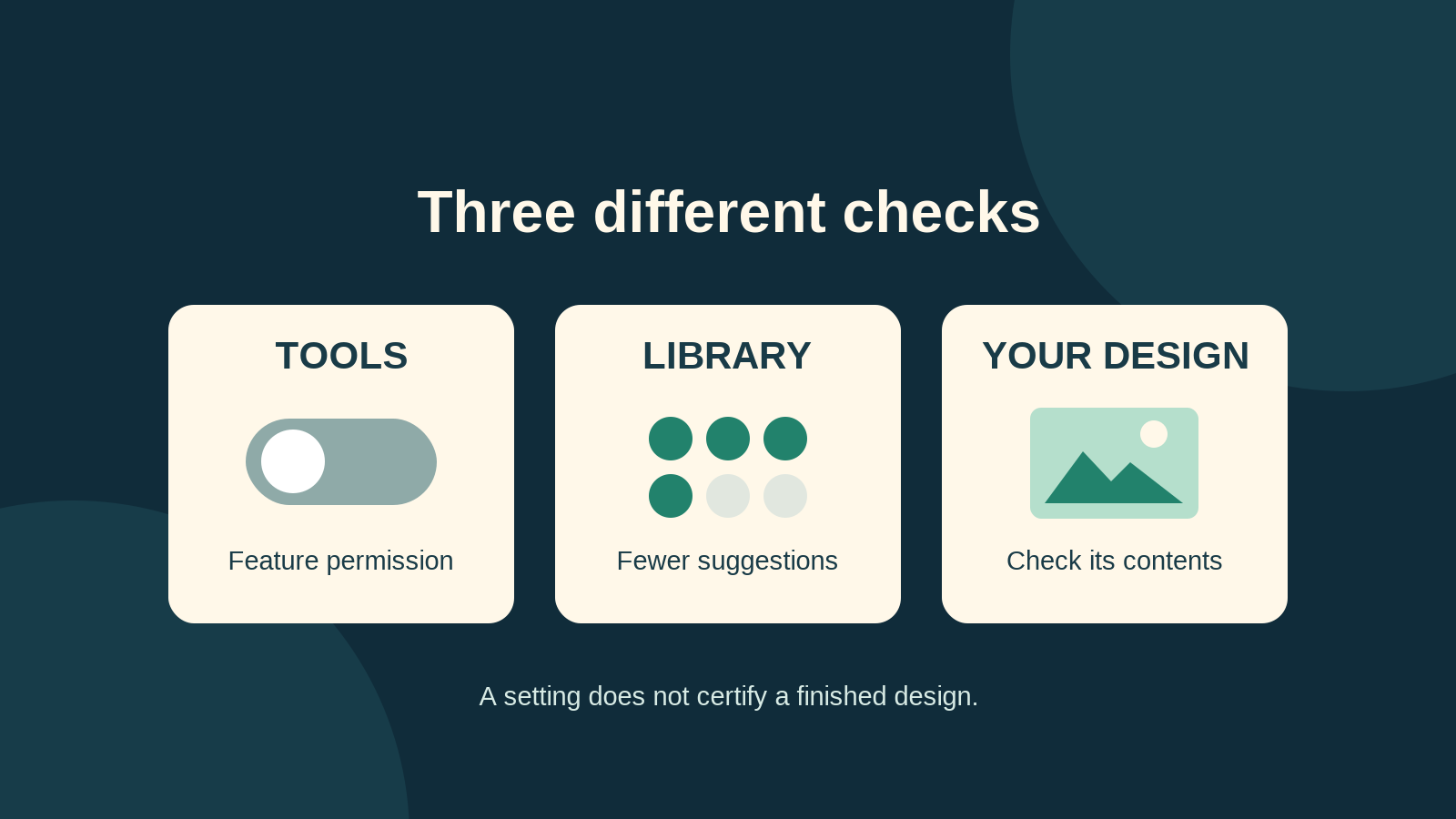
If you have turned off AI in Canva and still see an AI-made graphic, first check where it appears. A tool button, a library result and an element already inside your design are different things. Changing one setting does not necessarily change the others.
Canva's new controls for Free and Pro let you hide generative features and reduce AI-made library content separately, at no extra cost. They offer useful choices, but an off switch is not proof that a finished design contains no AI-generated material.
Match the problem to the right control
| What you notice | What to check |
|---|---|
| A generative tool is available | Check the generative-feature permission for the account you are using. |
| AI-made library suggestions | Check the separate AI-generated content preference. It reduces results, not every occurrence. |
| An AI-made element in an old design | Inspect the design itself. The library preference leaves existing content in place. |
| A different result at work or school | Ask the owner or administrator to check that workspace's AI permissions. |
For the first row, Canva documents Profile → Settings → Controls and permissions → Permissions → Enable generative AI features. For the library preference, use Profile → Your account → AI personalization → AI-generated content and turn it off. Follow the dedicated control guide rather than guessing from a general headline.
The library preference covers search results and recommendations on the homepage and in the editor. It does not cover Brand Templates, your own uploads or designs, Canva AI searches, third-party apps, or API/MCP access. Canva describes a gradual rollout; a missing control alone does not establish a fault.
Review a reused design before calling it AI-free
Imagine Maya prepares a club poster by duplicating last month's design. She switches off generative features and reduces AI content in the library, then changes the date. An illustrated background carried over from the old poster still needs its own check. This is a hypothetical example, not a tested Canva session.
For a project that requires human-made artwork, keep a small asset record: where each picture came from, who supplied it and what evidence supports its origin. If an inherited element's origin is unclear, ask the person who added it or replace it with material whose source you can establish. Neither a cleaner search result nor an absent label answers that provenance question.
Canva says AI-made library assets carry identifying metadata. It also says assistive tools such as Background Remover and Magic Grab remain available when generative features are hidden, and those tools do not themselves add its AI-generated label. That distinction explains why an editing tool can remain visible; it does not certify every other element in the file or predict another platform's labeling.
Check the account before changing more settings
Team and organisation controls are managed by owners and administrators. Canva documents these for Teams, Business, Enterprise and Education. A personal preference is therefore a poor substitute for asking what the shared workspace permits. Note the account, workspace, affected feature and visible setting when requesting help.
Canva also says the generative-feature setting does not carry over between Free/Pro and Teams, Enterprise or Education. Recheck after an account moves between those plans; opening a different design is not the documented trigger.
The Australian-English general FAQ still says Canva AI cannot be fully turned off. The dedicated guide describes controls for supported generative features, while assistive editing remains available. These pages use different scopes; the general FAQ does not establish an Australian exclusion. Account-level availability has not been tested for this guide.
Before sharing a design, check the outcome you actually need: fewer generators, fewer library suggestions, or known origins for the finished artwork. For the last of those, spend the final check on the pictures in the design, not just the settings screen.
Method: AI-assisted research and drafting, separately edited against Canva documentation on 20 November 2026. No account, rollout, export or social-label testing was performed. No sponsorship or affiliate links. The cover is an original conceptual diagram, not a Canva screenshot.