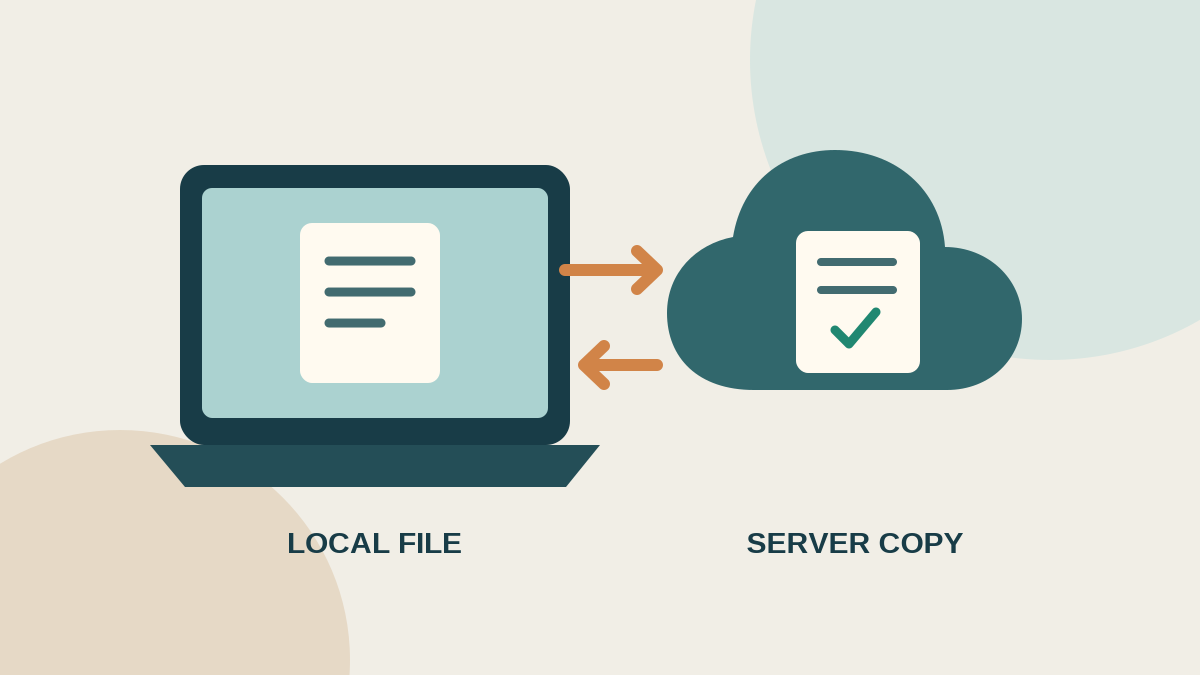
You can finish a document in Nextcloud Office Desktop without an internet connection. A saved local edit may still need to reach the copy your colleague will open. Before treating a saved edit as shared, establish where the file lives and how it reaches your Nextcloud server.
Nextcloud's 13 November release announcement describes local offline editing and a separate connection to Nextcloud Hub for online work. The app is powered by Euro-Office and is available for Windows, macOS and Linux. Start by identifying which route your document uses.
Start with the file you actually opened
The official download page lists Nextcloud Office and Nextcloud Files separately. Office edits documents; the Files desktop client synchronizes selected folders between your computer and a server. Installing an editor is not evidence that a particular folder is being synchronized.
| How you opened the document | What to check next |
|---|---|
| A local file outside a configured sync folder | Confirm its saved path. Decide explicitly how you will upload or share that copy. |
| A local file inside a Nextcloud sync folder | Check the Files client's connection, activity and errors after saving and reconnecting. |
| A file through Office's connected Nextcloud instance | Confirm the instance, account and document. This is the online route for working with collaborators. |
Similar filenames are not enough. A downloaded document in Downloads and the original on the server can look identical before you start editing. Record the folder or connected instance as well as the name.
For online access, Nextcloud documents adding an instance from the Clouds section of Office's Home tab, entering its URL and signing in. Multiple instances can be connected, so check which one you selected. Do not assume an online file is available offline merely because its name appeared in the app.
Check the handoff after an offline session
For a file in a synchronized folder, save your work and reconnect, then inspect the Files client. Its user manual distinguishes a current, connected state from syncing, paused, offline and error states. The main dialog exposes recent activity and errors; an editor's saved state does not replace that check.
Our suggested verification is to open the intended server document in the browser and look for one distinctive edit you just made. Confirm the account and folder first. This checks the result that a collaborator will find more directly than relying on the filename or a local timestamp.
For example, in a hypothetical club agenda, you change the meeting room from Cedar to Banksia while travelling. When you reconnect, look for Banksia in the server copy. If it still says Cedar, establish whether you edited a separate download, whether sync is pending, or whether the client reports a conflict. Do not immediately overwrite the shared document: another person may have changed it too.
A conflicted copy needs comparison
Nextcloud's conflict documentation explains what happens when both local and remote versions change between sync runs. The client retains the local changes in a separate conflict file and downloads the remote version under the original name. By default, that conflict file is not uploaded.
That makes a browser-only check incomplete when a conflict exists: your local work may still be on the computer that produced it. Preserve separate copies of both versions before editing either one. The documented resolution is to bring the relevant local changes into the base file; decide what belongs there with the other editor when the changes disagree. After saving the resolved file, check synchronization and reopen the server copy before discarding your working copies.
A conflict is not the same thing as live co-editing. The latter lets connected collaborators work on the online document; folder synchronization must reconcile files that may have changed independently. This guide does not establish that every apparent loss of an edit is a conflict or provide a recovery guarantee.
Try the route before you depend on it
Before a trip or a shared deadline, use a disposable document to rehearse your chosen workflow: open the local file, disconnect, edit and save, reconnect, then inspect the server result. Use a harmless distinctive sentence. If you need simultaneous work, check the connected collaboration route with a colleague instead.
The Office app is offered as a free download. Hosting, support and organizational access are separate choices; this guide does not quote a hosting price or assume a particular server configuration. Check the current installer for your operating system and processor, especially before planning around an older computer.
Editorial disclosure: AI assisted research and drafting, followed by a separate editorial revision against documentation checked on 27 November 2026 in Sydney. Techotick did not install the app or test offline editing, synchronization, conflicts or recovery. The agenda example is hypothetical; the rehearsal is an editorial suggestion. No sponsorship or affiliate links. The cover is an original conceptual illustration, not a Nextcloud screenshot.
Sources
- Nextcloud Office Desktop release and connection instructions — Nextcloud
- Official desktop downloads: Files and Office — Nextcloud
- Using the synchronization client — Nextcloud
- How desktop synchronization conflicts work — Nextcloud