A quiet Ring app does not tell you whether your camera missed an event. Start by finding the time in Event History and opening the recording. A saved clip with no phone alert needs a different investigation from an event that is absent altogether.
Ring's Single Event Alert and Unusual Event Alert deliberately reduce notifications in different ways. The useful question is whether those choices still match what you want to hear about. This guide explains the documented controls and a way to compare them; it is not a camera test or a guaranteed fix.
Find the recording first
Choose one incident you can place at a known time. Check the correct camera and expand grouped events. Ring says its intelligent features keep recordings in Event History; its Event History Filter can show them without grouping. That describes how the features handle recordings, not a promise that every real-world movement was captured. Ring's feature guide explains the distinction.
| What you find | What to check next |
|---|---|
| Video exists; no alert arrived | Alert filters, snooze or schedules, then the receiving phone's notification settings. |
| Several clips sit under one event | Open the group before treating the other clips as missing. |
| No matching recording | Check device status, recording entitlement and motion settings. Do not assume an alert filter explains missing footage. |
| One phone alerts; another stays quiet | Compare settings on each phone. A setting on one handset does not establish the other's state. |
Keep the event time, camera name and the result of this first check. Those three details give support a more useful starting point than “notifications are broken”.
Choose which kind of quiet you want
Single Event Alert groups similar activity from one camera. Ring says it combines related triggers and adds a brief processing delay. It is a candidate when the problem is repeated interruptions about the same activity. It is not the same control as reducing motion sensitivity. See Ring's Single Event explanation.
Unusual Event Alert filters activity against recent patterns. It aims to notify you about departures from what the system considers routine. Ring says learning time varies and notifications continue normally while it learns. See its Unusual Event explanation.
Our judgment: if a familiar arrival is precisely what you want to hear about, filtering for unusual activity may be a poor match for that camera. If repeated visits around one task are the annoyance, grouping is the more relevant feature to evaluate. Neither setting proves an event was harmless or that an important visit will always generate a timely alert.
Both filters rely on Video Descriptions. Both filters need it enabled. Turning Video Descriptions off also disables both filters and removes the descriptions from Event History. Keep it unchanged while comparing one filter, so the result is easier to interpret.
A worked example: a 4:10pm clip, no ping
Imagine a household expecting a regular visitor at 4:10pm. The recording shows the arrival, but the phone stayed silent. The saved video establishes that this incident was captured; it does not identify why the notification was absent.
First record whether Unusual Event Alert, Single Event Alert and Video Descriptions are enabled for that camera. If Unusual Event Alert is on and the household wants routine arrivals announced, compare behavior with that filter off while keeping the other settings unchanged. Arrange an ordinary test visit while someone is present. Keep important deliveries out of the experiment.
Write down whether the new recording exists and whether an alert arrives. An improvement is useful evidence, not proof that the filter caused every past failure. Lighting, movement, connection and other conditions can differ. If nothing changes, restore the noted setting if appropriate and investigate another cause rather than repeatedly changing the whole system.
Change one control and keep a baseline
Ring's documented route is menu → Pro Features, where you can manage enabled features and devices. Its device-level route for Single Event Alert is menu → Devices → your camera → Alert Settings. Labels can vary with app version; check the selected camera before applying a change.
Keep Motion Detection separate from Motion Alerts. Ring describes the first as controlling motion recording and alerts, while the second controls notifications. Its alert settings guide also covers schedules. Turning detection off to make the phone quieter can undermine the recording you wanted to keep.
For a saved clip without an alert, Ring's notification troubleshooting guide recommends checking that the device is online, alerts are enabled and snooze or schedules are not suppressing them. On the receiving phone, inspect Ring notification permissions and Focus or Do Not Disturb. You can compare another authorized phone or tablet using the same test event. Do not share your account password to do this.
Stop the comparison if recordings are missing, the device is offline or the behavior remains unreliable. Record the model, app version, event time, settings changed and which phones received an alert, then use Ring support. A successful trial checks that incident; it does not certify future security coverage.
Check eligibility before changing a plan
These features require a compatible subscription, device and supported primary phone language. The Australian support guide documents both filters. The US guide excludes Ring devices in Illinois and lists incompatible products, including Ring Edge and Ring Car Cam. Check what your own app offers; a missing control is not by itself proof that the camera needs replacing.
Check your current plan and specific camera before upgrading. Read the terms shown in your account; paying for a different plan is not an established fix for missed alerts.
Researched and edited with AI assistance. Techotick did not test a Ring camera, account or notification timing for this guide. The 4:10pm example is fictional. No affiliate links or paid placement.
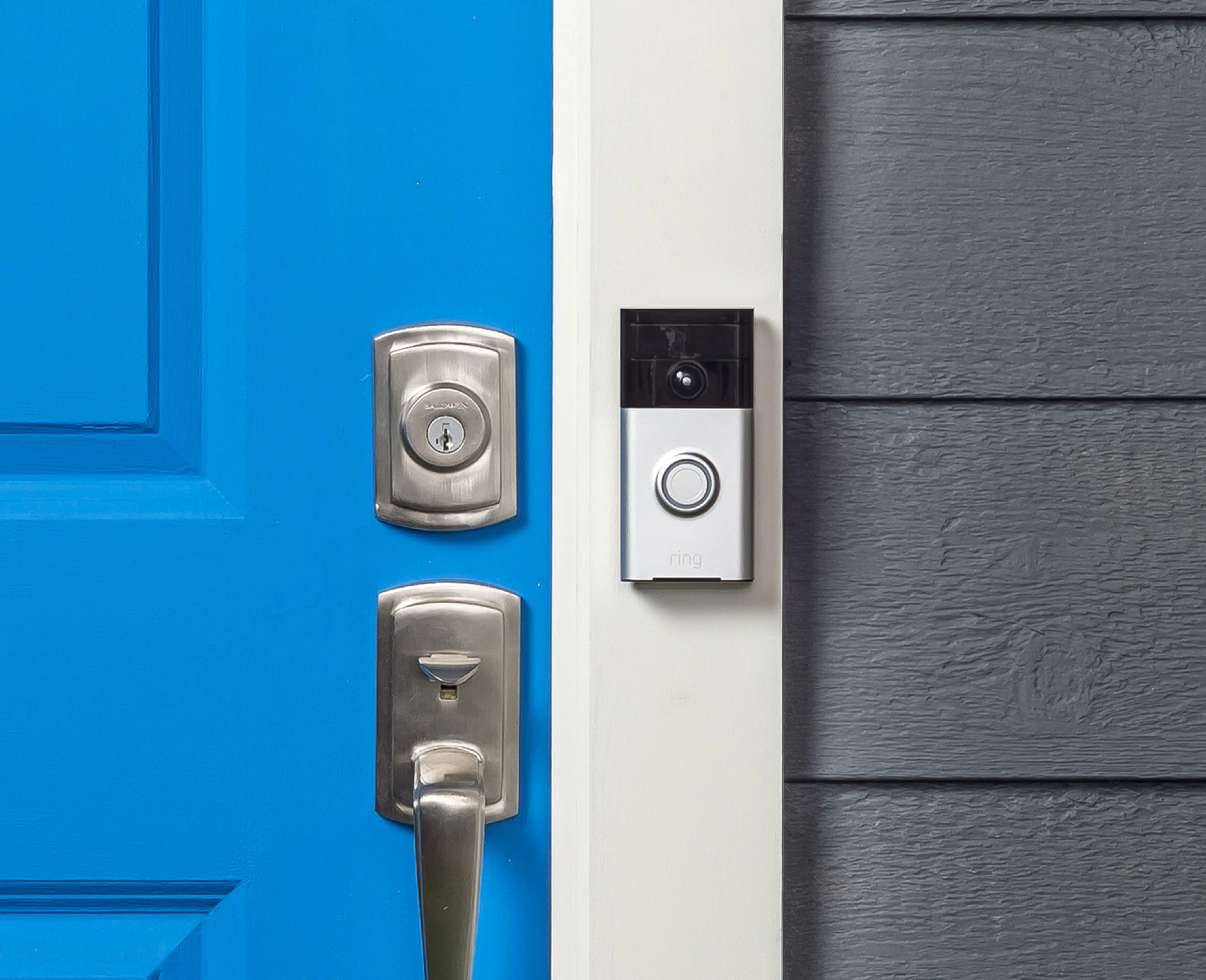
Cover: an older Ring video doorbell in a photograph supplied by Ring and archived in 2017, via Wikimedia Commons, CC BY-SA 4.0. Original image unchanged; listing display crops are under the same licence. It is not a current-model or feature-compatibility illustration, and does not imply Ring endorsement.
Sources
- Ring intelligent feature requirements and recordings — Ring
- Single Event Alert explained — Ring
- Unusual Event Alert explained — Ring
- Managing Ring alerts — Ring
- Troubleshooting Ring notifications — Ring
- Australian intelligent feature guidance — Ring
- Ring photograph and reuse permission — Wikimedia Commons
- CC BY-SA 4.0 licence — Creative Commons