If you can sign in to Todoist but a shortcut, script or connected app has stopped working, identify how that tool gets access to your tasks. A working Todoist login does not tell you whether the tool still has the credential it needs.
Todoist's November 2026 incident notice tells affected API-token users to update scripts and services with their new token. It gives different instructions for Slack and the Outlook email add-in. Follow the notice for your account; Todoist says users who received no incident email need take no action for this incident.
This guide focuses on restoring an authorized workflow after the required account-security steps. A successful reconnection does not establish that an account is secure or replace the rest of its incident instructions.
Identify which connection stopped
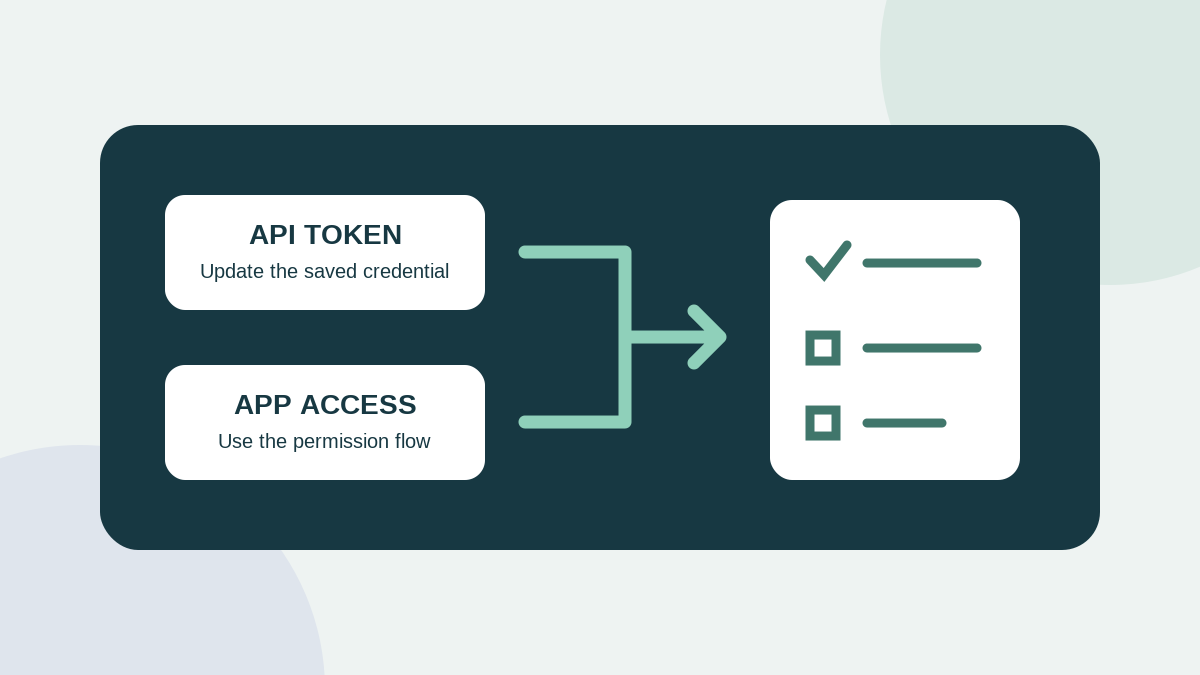
Start with the tool that normally creates or reads your tasks. Its settings should reveal whether you supplied an API token or signed in through Todoist's permission screen. Don't assume every app uses the same method.
| How you connected | Where to look next |
|---|---|
| You pasted an API token into a shortcut, script or service. | Check the saved Todoist credential in that tool. It may still hold the previous token. |
| The app sent you to Todoist to approve access. | Use that app's documented connection settings and authorization flow. |
| You use the Slack integration or Outlook email add-in. | Follow the specific reconnection instructions in Todoist's incident notice. |
Our suggested connection list is simple: tool name, account used, connection method, person responsible and last successful task. Record where the credential is configured, not the credential itself.
For a copied token, update the saved credential
In Todoist on the web, open your avatar menu, then Settings → Integrations → Developer → Copy API token, following Todoist’s current token guide. Put the current token into the existing credential setting of the trusted tool that needs it. Keep it out of task descriptions, shared notes, screenshots and support messages.
Copy API token and Issue a new API token do different things. The second creates a replacement. Todoist's security guidance says issuing a new token signs you out of active sessions across devices. Being sent back to sign-in after that operation is therefore expected; it is not, by itself, a reason to keep issuing more tokens.
If the token has already been replaced, sign back in and use the current one. Check each place that stored the old credential. For a work automation, involve its owner rather than changing a shared connection without knowing what else uses it.
For an app authorization, use its connection flow
Todoist's AI-assistant connection guide explains that approving access gives the assistant a token, while keeping your Todoist password from the assistant. You can review or revoke this access under Settings → Integrations. That is a different setup from pasting your personal API token into a script.
For an assistant that repeatedly asks to reconnect, Todoist recommends checking the assistant's status page. If the problem persists, its guidance is to disconnect from both sides and set up the connection again. Use the instructions for your specific assistant and review the permissions requested.
If your work or school account blocks the Outlook email add-in's reconnection, involve your administrator. Todoist's incident notice says organizational policy may block its new app while Microsoft verification is pending. Do not work around that policy by moving work mail into a personal account.
Test one task before resuming the whole workflow
Our suggested check is a small, non-sensitive trial that matches what the integration actually does. For a tool that only reads tasks, retrieve a known test task. For a task creator, submit one clearly labelled test item and inspect Todoist directly for its destination, wording and date.
For example, suppose a household shortcut normally adds shopping items to a shared project. After updating its saved credential, send “TEST — integration check” once. Check that one item appears in the intended project, then remove the test item. That result confirms this particular path worked; it does not confirm every scheduled job or every connection is repaired.
Before replaying missed work, inspect whether some tasks were already created. Keep a short record of what succeeded and what remains missing so you can avoid adding the same work twice.
If it still fails, capture the failure instead of cycling tokens
Check Todoist’s service status and notice history. It records a separate AI-assistant connection outage on 24 November, since resolved. A historical outage is context, not proof of the cause of a failure today.
Todoist's token guide also notes that older API versions can break custom shortcuts or scripts. Replacing the credential does not migrate an outdated API call. Ask the maintainer to check the linked migration guidance.
For support, record the tool and version, time and timezone, connection method, exact error with secrets removed, and whether the Todoist web app still works. Report the result of your small trial. This gives support a more useful starting point than “I reset everything.”
Editorial disclosure: AI assisted research and drafting, followed by a separate editorial revision against Todoist documentation checked on 28 November 2026. Techotick did not test an account, token reset, integration or incident response. The connection record and household example are editorial suggestions. No sponsorship or affiliate links. Cover: an original conceptual diagram, not a Todoist screenshot.
Sources
- Todoist November 2026 security incident — Todoist
- Find your API token — Todoist
- Todoist privacy and security — Todoist
- Connect Todoist to an AI assistant — Todoist
- Todoist service notice history — Todoist