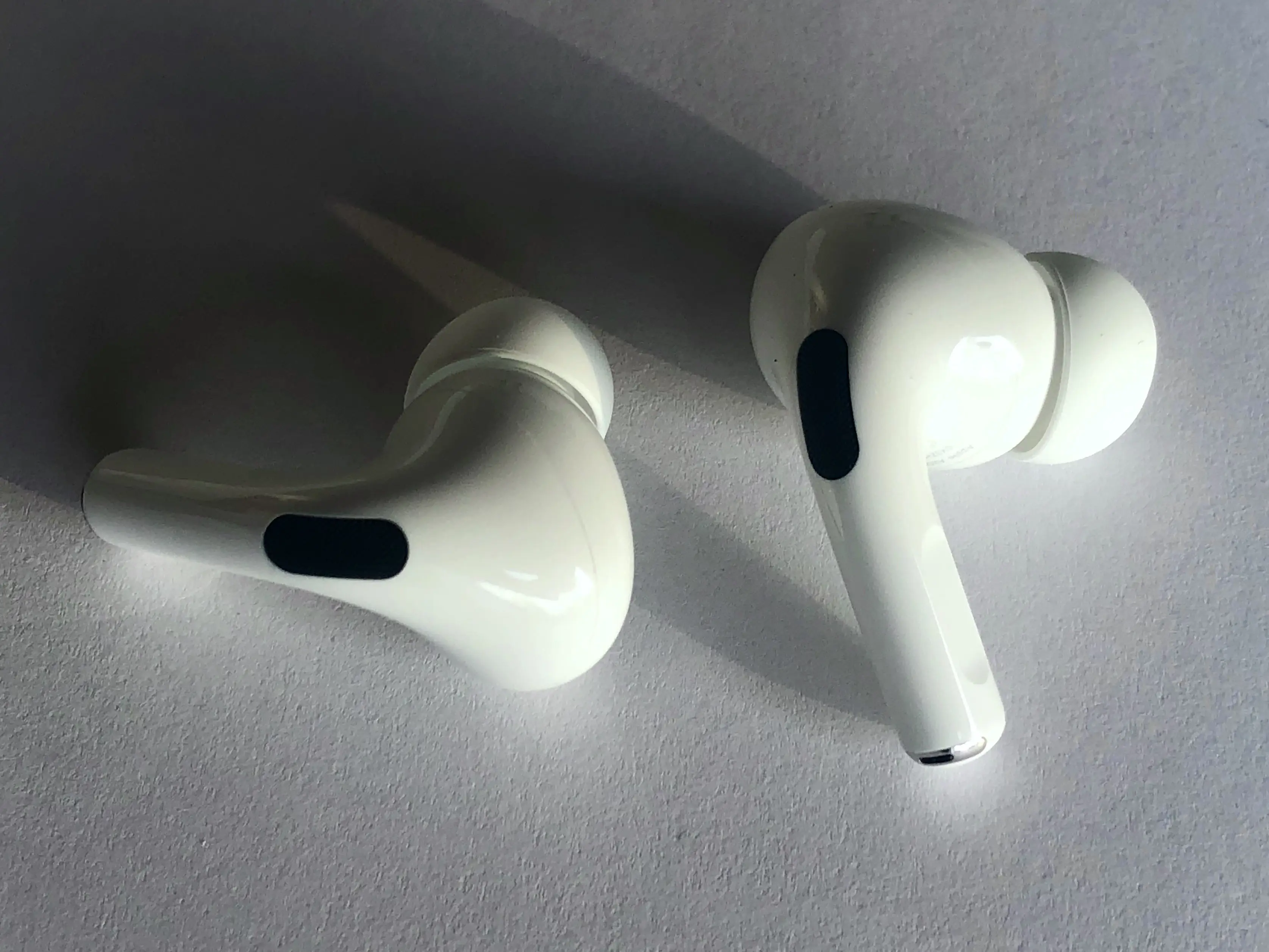
Cover: first-generation AirPods Pro, photographed in 2019 by Aconcagua / Wikimedia Commons, CC BY-SA 4.0. Original photo retained; listing thumbnails may crop it. The photo and its display crops remain under the same licence. This is an illustrative older model, not a photograph from our testing.
Your AirPods sound fine with a video, then a Teams call makes everything thin or muffled. Before replacing the earbuds, check what happens when the call uses a different microphone. That comparison can help separate a Bluetooth audio-mode change from a microphone that never reaches the app.
Keep the comparison outside an important meeting. Leave AirPods as the speaker throughout; only change the microphone.
This guide explains the documented Windows behaviour and a suggested comparison you can run yourself. We have not tested your AirPods model, PC, drivers or meeting account.
First, name the problem you actually have
“Bad audio” can describe three different failures. Write down the one you can reproduce before changing settings.
| What happens | What to check first |
|---|---|
| You hear thin or muffled sound only during calls. | Compare the same call with a different microphone selected. |
| You hear others, but they cannot hear you. | Check the app’s selected input and whether its microphone test records your voice. |
| Others hear you, plus the room around you. | Compare microphone placement and the app’s noise controls. This is a different question from playback quality. |
A successful music test proves playback worked at that moment. It does not establish that the call app selected the intended microphone or that two-way audio will sound identical.
Why starting a call can change the sound
Microsoft documents two paths for Bluetooth Classic audio: the Advanced Audio Distribution Profile (A2DP) carries stereo playback; the Hands-Free Profile (HFP) carries microphone audio and mono playback together. On Windows 11, the visible device name can stay the same while Windows changes the underlying mode.
Opening the Bluetooth microphone can trigger HFP. So can an app’s playback stream marked for communications. That second trigger matters: choosing the laptop microphone removes one reason to switch, but does not promise stereo in every calling app.
Windows 10 may show separate Stereo and Hands-Free entries. Windows 11 unifies these endpoints, so instructions telling everyone to find a second “Stereo” output can be misleading. These are documented Bluetooth Classic rules, not proof of the cause of every AirPods fault.
Run the same short call twice
Keep the room, volume and speaking position unchanged. Use a short private audio check with a neutral sentence. The aim is to change one setting and observe both directions of the conversation.
- Record the starting setup. Note the app, Windows version, selected speaker and selected microphone. Do not rely on a generic Default label if the named device is available.
- Try the AirPods microphone. Keep AirPods as the speaker. Use the app’s audio test and say a short neutral sentence. Listen for whether your voice is present, then whether it is understandable.
- Try a separate microphone. Keep the same speaker, choose the laptop’s built-in microphone or an existing USB microphone, and repeat. Use a microphone you already have so you can compare before spending.
- End the test and replay ordinary audio. Note whether playback returns to its earlier sound after the calling app closes. Record the result instead of assuming a setting fixed the whole system.
In Teams desktop, Microsoft documents Settings and more → Settings → Devices, with separate Speaker and Microphone selections and a test-call option. Some controls depend on the app and your organisation’s policies; meeting audio settings explain those limits. If the test option is absent, use an available in-app audio check or an agreed short call with a colleague.
Zoom likewise provides separate microphone and speaker choices. Its support page warns that Bluetooth microphone audio may sound lower quality to other participants. Listen to the recorded voice as well as the sound reaching your ears.
Use the result to choose the next step
If the separate microphone gives an acceptable call, you have a practical arrangement to keep: AirPods for listening, that microphone for speaking. Check it in your normal room. A laptop microphone may capture more keyboard or room noise, so better incoming sound alone is not a complete success.
If neither microphone records in the app, investigate input selection and microphone permissions before blaming Bluetooth sound quality. If only the AirPods input fails, keep the working input for the next meeting and give IT the exact device names and comparison results.
If playback stays poor with the separate microphone, the result does not disprove the communications-mode explanation. Try the same setup in another available call app to see whether the symptom follows the app. Avoid changing drivers and several audio settings at once: that makes the comparison harder to interpret.
Do not treat disabling Hands-Free Telephony as a microphone repair. The Classic hands-free path is what supplies the headset microphone. A listening-only arrangement is useful only when another working microphone covers the speaking task.
Check LE Audio before spending on an adapter
Windows support for Bluetooth LE Audio is a separate compatibility question. Microsoft says both the PC and the headset must support it; a Bluetooth LE label by itself is insufficient. Check the exact product specifications for LE Audio or TMAP support.
On the PC, look under Settings → Bluetooth & devices → Devices for Use LE Audio when available. If it is missing, Microsoft says the PC does not currently support LE Audio, potentially because of hardware or drivers. A toggle on the PC does not certify the earbuds.
For stereo playback while the microphone is active, Microsoft specifies Windows 11 24H2 or newer (build 26100.4484 or later), factory-integrated support and the necessary manufacturer drivers, plus a compatible audio device. The PC requirement alone does not establish that your particular AirPods support this Windows feature. Do not buy an adapter solely because it advertises a newer Bluetooth version.
AirPods firmware is another maintenance task, not a promised stereo fix. Apple’s update instructions use a nearby compatible iPhone, iPad or Mac; people without one can arrange an Apple Store or authorised-service appointment. Check current instructions for your exact model.
Before your next meeting, keep the setup that passes both tests: you can hear the call, and the call can hear you. If it still fails, send support a compact report: “App/version: __. Speaker: __. AirPods mic result: __. Laptop mic result: __. Sound after closing the app: __.” This preserves what you actually observed.
Editorial disclosure: AI assisted research and drafting, followed by a separate editorial revision and source check. This is documentation-based troubleshooting guidance, not hands-on hardware testing. No affiliate links, paid placement or supplied product are included.
Sources
- Bluetooth Classic Audio — Microsoft
- Manage your device settings in Microsoft Teams — Microsoft
- Manage audio settings in Microsoft Teams meetings — Microsoft
- Using Bluetooth headphones with Zoom — Zoom
- Check Windows Bluetooth LE Audio support — Microsoft
- Configure Bluetooth LE Audio quality — Microsoft
- About firmware updates for AirPods — Apple