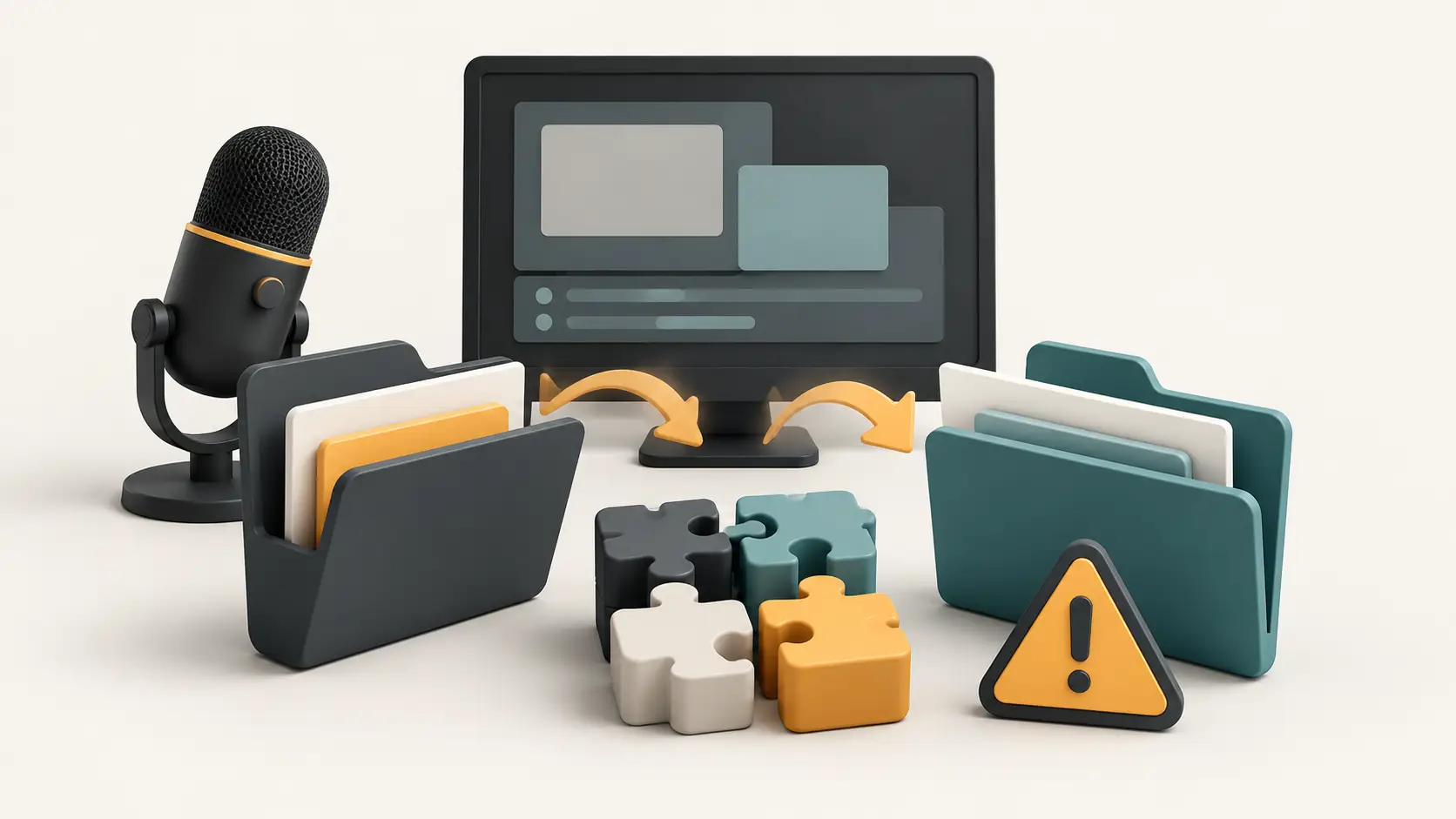
Before you reset a Windows PC, check three things separately: can you open your saved files, reinstall your important apps, and recover the work inside those apps? A familiar desktop after restoration does not answer all three.
Windows Backup can make a replacement PC easier to set up. But the word “backup” can hide important differences between a synced folder, an app shortcut and a usable copy of your work. Verify the result you need before changing the old installation.
What Windows Backup brings back
Microsoft’s consumer backup guide describes a service tied to a personal Microsoft account. Selected folders sync to OneDrive, and supported Windows preferences can return on a new device. Its documented folder choices include Desktop, Documents, Pictures, Videos and Music.
Windows restores app pins; selecting a Microsoft Store app pin starts its restoration, while other apps direct you to the web for an installer. A restored icon does not prove that the program, its licence or its working data is ready.
Start by opening Windows Backup and checking each category’s status. Resolve storage or sync errors before treating a folder as protected. Then check the actual files, rather than relying solely on a reassuring status label.
“Keep my files” still removes apps
According to Microsoft’s reset documentation, Keep my files reinstalls Windows and preserves personal files, but removes apps and settings. Remove everything removes personal files too. Microsoft recommends backing up important files before either route and having the BitLocker recovery key available if the device is encrypted.
Do not use the reset option as your only protection. If the original drive is the only place you can open an important document, you still need a separate, checked copy.
Make a small recovery checklist
Choose the things that would interrupt your week if they disappeared. Write down where each item is saved and how you would recover it.
| What matters | Check before reset |
|---|---|
| Important files | A separate copy you have opened, with the expected content and recent changes. |
| Essential apps | The official installation source and a way to sign in or reactivate the licence. |
| Work inside an app | The app’s documented export, backup or sync method, plus a checked example. |
| Account access | A working sign-in and recovery method that does not depend entirely on this PC. |
Here are three hypothetical checks. For a family photo folder, open several copied images, including a recent one. For a writing project, open the saved project in the application that uses it, not just its containing folder. For a game, check that game’s own save and cloud-sync guidance; do not assume installing the launcher proves progress is recoverable.
These checks are editorial suggestions, not a guarantee that every item is intact. Expand the sample for anything irreplaceable, and keep the original until you have verified the replacement. If an app stores data in an unfamiliar format, use its vendor’s export or migration instructions rather than copying random system folders.
Use File History for recoverable file versions
File History is a separate Windows tool that keeps versions of files in libraries on an external drive or network location. Microsoft documents adding other folders to a library when they need protection. It is useful for recovering files; it does not establish that your applications have been reinstalled.
Test a restore into a different location so you can inspect the result without replacing the current file. Microsoft’s instructions provide a Restore to option for this purpose and warn that restoring over the current version replaces it.
The Victorian government’s backup guidance also distinguishes continuously synced cloud storage from backups that retain snapshots, and recommends testing recovery. The practical question is whether your chosen service can recover the version you need after a deletion or unwanted change. Check its retention and recovery rules; the presence of a cloud icon alone cannot answer that.
Keep work-PC backup separate
Microsoft’s 28 October 2026 preview update for Windows 11 26H1 describes a Restore Summary showing restored settings and the Microsoft Store app list. Its linked Windows settings backup and restore documentation concerns managed devices and Microsoft Entra accounts. It is not evidence that the consumer app now preserves an entire PC.
The organizational FAQ limits that service to Windows settings and the Store app list; user data needs separate protection. On an employer’s device, ask IT which files and applications their process restores before resetting anything. A personal-account checklist is not a substitute for their recovery process.
The point at which to stop
Pause if a backup reports an error, a critical file cannot be opened from another copy, an essential app has no reinstall path, or you cannot recover the account needed to reach your data. Resolve that missing item first.
Once the new setup works, verify a real task: edit your current document, open your project or load your saved progress. Keep the old copy until those checks pass. Finishing setup is a useful milestone; being able to do your normal work is the check that matters.
Research and editing used AI assistance. This guide synthesizes the linked documentation; no reset, backup or recovery test was performed. The cover is an original conceptual diagram, not a Windows screenshot. No sponsorship or affiliate links.