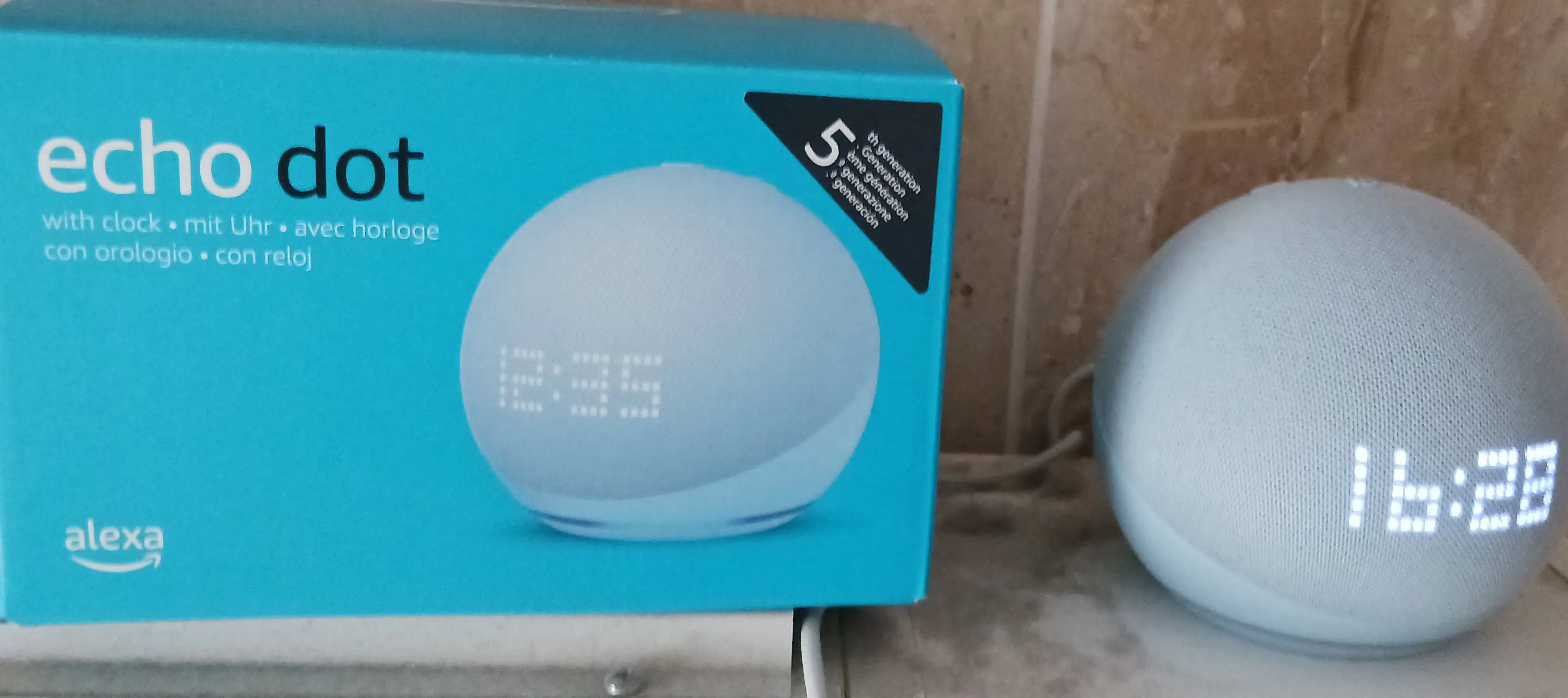
Photo: Echo Dot (5th generation) with clock, an existing supported model, photographed in 2023. Aktulisert / Wikimedia Commons, CC BY-SA 4.0. Original photograph; the site resizes it and crops listing thumbnails. Those image versions remain under CC BY-SA 4.0.
An Echo can fill a small Wi-Fi gap if you already have a compatible eero network. Buying one makes less sense when the real problem is a slow internet connection, a device that needs 2.4 GHz, or a room where you want fast downloads.
Amazon's new US Echo lineup and 28 October Australian announcement put Wi-Fi extension back in the spotlight. But eero Built-in also works with selected older speakers. Before buying another one, check the equipment you already own and the problem you want it to solve.
Start with the router and the device that needs help
According to eero's setup guide, you need a compatible eero router, a supported Echo, and linked Amazon and eero accounts. An Echo is not a universal extender for whatever router your internet provider supplied.
The published limits are up to 100 Mbps for ten or fewer connected devices, using 5 GHz. That makes this a coverage option, not a way to deliver a gigabit plan throughout the house. A 2.4 GHz-only smart plug cannot use this extended connection.
For example, consider a reading chair where a tablet keeps losing its connection. Trying an already-owned compatible Echo could be worthwhile. For a study where large downloads are the priority, improving the main mesh coverage is a better starting point. These are decision examples, not results from our own network tests.
Check your existing Echo before shopping
The support list names the fifth-generation Echo Dot, including the clock model pictured here. Check your exact model; Alexa support alone does not establish compatibility. The feature is listed for both the US and Australia.
The new Echo Dot's announcement prices are US$99.99 and A$199 RRP respectively. These are regional announcement prices, not checked checkout quotes. Older supported devices may already cover your need. The eero Built-in product page describes the feature as having no additional charge, so do not confuse it with an Alexa+ subscription purchase.
Amazon confirms eero extension for the new Dot, while the general support list we read still names earlier generations. Use the exact product listing and eero app to confirm a newly released model; do not assume an older specification table is a complete launch-day catalogue.
Some configurations rule it out
Before changing settings, check eero's incompatibility guidance. Built-in does not work when the eero network is in bridge mode, does not extend the guest network, and cannot operate on an Echo being used for Alexa Home Theater.
If another router deliberately manages your home network, consider why you chose that configuration before changing it for a spare speaker. Treat the missing feature as a tradeoff and compare other ways to improve coverage. Likewise, decide whether your Echo is more useful for TV audio or extension before changing its role.
An Echo can also be too close to an eero. The system may automatically disable extension where coverage is already good. An inactive extender therefore does not necessarily mean something is broken. Follow the app's placement guidance rather than repeatedly forcing it on.
Test the weak room, not just the internet feed
eero's speed guidance distinguishes the connection into the main eero from the Wi-Fi connection to your device. The app's speed test measures the first of those. A healthy result does not demonstrate that your laptop has a healthy connection in the back room.
Try this comparison before keeping an extender enabled:
- Use the same phone or laptop in the problem spot. Record a device speed test and try the actual task that fails, such as a video call.
- Enable the supported Echo and confirm in the eero app that it is extending. The documented route is Settings → Advanced networking → Amazon Connected Home → eero Built-in.
- Repeat the task from the same position. Check the connection information rather than assuming proximity means your device selected the Echo.
- Keep it enabled only if the result is more useful. If performance worsens or nothing improves, disable eero Built-in for that Echo and reconsider placement.
This is a suggested home comparison, not a controlled benchmark. Other traffic and device roaming can change the result. eero notes that client devices choose their connections, so walking near a speaker is not proof that traffic flows through it.
Choose the next step from the result
If several devices are slow even near the primary eero, investigate the incoming connection first. If that connection is healthy but one room is weak, look at placement and obstacles. eero recommends moving units out of enclosed spaces and considering an additional eero between the weak area and the nearest unit.
Our recommendation is to try compatible equipment you already own when the goal is modest coverage improvement. If you are buying hardware specifically for faster Wi-Fi, compare dedicated mesh options against the room's needs before paying for another speaker. Judge the result by the task you wanted to improve, not just the signal indicator.
Editorial disclosure: Researched and edited with AI assistance using the linked documentation. No Echo hardware, account setup or network performance testing was performed. No sponsorship, gifted product or affiliate links are involved.