If the Xbox app on your television is losing support, check the equipment you already own before replacing the screen. An app running inside a smart TV and a device connected to its HDMI port are different ways to play. A supported external device can let you keep using the screen.
The immediate concern is Samsung's 2020 smart TVs. In October, Windows Central published a Microsoft email announcing that the Xbox app would no longer be supported on those models from 3 November 2026. This is a reported support notice, not a failure Techotick has reproduced.
Check which part of your setup is affected
Start by finding the model rather than using the year you bought the TV. Samsung's US guidance points to Settings, Support, About This TV. Record the model code and compare it with any notice you received. Menu names can vary by model and region.
Then identify where the game starts. If you open Xbox from the television's own app menu, you depend on that TV app. If you select an HDMI input for an Xbox console or a separate streamer, that device provides the gaming software. The reported withdrawal concerns the built-in app.
There is a documentation wrinkle: on 27 October, Xbox's US and Australian TV pages still included selected 2020 Samsung models. Samsung's older-TV page also continued to advertise them. Do not treat an old compatibility entry as a promise that support will continue after the notice's date. Equally, do not assume every Samsung TV or every temporary app fault is affected.
Try an existing device before buying another
If you already have a console connected to the TV, check whether it can play the game you want with your current licence or subscription. For a spare laptop or desktop, Xbox documents cloud play through supported PC browsers. Try the service on that computer first; if the computer and TV have compatible video connections, an HDMI cable can make the TV its display. Keep the controller connected to the computer in this arrangement.
This is a useful buying test: if the game is missing from your account or the connection feels poor on an existing supported device, another streaming box may leave the same problem unresolved. For example, a household with a suitable spare laptop can test its existing account before ordering a streamer. A household with only a controller needs to budget for a supported playback device as well as any paid game access. Neither setup makes every Xbox game streamable.
Match the Fire TV model, not just the brand
For a separate TV streamer, the US Xbox compatibility page and Australian page both list these devices at the time of checking:
- Fire TV Stick 4K Max, first generation
- Fire TV Stick 4K Max, second generation
- Fire TV Stick 4K, second generation
- Fire TV Cube, third generation
Compare the complete model and generation on a listing or the device itself. A similar name, a newer release date or “4K” on the packaging is not enough to establish Xbox support. Check the current compatibility list again before paying.
Amazon's setup guidance describes installing the Xbox app, signing in to a Microsoft account and connecting a compatible Bluetooth controller. When using Fire TV, pair the controller with Fire TV. If it was previously paired to the television, check its pairing instructions before moving it over.
Check the ongoing cost and connection
Buying a streamer does not buy the games or unlimited cloud time. Check the games available to your account, your plan's allowance and renewal cost before deciding. Techotick's cloud-playtime guide explains how to compare hours you will actually use.
Xbox's Australian TV guidance recommends a wired connection or 5 GHz Wi-Fi at 20 Mbps or higher, while noting that location, connection and device affect streaming. Treat that as setup guidance, not a guarantee of responsive play. Test the games you care about where you normally sit.
For buyers in either the US or Australia, check local app availability and checkout terms on the exact device. Regional product pages do not establish your account's eligibility or today's retail stock. No USD or AUD hardware price is quoted here, and a US promotion should not be assumed to apply in Australia.
Our recommendation is to work outward from what you own: identify the affected app, try a supported device already available to you, then consider a verified streamer. A whole-TV replacement makes more sense when the display itself no longer meets your needs.
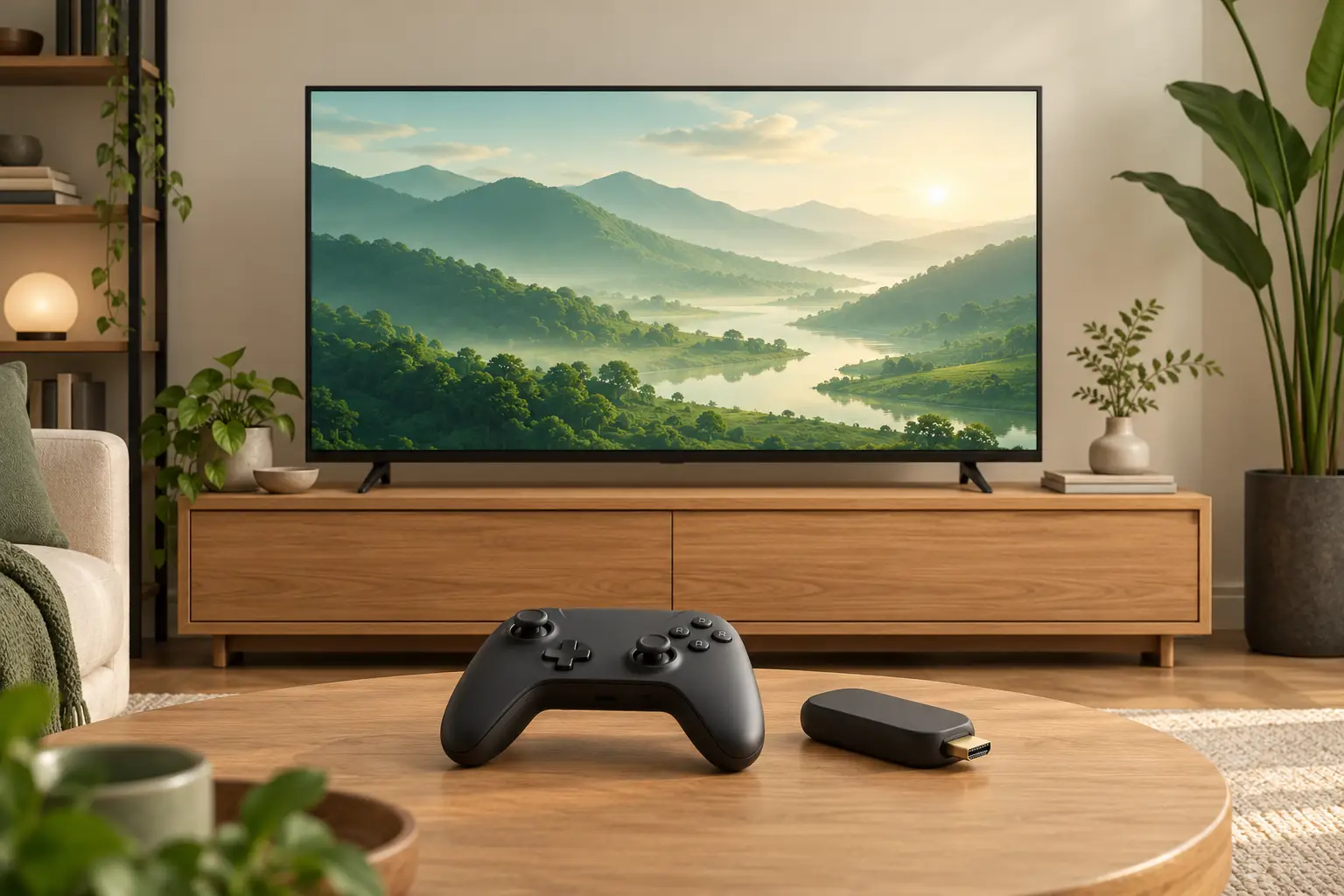
Editorial disclosure: AI assisted research and drafting, followed by source checks and a separate editing pass. This is a research-based guide; no TV, controller or cloud-gaming performance was tested. No sponsorship or affiliate links are included. The cover is an AI-generated conceptual illustration, not a photographed or tested setup.
Sources
- Microsoft TV support notice reported by Windows Central — Windows Central
- Samsung Gaming Hub for older TVs — Samsung
- Xbox on TVs — US — Xbox
- Xbox on TVs — Australia — Xbox
- Xbox Cloud Gaming — Xbox
- Xbox on Amazon Fire TV — Amazon