A monitor advertised at 165Hz, 240Hz or 360Hz can be a sensible PS5 purchase. The number on the box does not tell you which signal it accepts from the console. Before buying, find the manufacturer's supported resolution and refresh rate over HDMI for the exact model.
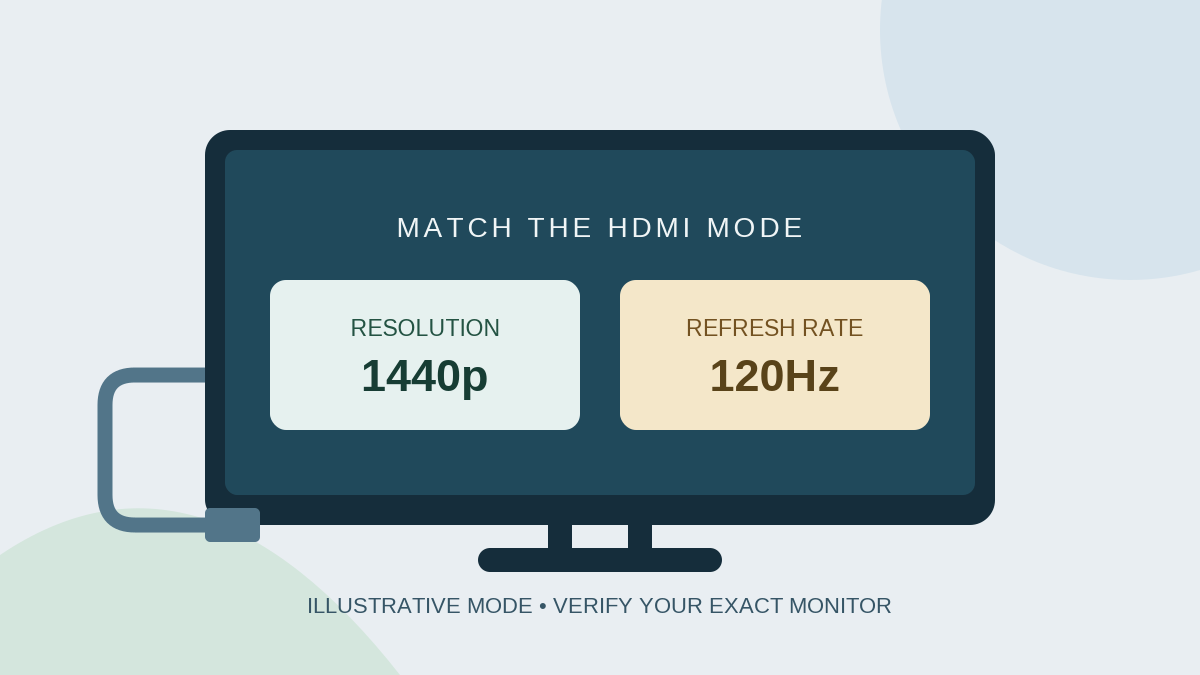
For a 120Hz setup, write down the mode you actually want: for example, 2560 × 1440 at 120Hz over HDMI. Then check whether the monitor documents that combination and whether your game supports a 120Hz mode. Use that complete mode as your comparison point when browsing sale listings.
Read the console specification separately
Refresh rate describes how often the display updates. It is not a promise that every game produces that many new frames. Sony's own 27-inch gaming monitor specification illustrates the distinction: it advertises up to 240Hz with compatible computers, but up to 120Hz with PS5 consoles.
BenQ's ZOWIE XL2566K specification makes the input difference especially clear. Its PC maximum is 1920 × 1080 at 360Hz through DisplayPort 1.4; its stated PS5 console maximum is 1920 × 1080 at 120Hz through HDMI 2.0. That is a manufacturer specification example, not our recommendation to buy this model.
It also shows why a blanket rule that HDMI 2.0 means 60Hz is misleading. Resolution, refresh rate and supported input must be considered together. For 4K at 120Hz, Sony specifies an appropriate HDMI 2.1 port and cable. For a lower-resolution setup, look for explicit console-mode support instead of rejecting or approving the monitor from its HDMI version alone.
Build a one-line comparison for each monitor
Use the product page, manual or manufacturer's console compatibility page. Search within it for “supported timings”, “preset modes” or “console mode”. Our suggested comparison record is:
Exact model → HDMI input → resolution at 120Hz → PS5 VRR support → evidence link.
| What the listing tells you | What to establish before buying |
|---|---|
| “240Hz gaming monitor” | Which resolution and input deliver that maximum, and which mode is documented for PS5. |
| “1440p” plus “HDMI” | Whether 2560 × 1440 at 120Hz is explicitly supported over that HDMI input. |
| “4K 120Hz” | The correct HDMI 2.1 port, required display setting and suitable cable. |
| “Adaptive sync” or a PC sync badge | Separate confirmation of PS5-compatible variable refresh rate, if you want that feature. |
VRR, or variable refresh rate, lets a compatible display vary its refresh timing with the console's output. Treat it as a separate requirement from accepting a fixed 120Hz signal. A successful check of one does not complete your check of the other.
If the documentation lists only the PC maximum, mark the console mode unconfirmed. Ask the manufacturer about the exact model and desired resolution. Missing documentation is not proof that it cannot work, but it is a poor basis for a purchase that depends on that feature.
A higher number can lose the comparison
Consider two hypothetical listings. Monitor A advertises 240Hz, but its available documentation specifies that maximum only for DisplayPort and does not confirm your intended HDMI mode. Monitor B advertises 165Hz and explicitly documents PS5 support at 1440p/120Hz over HDMI. For that particular console requirement, B has stronger evidence. A may still work; you simply have another question to resolve.
If both explicitly support the same PS5 mode, the larger PC refresh-rate number does not give the console a higher output ceiling. It may matter if you also use a capable gaming PC. Otherwise, compare the features you will actually use: size, image quality, stand adjustment, audio connections and price. This example establishes a way to assess the evidence, not a universal ranking of either monitor.
Match the full model code on the retailer's listing to the manufacturer's documentation. A similarly named screen may need a different check. The named products here illustrate specifications; their current local stock and prices have not been verified.
Confirm the mode with a supported game
Once connected, use Sony's video-output controls under Settings → Screen and Video → Video Output. Review the connected-device information. For 1440p, run Test 1440p Output to check supported combinations, then select 1440p resolution. Enable 120Hz output for compatible games.
Then check the game's own display options. ZOWIE's setup guidance explains that a supported game can switch to the higher rate when it starts. BenQ's guide also notes that the PS5 Performance Mode preset applies to games that support that choice. Do not use the home screen alone to judge the result, or assume selecting Performance Mode makes every game run at 120 frames per second.
If 4K/120Hz fails, Sony recommends checking firmware, the HDMI port and the supplied PS5 cable or a suitable Ultra High Speed HDMI cable. Test a direct connection if intermediary equipment is involved. Record the monitor model, port, game mode and observed output before asking for help. That gives support a concrete setup to diagnose.
Editorial disclosure: AI assisted research and drafting, followed by a separate editorial revision against manufacturer documentation checked on 29 November 2026. Techotick did not test a console, monitor, cable or game. The comparison record and hypothetical example are editorial suggestions. No sponsorship or affiliate links. The cover is an original conceptual diagram, not a product photograph or console screenshot.
Sources
- PS5 video output settings — PlayStation
- PS5 video output settings — Australia — PlayStation
- PlayStation 27-inch monitor specifications — PlayStation
- XL2566K PC and console specifications — BenQ ZOWIE
- PS5 console compatibility and game settings — BenQ ZOWIE
- PS5 monitor buying and settings guide — BenQ