Before replacing your laptop with a Snapdragon Windows model, check what your all-in-one printer must actually do. A printed page is useful evidence, but it does not prove that scanning, the document feeder or your usual document app will work with that computer.
That distinction matters when comparing laptop deals. If the new computer handles browsing and email perfectly but cannot complete your weekly paperwork, the discount may leave you with another problem to solve.
Check the task, not just the printer name
Microsoft's Windows on Arm FAQ says peripherals need drivers built into Windows or compatible Arm64 drivers from their maker. Windows can emulate many ordinary apps; that does not establish support for the drivers an app depends on. Microsoft also says Windows Fax and Scan is unavailable on Windows 11 Arm PCs.
Write down the exact printer model, the intended connection and the jobs you need. “Windows 11 compatible” is less useful than confirmation for Windows 11 on Arm and your required feature. A USB setup and a network setup should not be treated as the same tested arrangement.
| Your regular job | Evidence worth collecting |
|---|---|
| Print a document | A page from your everyday app, with the paper size and two-sided settings you actually need. |
| Scan one page | A readable saved file, opened from the folder where you expect to find it. |
| Scan a bundle | All pages captured through the feeder, in order, in the required file format. Check both sides if your workflow needs them. |
| Scan from a printer button or into a document app | The complete action reaching its intended destination, not just the device appearing in Windows. |
This is our suggested acceptance checklist, not a claim that every printer supports those features. Before buying, use the manufacturer's support information or ask support about the exact combination. If a demonstration or trial is possible, repeat your real task rather than relying on a salesperson's generic print test.
If the installer fails, check the supported setup route
A failed manufacturer installer does not by itself prove that you need a new printer. Microsoft acknowledges installer problems on some Arm PCs and directs users to Windows' printer installation instructions, unless the printer maker gives different Arm-specific guidance.
Confirm the computer's architecture under Settings → System → About; look at System type. Follow the instructions for that architecture and the exact printer, rather than repeatedly trying an unrelated driver package.
For example, Brother's US Arm support page provides a product list and separate network and USB setup routes. Its Windows 11 network route uses Settings → Bluetooth & devices → Printers & scanners → Add device. Check the listed product and its feature guidance; the setup instructions do not establish support for every bundled utility or scanning workflow. Use your region's support page for your exact model.
Confirm that Windows sees a scanner
Microsoft's scanner instructions give a useful check: select the all-in-one in Printers & scanners and look for Scanner settings. A multifunction device may appear under its printer name, so that name alone is not enough.
Once a supported scanner is installed, Windows Scan can capture a document. Select the correct scanner and source, choose the available file type and save location, then scan and open the result. If the app is missing, Microsoft links to it in the Microsoft Store. For a wireless setup, Microsoft says the scanner and computer should use the same wireless network.
Windows Scan is different from Windows Fax and Scan. Microsoft documents image output options for Scan, including JPEG, PNG, TIFF and Bitmap. Do not assume that a basic scan demonstrates your usual searchable, multipage PDF workflow; verify the software and output that job needs separately.
Make the buying decision from the unfinished job
Consider a hypothetical household that prints a form, signs it and sends a scanned copy back. Printing the form passes only the first stage. If the new setup produces a readable image but the recipient requires one multipage PDF, the household still needs a supported way to create that deliverable.
Keep a short record: printer model, laptop architecture, Windows version, connection, app and result. “Print works; feeder scan unconfirmed” gives support a much clearer question than “Is this printer compatible?” It also separates a purchase blocker from a feature you never use.
If an essential step remains unsupported or uncertain, get that answer before replacing a working setup. Check any trial or return conditions before relying on them. Neither buying a new printer nor choosing a different processor automatically verifies the complete workflow.
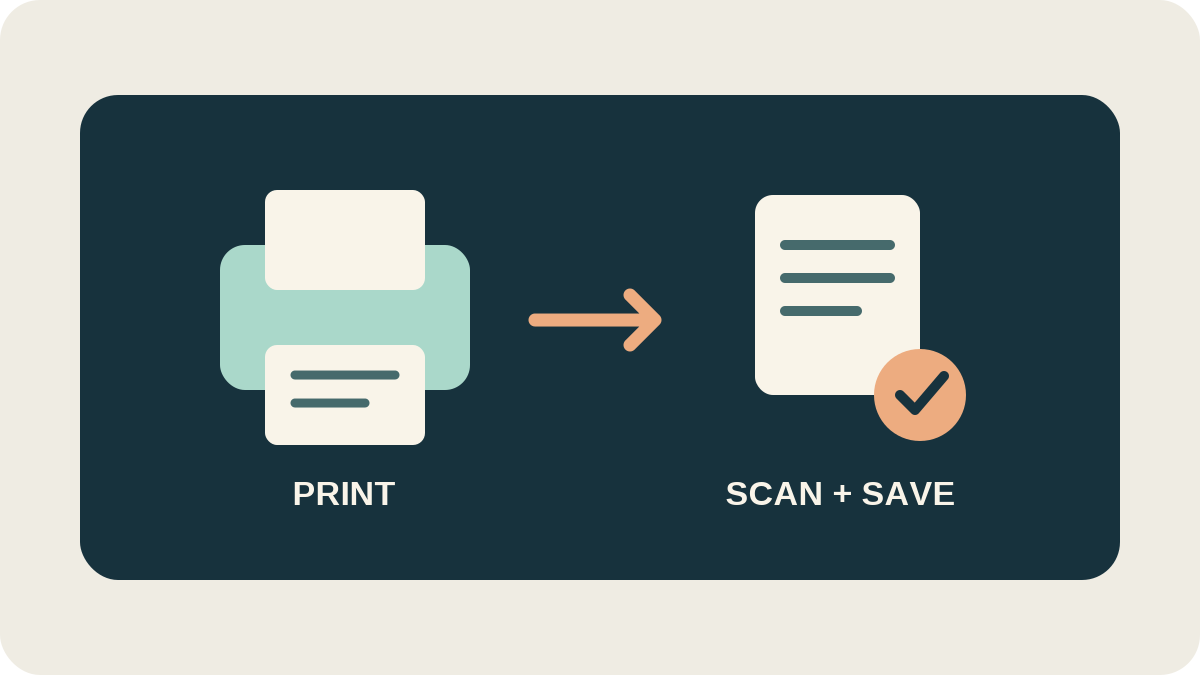
Editorial disclosure: AI assisted research and drafting, followed by a separate editorial revision against Microsoft and Brother documentation checked on 28 November 2026. Techotick did not test a laptop, printer, scanner, driver or regional model. The checklist and household example are editorial suggestions. No sponsorship or affiliate links. Cover: an original conceptual diagram, not a product photograph or Windows screenshot.
Sources
- Windows Arm-based PCs FAQ — Microsoft
- Help with installing printers on ARM PCs — Microsoft
- Install and use a scanner in Windows — Microsoft
- Using a Windows computer with an ARM processor — Brother