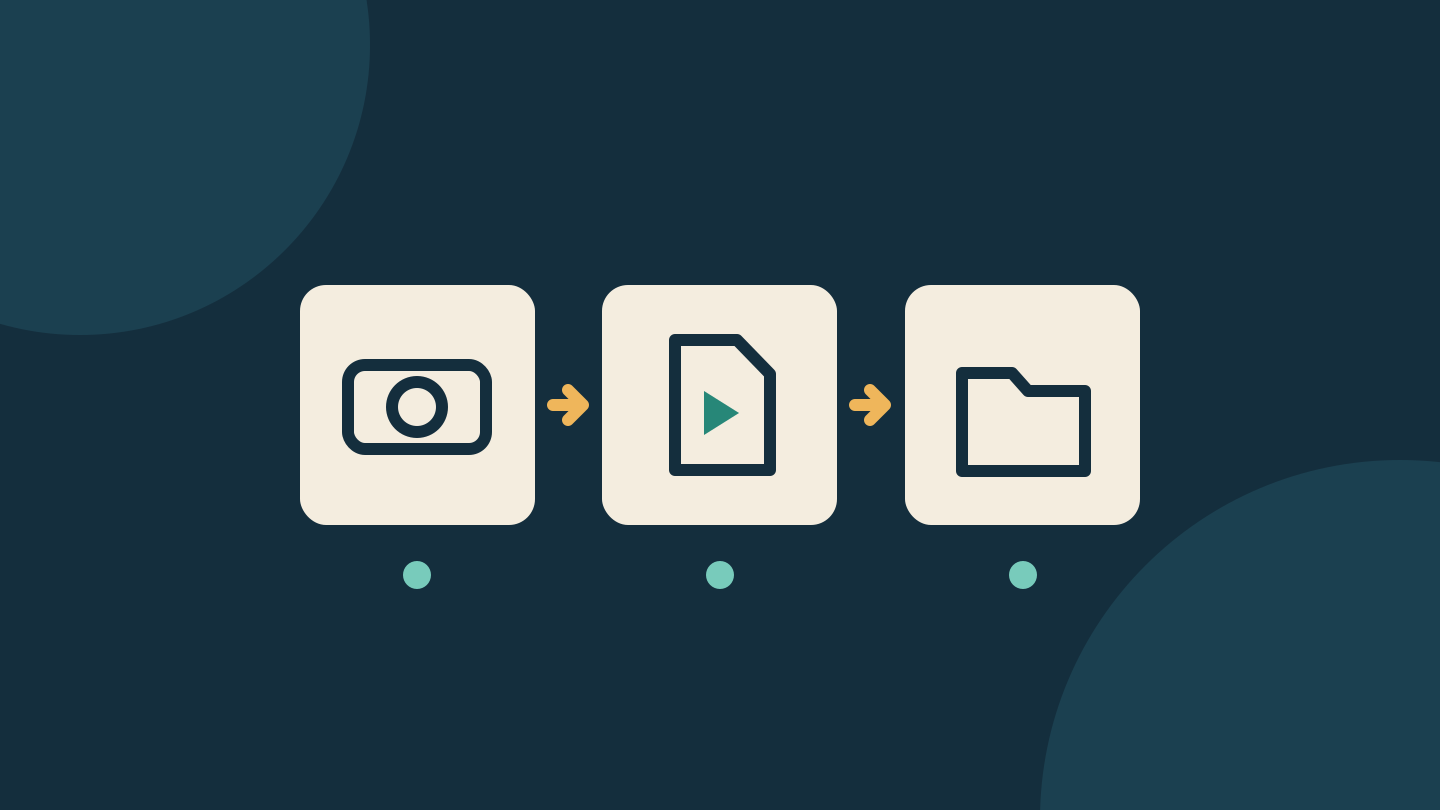
A security camera can send a motion alert without leaving you a recording to watch later. Before ending a cloud subscription, check three things: where a new clip is recorded, how you replay it and whether you can save a copy outside the camera app.
A USB drive or memory card alone is not proof that this works. Some systems use it for a delayed backup while a paid plan is active; others need local recording switched on. A video downloaded inside an app may still need another export step before it becomes a file in your phone's gallery.
This guide uses current Blink and Tapo documentation to explain the differences, followed by a short recording check you can adapt to your own camera. It is a research-based workflow, not a hands-on camera or subscription test.
Find the storage route you actually have
Blink provides a useful example. Its storage guide distinguishes cloud recording, a local backup of cloud clips, and subscription-free Local Storage. With a qualifying plan or trial and supported hardware, Clip Backup runs once every 24 hours. Those backup files are viewed on a computer, rather than in the Blink app.
Without a plan, compatible cameras can instead save motion clips to Local Storage and show them in the app. Yesterday's cloud backup does not verify new recordings after the subscription ends.
| What you see | What still needs checking |
|---|---|
| A motion notification | Open the matching new recording; the alert alone does not prove one was saved. |
| A drive connected to a Blink module | Identify whether it holds daily cloud backups or new Local Storage clips. |
| A video in the app's downloads | Export it and open the saved copy in the phone's gallery or a computer player. |
Check the exact hardware name. Blink's Local Storage instructions specify a USB drive for Sync Module 2 and a microSD card for Sync Module XR. Sync Module Core supports neither Local Storage nor Clip Backup. Camera compatibility matters too: older XT, XT2 and first-generation Indoor cameras have different storage arrangements. Don't buy a drive or replacement hub until your camera's support page confirms the combination.
Local storage also doesn't automatically mean offline operation. Blink's Sync Module 2 FAQ requires an always-on Wi-Fi internet connection. Keeping a file at home and recording without internet are separate capabilities.
Save important clips outside the app
Tapo's download guide, updated on 28 October 2026, makes another distinction: a downloaded clip can be available offline inside the app before it has been exported to the phone's album. It warns that clearing the app cache deletes files downloaded only into the app.
For a clip you need to keep, use the app's Playback & Download area, select the Download page and save the file to the phone's album. Then open that saved copy outside Tapo. Download options and remote access vary by camera model, hardware and firmware; some cameras require the phone to be on the same Wi-Fi network.
For example, imagine a parcel-delivery clip appears in Tapo's downloads and plays while the phone is offline. That confirms the app download works offline. It does not establish that the clip is saved in the phone's gallery. Exporting it to the gallery and opening that file answers a different question. Keep an additional copy somewhere you control if the recording matters.
Run a short recording check
First save existing clips you want to retain. Leave the camera installed and follow its normal recording setup; don't format a card containing needed footage just to test it. Record the camera model, hub model, storage status and the date your paid features actually end.
- Create a known event. Note the time and walk through your own camera's detection area. Use its normal arming and detection settings. A live view isn't a substitute for a motion-recording check.
- Find the new recording. Match the time and camera. Select the intended local or cloud location, rather than assuming whichever clip list opens first is the right one.
- Play and export it. Watch the relevant section, save a copy through the supported method and open the resulting file outside the camera app.
- Repeat when paid features have ended. If paid features are still active, the first check only proves that arrangement. Recheck each camera you depend on after the change.
Write a compact result: Front door / 7:15 pm / Local Storage / playback passed / exported file opened. If any step fails, treat the new recording arrangement as unverified and use the manufacturer's troubleshooting or support before relying on it.
For Tapo, its playback troubleshooting page directs owners to check Local Recording, the recording schedule, detection settings and the selected date. A recognized card is only one part of that setup.
Compare the ongoing job, as well as the bill
Check the cancellation confirmation for the effective date and manage billing through the service that sold the plan. Tapo's Australian paid-plan guidance, for example, says turning off renewal keeps the service running until the billing period ends. Trial terms may differ; don't assume every cancellation is immediate.
Storage needs upkeep. Blink says new Local Storage recordings stop when the drive fills. Local equipment can also be lost or damaged, so it should not be the only place you keep an important exported clip. Cloud plans have their own retention limits and feature conditions; neither option means keeping every recording forever.
Compare your actual renewal quote with any compatible hub, storage and replacement costs. Use the currency shown at checkout—USD and AUD prices are separate offers—and check the exact regional bundle rather than copying a US shopping link. This guide does not quote prices or assume every camera and feature is available in both markets.
Choose based on the recording, retrieval and backup you will actually have after the plan ends. Before relying on the change, confirm that each camera saves new footage and that you can retrieve it.
Editorial note: Written with AI assistance and separately reviewed against linked manufacturer documentation on 1 November 2026. The parcel example is hypothetical; no device, outage or subscription-change testing was performed. The cover is an original conceptual storage illustration, not a product photograph or app screenshot. No affiliate links, paid placement or supplied products are involved.
Sources
- Blink storage options — Blink
- Local Storage with Sync Module — Blink
- Sync Module Core FAQ — Blink
- Sync Module 2 FAQ — Blink
- Download videos from Tapo cameras — TP-Link
- Tapo SD card playback troubleshooting — TP-Link
- Tapo Care cancellation and refund Australia — TP-Link