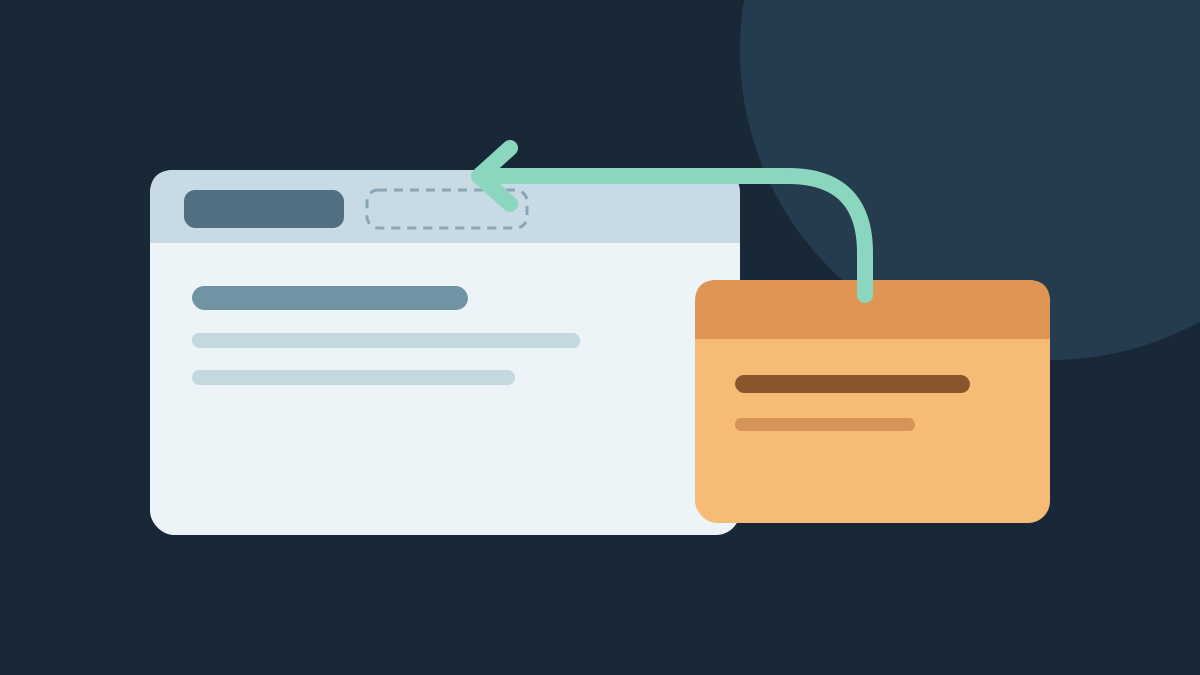
If a tab disappeared immediately after you chose Move to Mini Window, first look for the small floating Firefox window. The page has moved there. Use its return control to put the tab back in the main window.
First check whether the page is still open elsewhere or has actually been closed. That determines whether you need the return control or Firefox’s recovery options.
Mini Window arrived as an early feature in Firefox 160, released on 10 November 2026. It can float a whole tab or a selected area of a page. This guide covers desktop Firefox; it is not an instruction for the mobile browser.
Find the page before trying to restore it
Mozilla's Mini Window introduction says the moved tab is no longer accessible in its regular window until you send it back. Selecting a small section does not leave another independently usable copy of the tab behind.
| What you can see | What to do next |
|---|---|
| The page is in a floating window | Use the return control to bring the tab back. |
| The floating page is visible, but its controls are hidden | Move the pointer to its top edge and look for the toolbar. |
| The tab is already back in the main window | Continue there; there is nothing to recover. |
| You closed it and cannot find the page | Check Firefox's recently closed tabs and windows. |
Check the main window as well as the floating one before using recovery commands. The tab may already have returned.
Choose the return control deliberately
Mozilla calls the return action Put tab back in its Mini Window accessibility review. The same document describes a toolbar that hides when idle and appears when the pointer rests along the top edge. Activate the window, reveal that toolbar and look for the return action.
The document distinguishes its Close command from returning the tab. It also describes different behavior for other ways of closing the window. Because this is an evolving feature and the review covers ongoing work, do not assume every close button or operating-system shortcut has the same outcome in your build. Use the explicit return control when your goal is to keep reading in the main browser.
For example, imagine you moved a recipe's ingredients into Mini Window while writing a shopping list. When you want the full recipe again, return the tab and continue there. Opening the address again is unnecessary while the original page is still available.
If you already closed the page
In a regular Firefox window, open the menu, choose History, then check Recently Closed Tabs and Recently Closed Windows. Mozilla lists both in its session-restoration guidance. Choose the relevant page or window if it is listed.
You can also try Ctrl + Shift + T on Windows or Linux, or Command + Shift + T on macOS. This is a reopening shortcut, not the command for returning a Mini Window that is still open. Mozilla's shortcut reference notes that desktop environments or window managers can intercept shortcuts; the History menu gives you a visible alternative.
Recovery has limits. Private windows are excluded from session restoration, and history settings affect what Firefox retains. Reopening a page is not proof that unsaved form text, a login or a particular position survived. Check the page before relying on it, and use the website's own save or draft function for work you need to keep.
Practise returning a reference page
Before floating a long form or an important work page, practise on an ordinary reference page. Right-click its tab, choose Move Tab > Move to Mini Window, then send it back. Confirm that you can find the return control and recognise the tab when it reappears.
If your actual problem is a crash, a blank page or a window that will not stay on top, record your Firefox version, operating system and the action that triggered it. Include those details when seeking Firefox support so the report identifies the behavior you actually saw.
Method: documentation-based guidance checked on 13 November 2026. We did not test Firefox 160, session recovery or preservation of unsaved forms. The recipe example is hypothetical. AI assisted the draft, followed by a separate editorial review. No sponsorship or affiliate links. The cover is an original conceptual illustration, not a Firefox screenshot.
Sources
- Firefox 160 release notes — Mozilla
- Mini Window introduction and controls — Mozilla
- Mini Window accessibility review and evolving behavior — Mozilla
- Firefox session restoration and limitations — Mozilla
- Firefox keyboard shortcuts — Mozilla