Making your Fitbit Air vibrate from an app is a useful first check. It proves less than it seems: a manual command can reach the band even when the message you care about never reaches that command.
Recent coverage of unofficial notification apps raises a practical question for owners of Google's deliberately quiet tracker: can the extra buzz be useful without becoming another distraction? Google's Australian launch description presents the Air as a screenless, notification-free device. The new relay apps are separate projects, not an official notification upgrade from Google.
If you want a discreet nudge for selected messages, the useful question is whether your particular phone, app and settings deliver it when needed. Here is a practical way to evaluate that, based on developer documentation checked on 25 November 2026. We have not tested these apps on a tracker.
Separate the manual command from the message
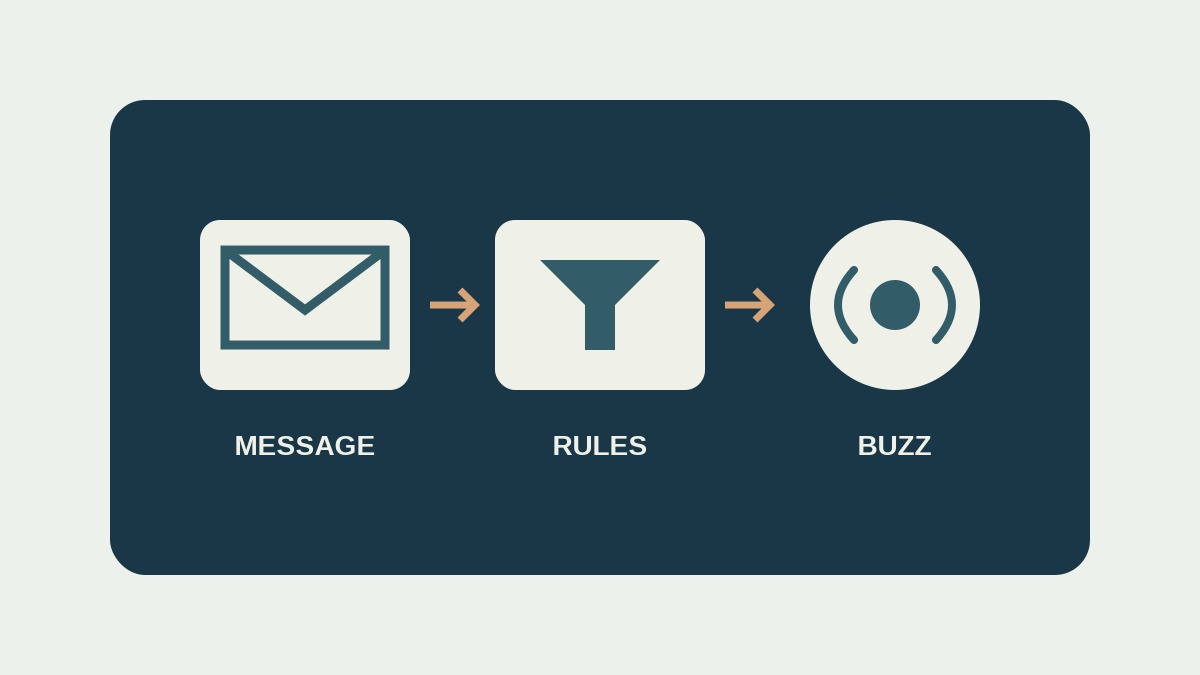
Air Relay's developer documentation describes an Android app that matches phone notifications against rules and sends vibrations over Bluetooth. The Air must already be paired in Google Health. Its underlying connection is experimental and depends on private, version-sensitive device behaviour; the maintainer reports testing only a limited set of Android hardware. Check the current build requirements and availability for your device; the tracker being sold locally does not establish that every companion app is available to your account.
Follow the alert in order: the phone must produce a notification, the relay must accept it, and the relay must reach the band. A working test button checks mainly that last connection at that moment.
| Observation | What to check next |
|---|---|
| Manual buzz works; a message does not | Confirm that the message creates a phone notification, then inspect the relay's app or conversation rule. |
| Alerts work while you hold the phone | Repeat with the screen locked and the phone where you normally leave it. |
| A buzz arrives after a call ends | Distinguish an incoming-call alert from a missed-call notification. |
| Several messages produce one buzz | Check whether the app deliberately groups bursts or limits repeated alerts. |
The table is a troubleshooting framework, not a guarantee that a setting change will fix the result. Record the observation before changing anything.
Run a small rehearsal with the alerts you actually want
Our suggested check is to choose one ordinary messaging app and one willing contact. Keep your normal phone alert available during the exercise. Start with a harmless test message rather than personal or work-sensitive information.
- Confirm the app's manual vibration with the Air nearby.
- Have the contact send a new message while your phone is unlocked. Note whether the phone notification appears and whether the band buzzes.
- Repeat with the screen locked, then after the phone has been idle in its usual location.
- If call alerts matter, make a separate test call. Note whether the first buzz occurs during ringing or only after the call is missed.
For each attempt, record the message time, screen state, phone notification and wrist result. A hypothetical entry might read: “16:10, screen locked, phone showed a message, no wrist buzz.” That is more useful for support than “notifications are broken.” Do not treat a few successes as proof of long-term reliability.
Also try the deliberate exceptions you plan to use, such as a muted conversation or quiet period. Silence is sometimes the intended result. Avoid enabling every app just to make the tracker buzz; it makes the experiment harder to interpret and may defeat the reason you chose a quiet band.
Read the limits of the exact app
The projects do not share one feature set. Air Signals' 0.7 preview, for example, lists Android 12L or later on ARM64 and a specific tested phone and firmware. Its documentation describes combining bursts, expiring queued alerts and an optional screen-on mute. It also distinguishes the time a software operation finishes from the time a wearer feels a buzz; connection setup can add delay. These details should not be assumed to apply to every other relay.
On iPhone, NotiTrac's setup guide separates a manual Bluetooth test from a Shortcuts notification automation. It says an older iOS test build running successfully does not supply the newer notification trigger, and it asks users to test unlocked and locked delivery. It also distinguishes ringing-call triggers from missed-call notifications. Follow the instructions for the actual app and iOS version, rather than transplanting Android steps.
Understand the permission before granting it
Air Relay's privacy policy says Android notification access lets it inspect notifications from all apps to match its rules. That scope is different from the short list you choose to forward. The developer says processing stays on the phone, notification text is not stored, and the app has no internet permission. The policy also describes stored settings and a local delivery history, so “no stored notification text” does not mean “nothing saved.” These are developer statements; Techotick has not audited the app.
Check the installed app's identity and current policy, and decide whether that access suits the notifications on your phone. A promise made by one project does not cover another app with a similar name.
After the rehearsal, check that normal Google Health syncing still works. Keep the phone's ordinary alerts available for messages you cannot afford to miss, and repeat the relevant checks after changing the relay, phone software or tracker firmware. If you wanted the Air to stay quiet, keeping it that way remains a reasonable choice.
Editorial disclosure: AI assisted research and drafting, followed by a separate editorial revision of the sources checked on 25 November 2026. No tracker, app installation, notification delivery, battery or privacy testing was performed. The rehearsal and example are editorial suggestions. No sponsorship or affiliate links. The cover is an original conceptual diagram, not a Fitbit product image or app screenshot.
Sources
- Air Relay and fitbit_air: developer documentation — Project maintainer
- Air Relay privacy policy — Project maintainer
- Air Signals: requirements and delivery limits — Project maintainer
- NotiTrac: iPhone notification setup — NotiTrac
- Google Australia: introducing Fitbit Air — Google