You forward a Gmail message with a document, and the next person sees a screen asking them to request access. The message arrived, but access to a linked document is still controlled in Google Drive. Forwarding that link does not necessarily give the next reader permission to open it.
Before sending it again, decide what the recipient needs: a separate file they can keep, or access to the shared document. Check the delivery method first, then the intended reader's access.
Check what is travelling with the email
On a computer, Gmail's Insert files using Drive control offers two options. A Drive link points to a stored file. Attachment sends a file with the message, but that option is unavailable for native Google Docs, Sheets, Slides and Forms. Google documents this distinction in its Drive attachment instructions.
Size can change the delivery method too. Google's current Gmail attachment guidance gives personal accounts a 25 MB attachment limit. If the combined attachments exceed the applicable limit, Gmail replaces them with a Drive link. Work and school sending limits are set by the Workspace administrator; do not assume every account follows the personal-account limit.
Check the outgoing message after adding the files. Even files selected from your device can become Drive links when the combined attachments are too large. A recipient's mailbox may also have its own restrictions, so staying within the sender's limit is not a delivery guarantee.
Match the delivery method to the job
| What the recipient needs | What to send and check |
|---|---|
| A copy of a finished document | An ordinary, allowed attachment within the applicable size limit. Identify the version or date, and confirm the recipient can open it. |
| Access to a document that will keep changing | A Drive link. Check the intended person's account and role on the shared file. |
| To pass the document to another person | First establish whether they may distribute a copy or whether the owner must grant another account access. |
| Access without a Google Account | Check an approved alternative with the owner. Some organisations support verified visitor access; public link sharing is a separate choice. |
Choose for the task and the file's sensitivity. This table covers ordinary attachments; confidential mode and organisational controls can impose additional limits. A copy is convenient when a reader needs a particular version, but it creates another copy to manage. A shared link keeps the access decision with the file's sharing settings.
Why forwarding can fail
Imagine Maya owns a trip-planning document and shares it with Eli's personal Google Account. Eli forwards the email to Jo. If the document is restricted to Maya and Eli, Jo has the link but has not been added to the file. Resending the same message will not fix that missing permission.
In this fictional example, the missing check is Jo's access. Eli's successful visit only establishes his own access. Google's sharing guidance distinguishes restricted access from access for anyone holding the link. The latter can extend access when a message is forwarded, so it should be an intentional distribution choice.
If Jo only needs to read, Maya can consider Viewer access rather than editing rights. But Maya should also check existing folder or group access: changing one visible permission does not necessarily remove access granted elsewhere. Work or school policies may prevent the proposed sharing altogether.
Resolve the request with the right person
- Recipient: confirm which Google Account is open. Use the account the owner intended to share with before sending another request.
- Sender: check whether you own the file or have authority to share it. Being able to read it is not enough.
- Owner: confirm the intended recipient and appropriate role, then check the file's sharing settings.
- Recipient: reopen the original link and confirm it works. If it still fails, provide the account address and exact error through your usual support channel.
Google's file-access help explains that requests identify the signed-in account. It also says an approval may happen without a notification, so a quiet inbox does not prove that the request was rejected. Viewers and commenters can ask the owner to grant access to somebody else; they cannot directly grant it themselves.
For managed accounts, the available sharing choices depend on policy. Google's Access Checker documentation describes settings that can restrict prompts to named recipients or an organisation. A missing public-sharing option is not a reason to move work files into a personal account.
When the recipient has no Google Account
Ask the owner which access route their organisation supports. Where visitor sharing is enabled, a person can verify their email address with a PIN and collaborate for seven days, then verify again using the original invitation. This is conditional on the organisation's configuration and supported file types.
Keep the intended audience in mind when resolving a sign-in obstacle. Anyone-with-the-link access makes a private handoff much easier to forward beyond that audience. An authorised attachment or another approved transfer method may better fit the job. In either case, ask the intended recipient to open the actual file before treating the handoff as complete.
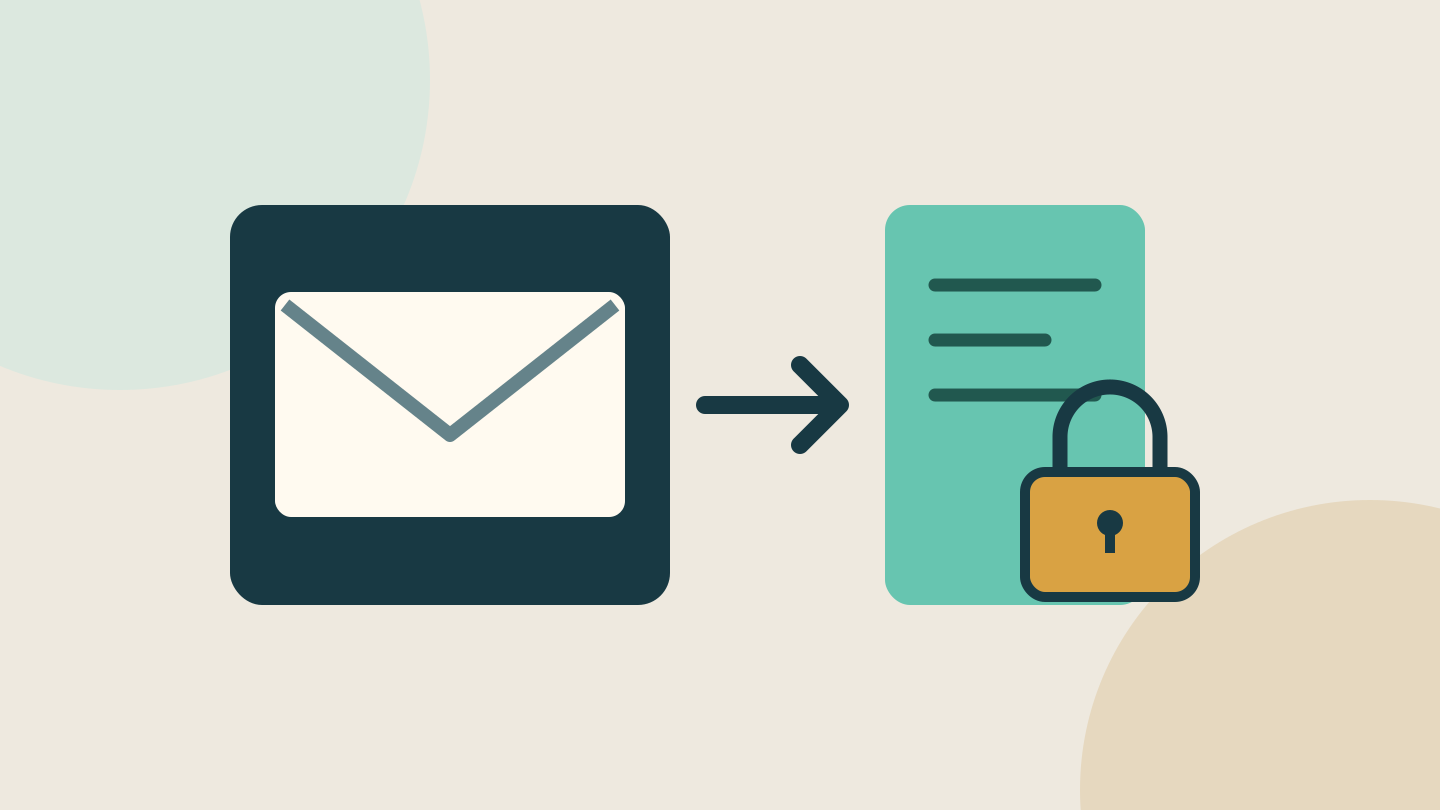
Method: This guide synthesises Google's current documentation; it is not an account, delivery or Workspace-policy test. AI assisted the research and writing, followed by a separate editorial and source review. The cover is an original conceptual diagram, not a Gmail screenshot. No affiliate links, paid placement or supplied products are included.
Sources
- Gmail Drive attachments and links — Google
- Gmail attachment limits — Google
- Google Drive sharing settings — Google
- Google file access and requests — Google
- Workspace Access Checker restrictions — Google
- Visitor sharing — Google