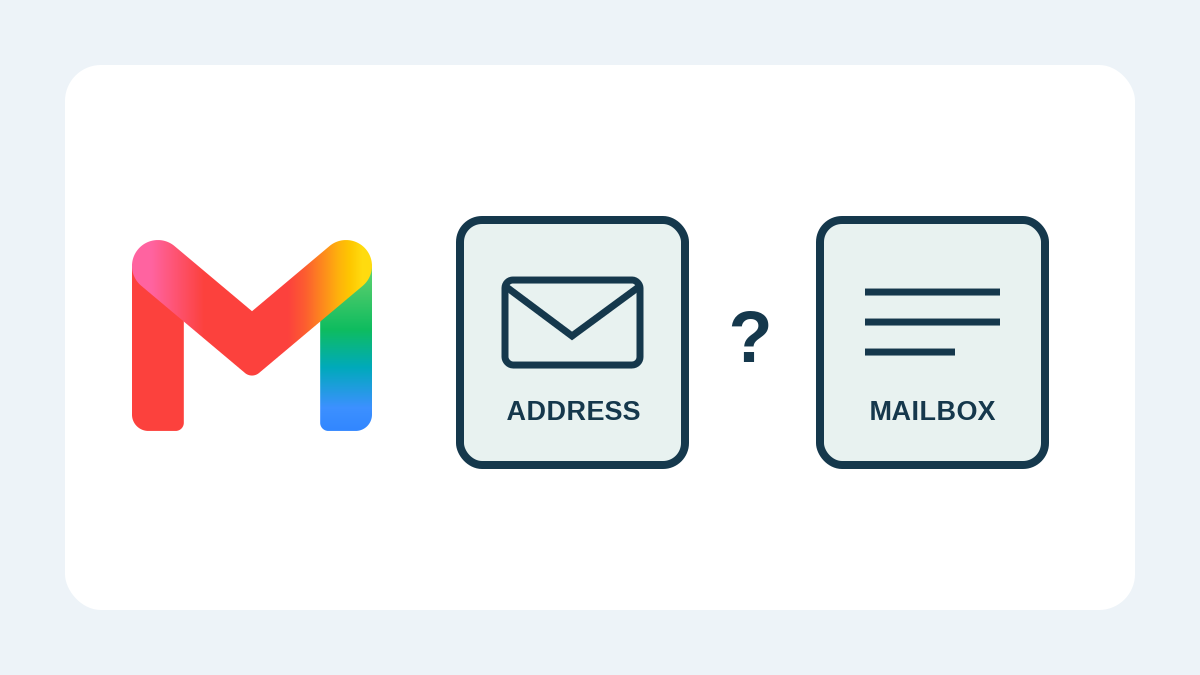
If you read your domain email in Gmail and reply using that address, check what sits behind it before choosing a replacement app. A forwarding address may deliver messages to you without having its own mailbox login. A mail app needs a supported account to connect to; installing it does not turn a forwarding rule into a mailbox.
Google says third-party “Send as” support ends in January 2027. That is the feature that lets your primary Gmail account send using a non-Google address. Google-hosted identities, including other Gmail addresses and Workspace aliases, are excluded. Google names a month, not an exact cutoff day; it also warns that new configurations may be restricted before then.
Identify the address before choosing the app
Start with the provider's account dashboard or ask its support team. Record who receives mail for the address and who currently sends it. These may be different services. Neither a domain registration receipt nor an address in Gmail's From menu tells you which service stores the mail and authorizes replies.
| What you have | What to establish next |
|---|---|
| A separate mailbox | Find the provider's supported sign-in and mail-app instructions. Confirm that the account can send from the exact address you use. |
| An alias of another mailbox | Identify the underlying account and how its provider permits replies from that alias. Do not assume the alias has a separate password. |
| A forwarding rule only | Find the destination mailbox and the separate sending service, if any. Decide where replies will be sent from after Gmail's change. |
Our suggested support question is: “Does this address have a mailbox I can sign into, or does it only forward? Which supported app or website can send and receive using this exact address?” Keep the answer with the provider name and account owner. Keep passwords and recovery codes out of that record.
Forwarding and sending solve different jobs
Google confirms that provider-side forwarding into Gmail can continue independently of Send as. That preserves an incoming route; it does not replace the outgoing identity. Cloudflare's routing instructions, for example, describe forwarding to an existing destination mailbox and testing receipt there.
Avoid an outdated shortcut here: Cloudflare now also documents a separate Email Sending service for transactional messages through APIs, Workers and authenticated SMTP. “Cloudflare cannot send email” is too broad. Equally, having a routing rule does not establish a complete personal-mail workflow. Check the capabilities and conditions of the service you actually configured.
Consider a hypothetical community newsletter address that forwards to a volunteer's personal Gmail. The volunteer can read every incoming message, yet the address might have no separate inbox to add to a phone. If the group wants replies to keep its own address, it needs to confirm a supported sending arrangement. If a personal reply address is acceptable, it should understand that recipients will see that address. The answer should be agreed before changing shared settings.
A separate account in the Gmail app still works
The wording in Google's retirement notice can be confusing: it mentions Send as on mobile, while also retaining mobile third-party account support. Its Gmailify and POP guidance explicitly says you can continue reading and sending through a separately added account in the Gmail app using IMAP. IMAP is the connection a mail app uses to access a mailbox.
For an existing supported mailbox, follow Google's Android instructions or iPhone and iPad instructions: open the profile menu, choose Add another account, then select the provider. For manual setup, use that provider's current settings and authentication method. A forwarding-only address is not enough information to complete this setup.
The app route also differs from collecting messages into your main Gmail mailbox. Google's POP transition guidance distinguishes ongoing forwarding, direct mobile access and a one-time import. Choose which location should hold the messages you need to work with; seeing them together on a phone should not be your only check.
Prove the reply route before retiring the old setup
Try one low-stakes conversation using another account you control. Send to the address, open it in the proposed replacement, and reply. Inspect the recipient's copy for the full sender address, then answer it and check where that response arrives. Also compose a fresh message: a successful reply does not establish the default sender for a new conversation.
Record the actual outcome: “received in this mailbox; replied from this address; response returned here.” If you need an alias and cannot select it, ask the provider about authorized alias sending. Avoid changing domain-wide mail records merely to troubleshoot a phone app; those changes deserve a migration plan covering every address on the domain.
Use Google's supported alternatives as a starting point. Provider plans, authentication and administrator rules still matter. This guide does not compare subscription prices or promise that a particular account can be connected.
Editorial disclosure: AI assisted research and drafting, followed by a separate editorial revision against sources checked on 29 November 2026. Techotick did not test an account, mail app, message transfer or DNS change. The newsletter example and verification record are editorial suggestions. No sponsorship or affiliate links. Cover: Google’s Gmail icon via Wikimedia Commons (public-domain geometric logo), preserved in an original conceptual illustration. Gmail is a trademark of Google LLC. Techotick is not affiliated with or endorsed by Google.
Sources
- Gmail third-party account changes — Google
- Gmailify and POP transition — Google
- Add an account on Android — Google
- Add an account on iPhone or iPad — Google
- Cloudflare routing to existing mailboxes — Cloudflare
- Cloudflare Email Service capabilities — Cloudflare
- Gmail third-party account changes — Australia — Google