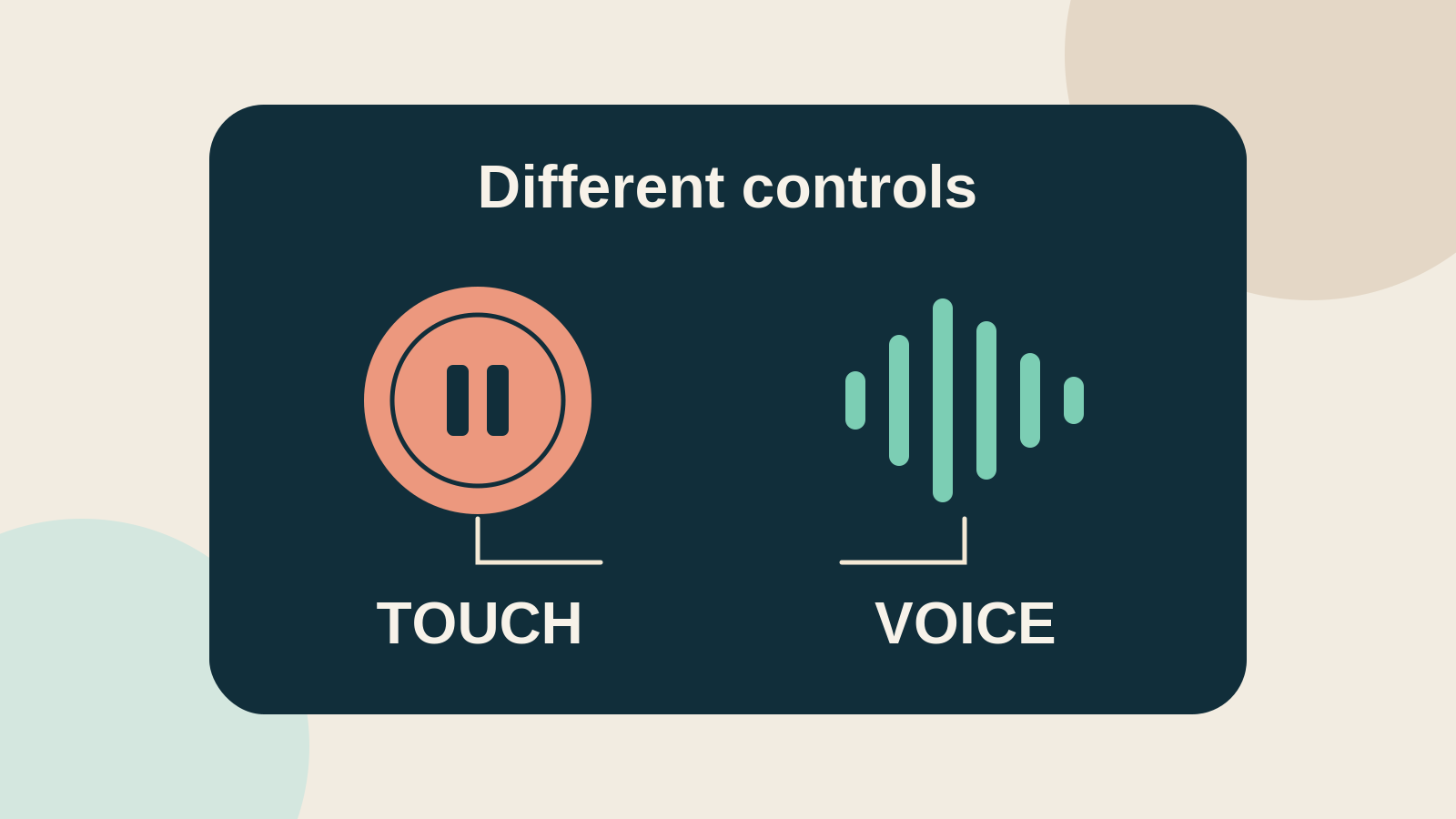
A HomePod that answers Siri but ignores a tap may have its touch controls locked. Before resetting it, open the Home app on your iPhone or iPad, select the speaker, open Settings and check Lock Controls. Turn it off if you want to use the top surface for music again.
Apple describes this setting in its guide for HomePod software 27.2 or later. It is designed to prevent accidental playback changes while leaving voice control available. If Siri answers while a tap does nothing, check the setting before assuming the speaker has failed.
Touch Accommodations can also make a brief tap seem ineffective. Identify which action fails, then inspect the setting that controls it.
Match the symptom to the setting
| What you notice | What to check first |
|---|---|
| Music plays, but tapping the top does not pause it. | Inspect Lock Controls before changing your audio setup. |
| A quick tap does nothing, but a longer touch registers. | Check Hold Duration under Accessibility → Touch Accommodations. |
| Music controls work, but holding the top does not summon Siri. | Check Touch and Hold for Siri separately. |
| Audio starts or changes when nobody touches the speaker. | Record the exact event and settings. That symptom alone does not establish a faulty touch panel. |
This is a way to narrow the problem, not a hardware diagnostic test. More than one setting can affect the same action, so change one thing at a time.
Keep touch access if you need it
Lock Controls can suit someone who wants to prevent ordinary accidental music-control touches and is happy to use voice control. It is not a switch that disables every interaction with the speaker. If someone in your household depends on the top surface, agree on the change first: an intentional tap may be exactly how they normally stop the music.
Apple’s Touch Accommodations guidance describes a different approach. In the speaker’s Settings, choose Accessibility, then Touch Accommodations. Hold Duration sets how long a touch must last before it counts; Ignore Repeat combines quick repeated touches into one. These controls adjust touch input rather than simply switching ordinary controls off.
For example, suppose Alex enabled a long hold to reduce accidental taps, then later forgot about it. A quick pause attempt now seems broken. Checking the saved duration explains what to try next without deleting the speaker’s setup. This is a hypothetical example, not a reported repair.
Do not copy a maximum delay from a forum as a universal fix. Choose a duration the person using the speaker can manage, and remember that accessibility settings may serve an intentional need.
Siri has its own switches
The Siri settings distinguish spoken activation from Touch and Hold for Siri. If your aim is to stop voice activation, changing the touch lock is the wrong control: inspect the listening setting instead. Conversely, a disabled touch-and-hold gesture does not by itself explain why spoken Siri is unavailable.
When checking playback, use a normal song and a comfortable volume. Apple’s touch guide describes one tap to pause and another to resume; it also notes that VoiceOver changes the gestures, such as using two taps to pause. Check whether VoiceOver is enabled before treating that difference as a failure.
Check the result before resetting anything
Make a short record: speaker model, installed software, Lock Controls state, relevant accessibility settings, and the exact action that failed. Then make one reversible change and repeat that same action. Keep a way to pause playback available while trying it.
If the option is missing, check for available software updates. Apple’s update instructions put them under Home → More → Home Settings → Software Update. The home owner or an admin can manage updates. A phone update alone is not a record of the software installed on the speaker.
If unwanted playback continues, or controls remain unusable with settings you understand, take the record to Apple Support. A quiet afternoon after changing a switch is worth recording. It does not establish a lasting repair or identify the cause of an intermittent problem. Note whether the issue occurred during playback, while idle or after restarting, rather than describing every incident as a “ghost touch.”
Editorial disclosure: AI assisted research and drafting, followed by a separate editorial revision against Apple documentation checked on 21 November 2026. Techotick did not test a HomePod, diagnose a device or verify a repair. No sponsorship or affiliate links. The cover is an original conceptual diagram, not a product photograph or Home app screenshot.