Changing an iCloud Drive link to People you choose can limit future access to invited people. It cannot pull back a file someone already copied. Before changing a shared document, decide whether you want to keep working with selected recipients, end access altogether, or send a separate copy.
Apple's 3 November notice gives that choice new relevance: it says items shared through Anyone with the link will be checked for harmful content in version 27.3 or later of iOS, iPadOS, macOS and visionOS. The notice concerns that sharing option; it does not announce checks of every private file in your iCloud Drive. Read Apple's notice.
Choose what should happen next
| Your goal | What to choose |
|---|---|
| Keep collaborating with named people | Restrict access to People you choose, then invite the intended recipients. |
| End access to the shared original | Use Stop Sharing as the owner. Previously saved copies remain outside that control. |
| Hand over a finished document | Send a Copy, accepting that the recipient has a separate file. |
View-only is a different decision from who can open the link. It limits editing; it is not a promise that the recipient cannot retain the contents. For a sensitive document, first choose the audience, then choose the permissions.
Restrict an existing link on iPhone
For a file or folder you own in iCloud Drive, Apple's current iPhone guide gives this route:
- In Files, touch and hold the shared item.
- Open Manage Shared File or Manage Shared Folder, then Sharing Options.
- Change access to People you choose and select the appropriate editing permission.
- Use Add Participant in the management panel to invite the people who still need access.
Apple says the original public link stops working for everyone when you make that access change. Expect an interruption: tell collaborators to use the new invitation rather than repeatedly trying their old bookmark.
To end sharing instead, open the item's management panel and select Stop Sharing. One easily missed detail: Apple's guide says the original link works again if you later share that same item with Anyone with the link. Stopping and restarting public sharing is therefore not a reliable way to retire an old URL permanently.
Check the folder before changing one file
On iCloud Drive on the web, use the item's More menu, choose Share, then open its shared-file or shared-folder management panel. Sharing Options controls the audience; Stop Sharing ends the share. You must own the item to stop sharing it.
A document inside a shared folder needs extra care. Apple says you cannot change that individual file's sharing settings independently of its folder. To stop sharing just that file without changing the folder settings, move it to an unshared folder. Check who still needs it before doing so; moving it can interrupt their work. Apple's web sharing guide explains these controls.
A fictional project handover
Imagine you sent a project folder's public link to two contractors. The job ends, but one contractor needs to finish a correction. Restrict the folder to invited people, invite that contractor and choose the permission needed for the correction. Tell the other contractor that their access to the shared original has ended.
If either contractor saved a local copy last week, changing the folder does not erase it. Apple's iCloud terms explicitly distinguish removing shared files from participants' iCloud Drive from deleting copies already made elsewhere. Ask recipients to delete unnecessary copies separately; do not describe revoking the link as a recall.
Restricted access and encryption are separate checks
Public-link sharing does not gain end-to-end encryption just because Advanced Data Protection is switched on. Apple's data-security overview says supported shared content can retain that protection when every participant has Advanced Data Protection enabled. It also lists exceptions, including iWork collaboration. Choosing named recipients is not, by itself, proof of end-to-end encryption.
Apple publishes the new public-link notice for both the US and Australia, with a regional-availability caveat rather than a complete rollout list. It does not settle how older links will be handled. This guide follows the documented controls, not a hands-on test of version 27.3, and makes no claim about a confirmed regional release date. Menu wording can vary with software version.
Before your next share, make three decisions: who needs access, whether they need to edit, and whether they need an ongoing shared original or a separate copy. When the work ends, review that access again.
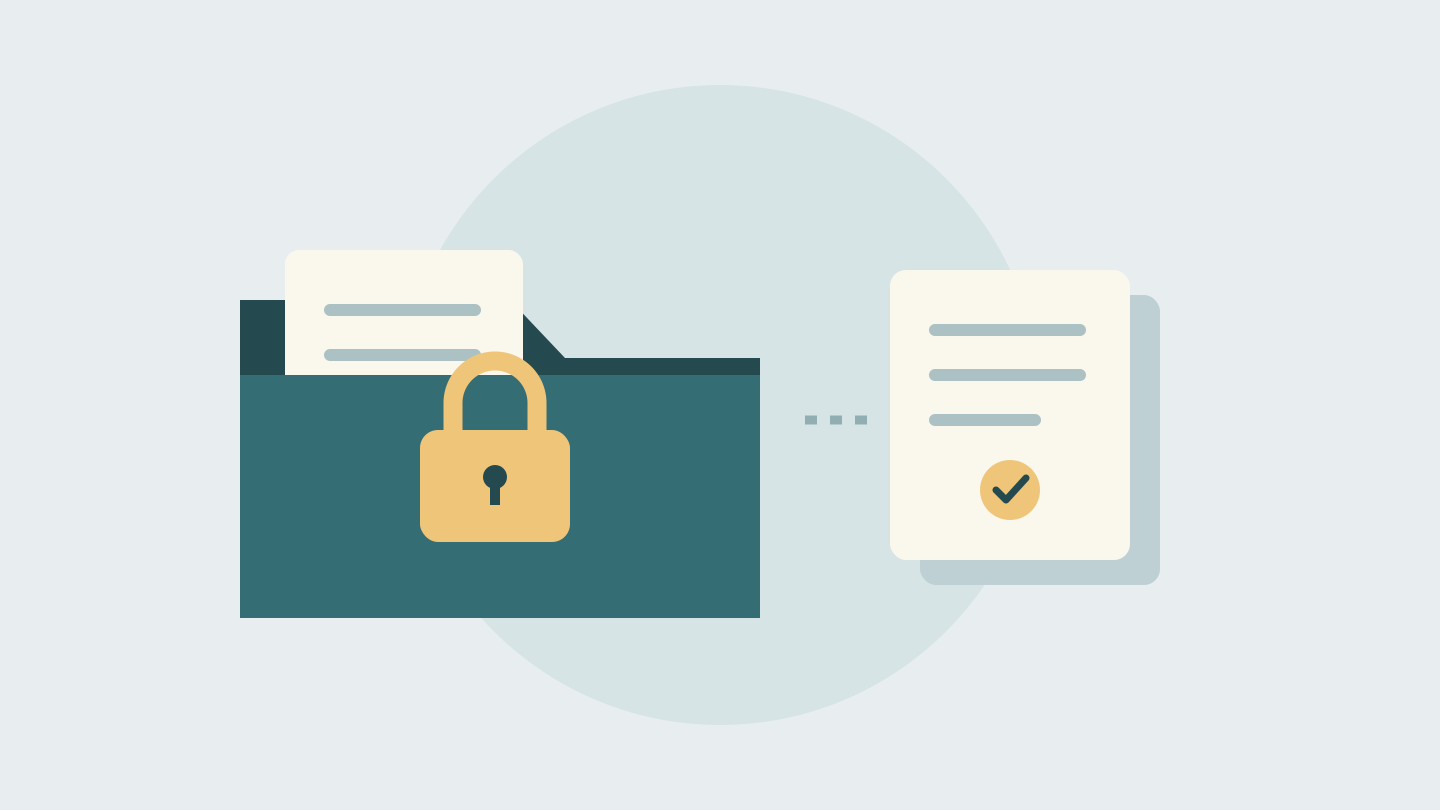
Cover: original conceptual illustration of a restricted link and a separate copy, not an Apple interface. AI assisted the research and drafting, followed by a separate editorial review. No affiliate links, supplied products or sponsorship were involved.