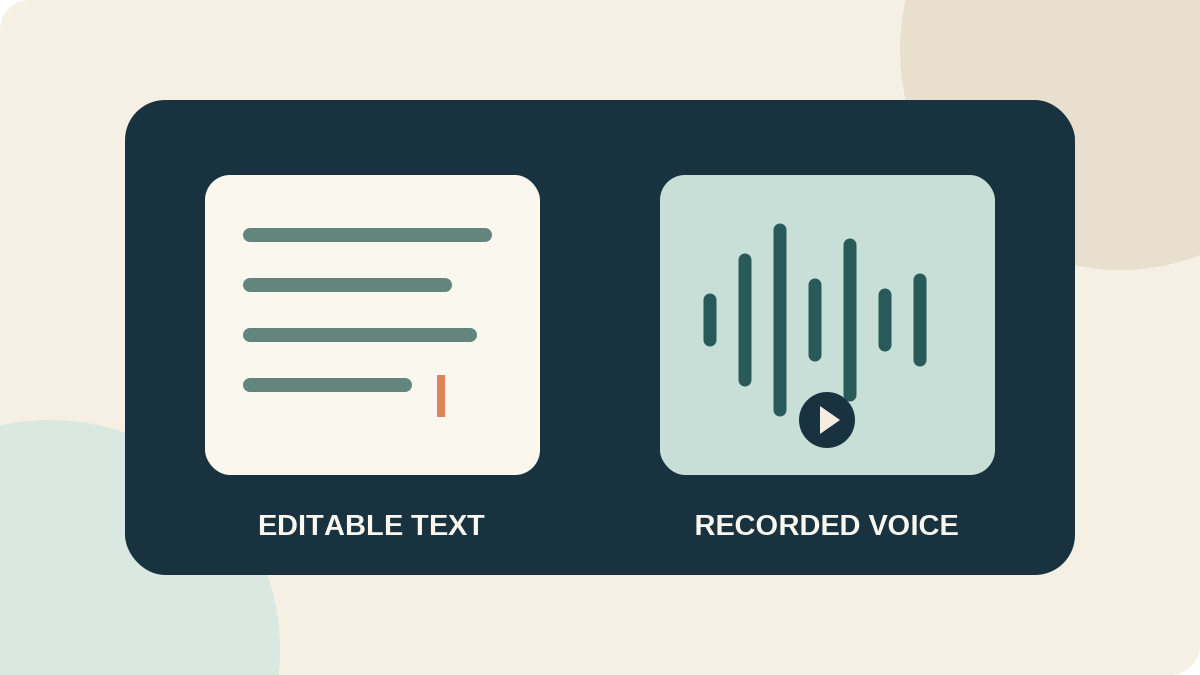
If you speak into Messages expecting written words but get an audio recording, first check which input you started. Dictation creates editable text. An audio message records your voice for the recipient to play. A transcript beside a recording does not turn it into an ordinary typed message.
Check the draft before sending: can you edit the words, or play a recording? That distinction is more useful than assuming every voice-input button does the same job.
Choose the result you want
| Your intention | Use and check |
|---|---|
| Send written words without typing them all | Use Dictation. Read and correct the text draft before sending. |
| Send your voice, including tone and pronunciation | Record an audio message. Play it back before sending. |
| Share exact details someone must act on | Consider a checked text message for the details, even if you also send audio. |
The last row is our editorial recommendation. A voice note can carry warmth or explain a complicated situation, while a short written instruction makes a time, address or reference number easier to check at a glance.
Start with the keyboard for text
Follow Apple's Dictation instructions: tap the message's text field, then the Dictate microphone on the onscreen keyboard. Speak, stop Dictation and review the words. You can switch between speaking and typing while the keyboard remains open.
If the Dictate button is missing, Apple directs you to Settings > General > Keyboard > Enable Dictation. Leave Dictation enabled if you want to keep entering text by voice. A recording that successfully captures your voice is also a different symptom from Dictation starting but producing no words.
Check your language in Apple's feature availability table. Supported features vary, and language support does not guarantee that every name or number will be recognized correctly.
Check the draft before sending
Try a harmless sentence that contains the kind of information you normally send. For example: Meet at the west gate at 6:15. This is a suggested rehearsal, not a test Techotick performed.
For text, look for an editable sentence and correct the gate and time. For audio, listen to the recording and check that those details are audible. If you intended text and instead created an unsent recording, cancel that recording and enter the sentence using Dictation or typing. Do not send an unwanted clip just to see whether it becomes text at the other end.
Separating the result from the input helps narrow the next question. A wrong word in an editable draft needs correction. A playable clip when you wanted text calls for a different input. Neither observation alone establishes a microphone fault or an operating-system bug.
Audio transcripts still accompany audio
Apple's audio-message guide describes opening a conversation, tapping the plus button and choosing Audio. After recording, you can pause, review, add more or cancel before sending. In supported languages, an audio message can also have a transcript. The recipient still receives a recording they can play.
For the hypothetical gate instruction, a transcript is useful for scanning, but it should not be your only check that the important number survived accurately. If the time is essential, send a separate written confirmation you have reviewed.
Expiry is not a recall button
Apple says an audio recording is normally removed from the conversation on your iPhone only two minutes after you send or listen to it, unless you keep it. The recipient can play the received recording and has their own opportunity to keep it. Do not rely on your copy disappearing to withdraw a message from someone else.
To retain a particular audio message, use Keep. For the broader retention setting, Apple's documented path is Settings > Apps > Messages > Expire > Never, under Audio Messages. This keeps audio on your device; it does not change the format of the next message you compose.
Editorial disclosure: AI assisted research and drafting, followed by a separate editorial revision against Apple documentation checked on 25 November 2026. Techotick did not test a device, recording, transcription, delivery or expiry. The comparison and hypothetical example are editorial guidance. No sponsorship or affiliate links. The cover is an original conceptual diagram, not an Apple screenshot.