Your new phone has restored Microsoft Authenticator, and the account names look familiar. Before you erase the old phone, check that each important account can actually sign in using the new one. Familiar account names do not prove that sign-in is ready.
This matters most when one app holds a mixture of personal codes, work approvals and passkeys. They do not all move in the same way. Finish by checking each sign-in method you rely on, then remove the old registration through the service's approved process.
Work out what came back
Microsoft's backup guidance distinguishes eligible one-time codes from work or school credentials. The latter are not backed up: an account name can return while registration still needs completing. Personal Microsoft accounts that use passwordless sign-in also need attention after restore.
| What you see | What to verify next |
|---|---|
| A changing one-time code | Use the new phone's code in a sign-in you start yourself. Seeing digits alone is not a completed login. |
| A work or school account name | Complete the organisation's setup, then confirm its required approval or passkey works on the new phone. |
| A passkey option | Check where the passkey is stored and which device completes the sign-in. A listed option does not prove the new phone holds it. |
Passkeys need their own check. Microsoft's transfer guide explains that a key saved only on the old phone needs replacement on the new device. A key held in a synced credential manager may be available after signing in to that manager. Follow your organisation's permitted registration methods; a work account may not allow self-service setup.
Check the backup instructions for your platform
Checked on 1 November 2026: Microsoft directs iPhone users to iCloud Drive, Keychain and Backup for Authenticator. Android uses Cloud Backup with a personal Microsoft account. The page announces Google One backup from January 2027; do not assume that future change already applies.
Microsoft also limits backup restoration to the same platform. An iPhone backup cannot be restored on Android. If you are changing platforms, plan the account registrations while your old sign-in methods still work, using each service's instructions.
There is no need to guess whether a missing toggle means the app is broken. Check the current instructions for your operating system and app version first. Avoid deleting a working setup as an experiment.
Run an account-by-account sign-in check
Make a short list of accounts you need immediately: for example, personal email, work email and a password manager. Beside each, record the sign-in method you normally use. Keep this as a status list; do not put passwords, recovery codes or setup QR codes in it.
- Keep the old phone available. Complete the new registration using an existing trusted method where requested. Healthcare provider Kettering Health's guidance illustrates this sequence for its own users: approve setup with the old device, add the new app and complete its test notification. Your organisation's exact flow may differ.
- Start a fresh sign-in to the real service. Use a separate private browser window if your organisation allows it, without closing your working session. Southern Cross University recommends a private-window check because existing sessions can delay an MFA challenge. If the page opens without asking for verification, mark the authenticator check as untested.
- Observe which method completes it. If you intend to use a code, enter the one on the new phone. If you intend to use push approval or a passkey, verify that method on the new phone. Approve only the request you initiated. An approval on the old device proves a different route still works.
- Record the result for that account. Note the service, method, date and result. If a method cannot be tested, mark it unresolved and use the service's approved support route before giving up the old device.
Keep the connection requirements separate too. Microsoft's FAQ says generating verification codes does not need internet access, while receiving and responding to sign-in notifications does. This does not make the website you are signing into available offline.
A restored list can hide a mixed result
Consider a fictional phone upgrade. Sam's personal email accepts a code from the new phone. Work email opens on a laptop, but only because the browser is already signed in. A passwordless university login still asks for the old phone.
Sam's record should show one successful code check and two unresolved checks. Calling all three accounts transferred would hide the remaining dependency. Sam can finish the work and university setups during their help desks' opening hours, then repeat those sign-ins. This example is a planning exercise, not a tested Microsoft account migration.
Remove the old registration after the checks pass
Microsoft's FAQ says installing Authenticator on a new device does not unregister the old one; uninstalling the old app alone is insufficient too. Once the replacement works, follow the account's security settings or your organisation's process to remove the obsolete registration. Do not turn off account-wide protection just to tidy the device list.
If the old phone is already gone and no permitted alternative works, contact the organisation's help desk or the service's official recovery channel. A successful phone backup cannot guarantee recovery of every account. Passing these checks covers sign-in access. Files, messages and the manufacturer's trade-in preparation still need their own checks.
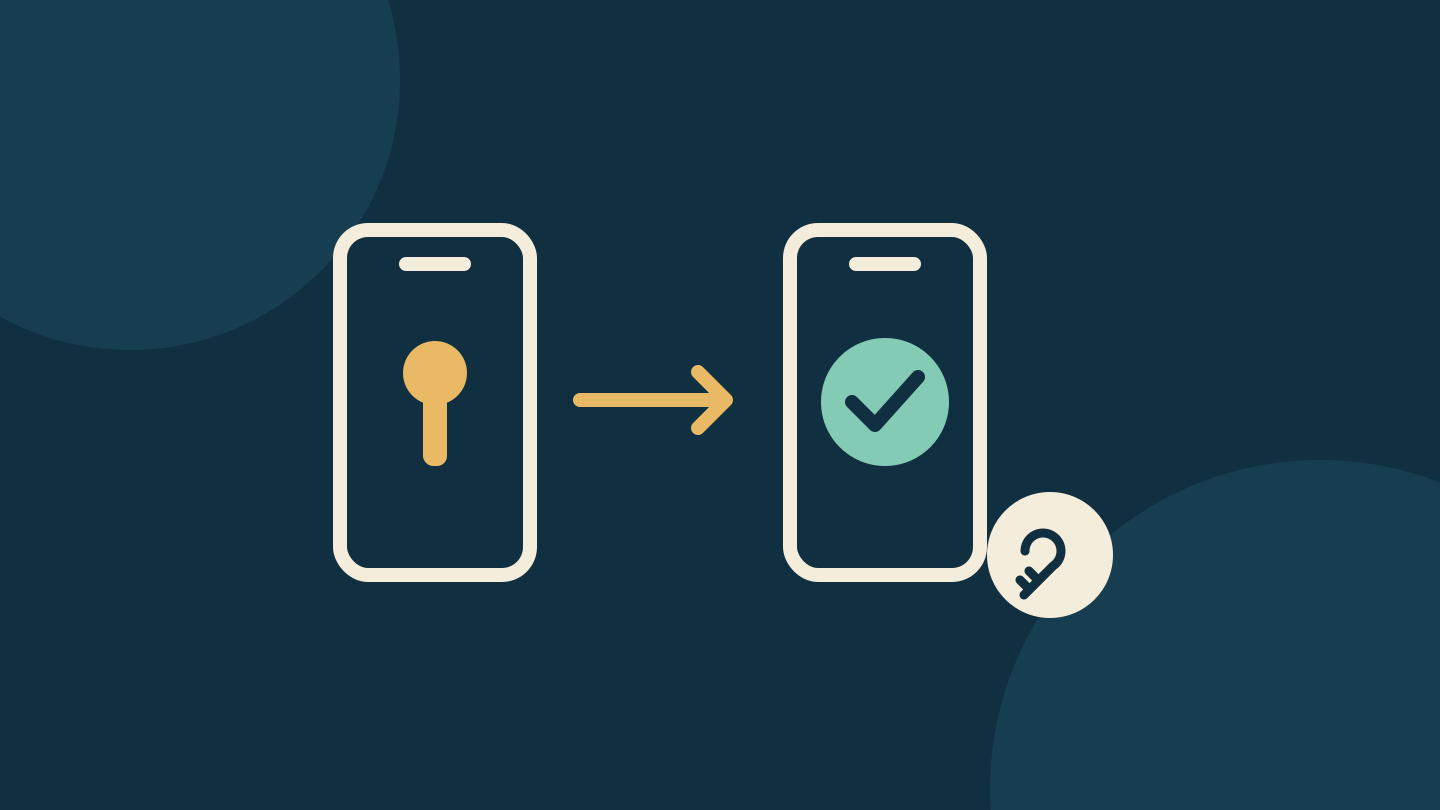
Written with AI assistance and checked against the linked documentation in a separate editorial review. No device, account-transfer or recovery testing was performed. The cover is an original conceptual sign-in illustration, not a Microsoft screen. No affiliate links, paid placement or supplied products are included.
Sources
- Back up one-time password codes in Microsoft Authenticator — Microsoft
- Transfer Microsoft Authenticator account entries — Microsoft
- Microsoft MFA new phone help — Kettering Health
- Transfer MFA old to new phone — Southern Cross University
- Microsoft Authenticator FAQs — Microsoft