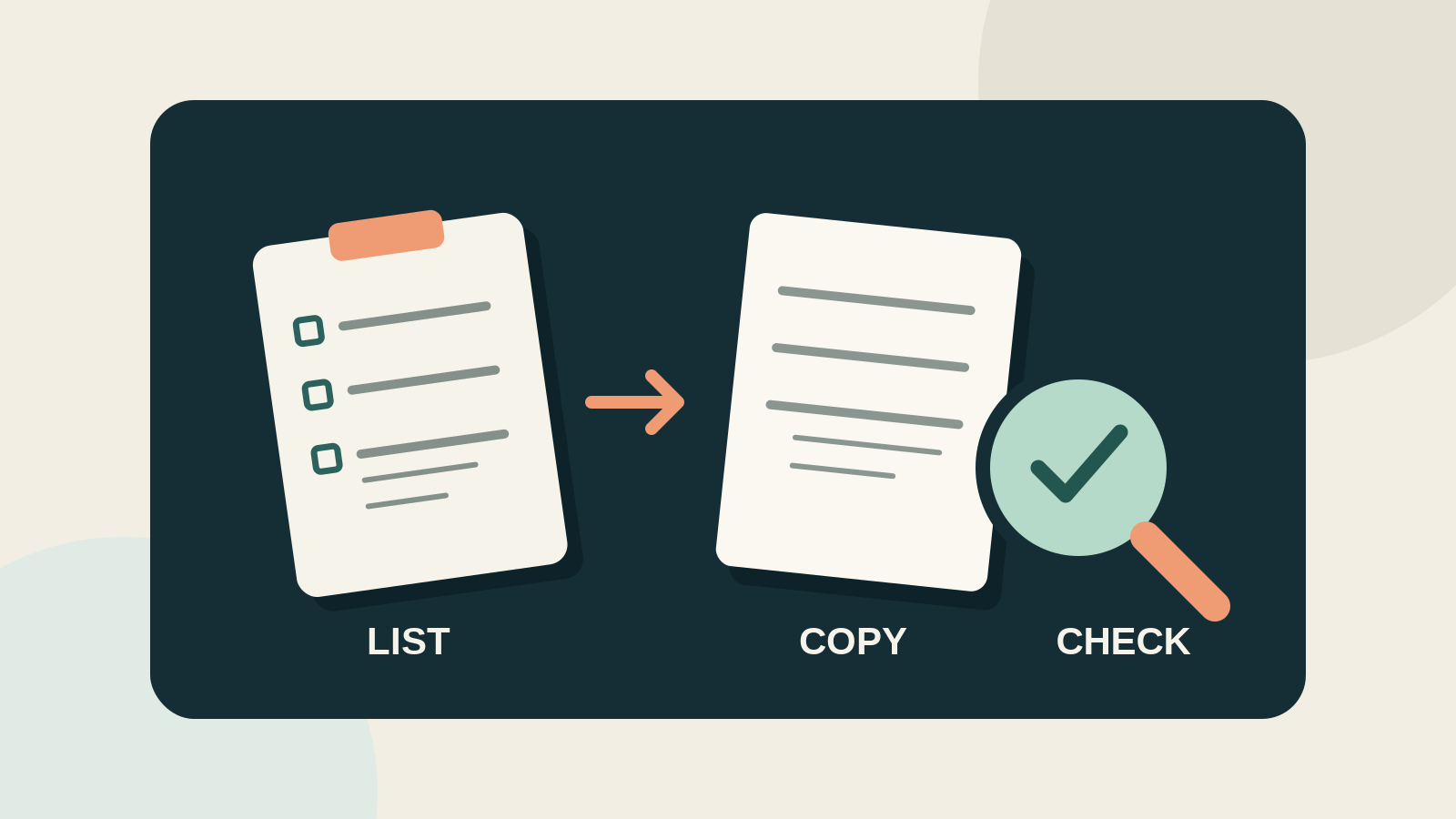
If Microsoft To Do holds a packing list, household instructions or a project checklist you need to keep, make a readable copy before deciding which app comes next. The web version has a documented print command that can include steps and notes. Check the result before relying on it.
Microsoft says the To Do apps will retire on 30 June 2027. A data-export option is promised before then, but its format, supported content and instructions are still pending as of 21 November 2026. Microsoft also cautions that an export does not guarantee another app can import it.
A printed list or PDF can serve a different purpose: keeping information you can read while you work out the move. It is not a replacement task app, and this method does not establish a complete, restorable backup.
Make the copy from the web app
Sign in to Microsoft To Do on the web with the account you use for that list. Follow Microsoft’s printing instructions:
- Open the list’s three-dot menu beside its title, or right-click the list name in the sidebar.
- Enable Print steps and Print notes if you need those details.
- Choose Print list. In your browser or system print dialog, select a printer, or a PDF destination if one is offered.
Save a PDF somewhere you can find again, using a name that identifies the account, list and date. Open the saved file itself rather than relying on the print preview. If you use paper, check the actual pages.
The PDF destination and its name depend on your browser and operating system. This guide uses the documented web route; it does not assume that the phone apps have the same menu.
Check that the instructions survived
Microsoft warns that long task names can be cut off when printing. That matters when the missing words contain the destination, size or exception. Our suggested check is to compare the copy with the original list while both are available.
| Inspect | What to establish |
|---|---|
| Longest task title | The whole instruction is readable, including its ending. |
| A task with several steps | The steps you need are present and their order makes sense. |
| A task with a substantial note | The useful detail survives, including text at a page break. |
| First and last items you meant to preserve | The copy covers the intended list, rather than a different account or partial view. |
This spot check can expose a problem; it cannot certify every task. Read through the complete copy for a critical list. If something is missing, retain the original and make a clearly labelled supplementary record of that detail. Do not silently shorten instructions merely to make a page look tidy.
Consider a hypothetical moving-house checklist with the task “Collect keys from the rear office after 3 pm.” A copy that stops at “rear office” loses the timing even though the task still appears. Compare the meaning of the instruction, then keep any correction alongside the copy.
Keep a separate record of things that must keep working
A readable document cannot deliver a reminder or coordinate a shared list. Alongside each important list, note which people use it, any timing or repeat behaviour you rely on, and files you will need separately. Treat these as requirements to verify in the eventual replacement, rather than assuming they are preserved because the task title appears in a file.
For work or school lists, follow your organisation’s storage rules before saving copies outside its systems. For household lists, keep the copy in a location suitable for the information it contains. A convenience copy can still contain private notes.
Choose the next app after checking your account
Microsoft’s transition guidance makes an important account distinction: Planner is the destination for work or school accounts, but it is unavailable to personal Microsoft accounts, including Microsoft 365 Personal and Family. Existing To Do lists and tasks will not migrate to Planner. Check each account separately if you use both.
App retirement does not itself schedule task-data deletion; later service and API retirement dates are separate. That distinction is useful context, not a reason to assume you can retrieve everything indefinitely.
When Microsoft publishes its export instructions, compare the supported fields with your own list of requirements. Then check the chosen app’s import documentation. Keep the original lists and your readable copy while you confirm that the important information and everyday behaviour work in the new setup.
Editorial disclosure: AI assisted research and drafting, followed by a separate editorial revision against Microsoft documentation checked on 21 November 2026. Techotick did not test an account, export, import or reminder. The checklist and example are editorial suggestions. No sponsorship or affiliate links. The cover is an original conceptual illustration, not a Microsoft To Do screenshot.
Sources
- Moving from Microsoft To Do to Microsoft Planner — Microsoft
- Printing lists in Microsoft To Do — Microsoft