If Signal suddenly refuses a screenshot, check its privacy control before troubleshooting your phone. Choose how long you need screen capture available before changing the setting.
Signal announced new protections on 20 November 2026 to limit built-in AI assistants capturing conversations from the screen. Disabling them can also let those assistants read chat content. Our recommendation: leave protection enabled unless you need a copy, and decide how you will restore it before changing anything.
Check the version and the return path
Signal’s detailed help requires Signal 8.35.1+ on Android, or Signal 8.37+ with iOS 27+ on iPhone. On iPhone, find Block Siri AI under Signal’s Settings → Privacy. On Android, go through Settings → Privacy → App security to Screen security.
| Choice | What happens afterward |
|---|---|
| iPhone: ten-minute pause | Protection returns automatically after ten minutes. |
| iPhone: off | Return to the setting yourself; Signal says it will not remind you. |
| Android: off in settings | Turn it back on yourself; no reminder is promised. |
| Android: disable from the prompt | The help page says it returns after 90 days. |
The iPhone option is labelled Off for 10 Minutes. On iPhone, a blocked capture offers an Options button. Android has no ten-minute option.
Finish the task, then check the setting
Our suggested routine is to choose the message first, make only the copy you need, then reopen the privacy setting. Check the displayed state when the task or timer ends; do not rely on memory of which option you tapped.
For example, suppose you need a screenshot of a meeting location. Before taking it, check whether adjacent messages contain somebody else’s phone number or unrelated plans. Afterward, inspect the actual image before sharing it. This is a hypothetical example of limiting an unnecessary copy, not a tested Signal workflow.
Keep the two checks separate:
- App state: is screen protection enabled again?
- Saved image: where is the copy, what does it contain, and who will receive it?
A restored setting is not a reason to assume an image you already saved has disappeared. Handle the copy according to its contents. If all you need is a non-sensitive meeting address, consider writing down that detail instead of preserving the surrounding conversation.
A screenshot block is not a whole-device privacy guarantee
Signal describes this protection as incomplete: screen blocking cannot close every other route to data, including files already stored on the device. It also says automatic detection on Android depends on the operating system exposing the necessary signal. A successful screenshot or a missing warning alone does not tell you what every assistant can access.
Signal’s general screen-security guide makes another distinction: the control protects your own device. It does not stop someone else capturing a conversation on theirs. That guide also describes hiding previews in the app switcher and a separate Windows control. Do not use an older iPhone app-switcher instruction as evidence that you have enabled the newer AI-related setting.
If your menu differs, note the Signal version, operating system and exact setting label before consulting the current help page. Avoid treating instructions for one platform as a universal fix. We have not tested these controls on a phone, measured AI access or verified every device’s rollout.
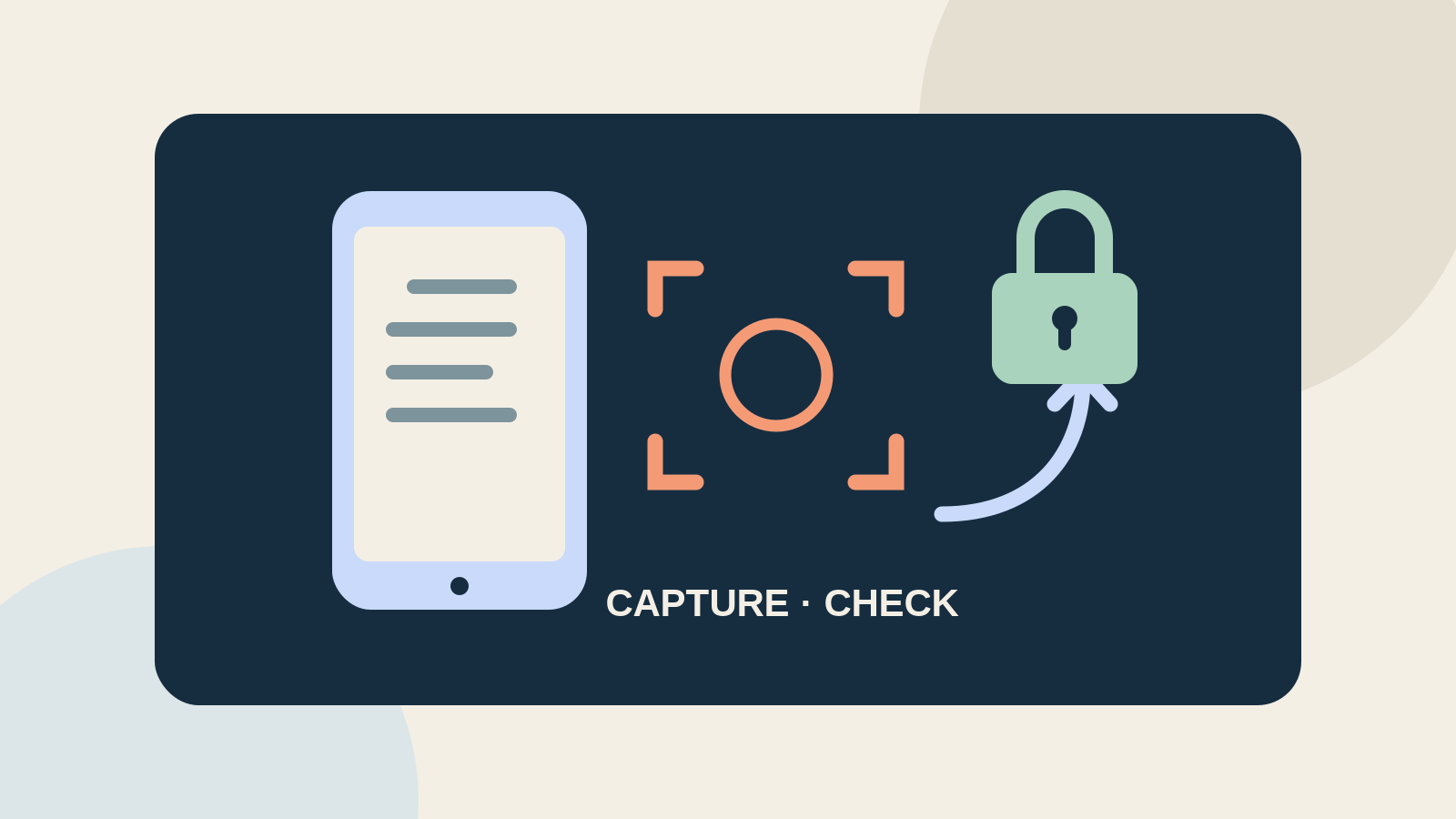
Editorial disclosure: AI assisted research and drafting, followed by a separate editorial revision against Signal documentation checked on 22 November 2026. The routine and example are editorial suggestions, not device or security-test results. No sponsorship or affiliate links. The cover is an original conceptual illustration, not a Signal screenshot.