If your Pixel Tag still shows the airport you left hours ago, start with when that location was reported. An old map point tells you where the tag was detected; it does not establish that your bag is still there. Before changing settings, separate a delayed network report from a problem finding something nearby.
Google's November Pixel Drop announcement puts Pixel Tag availability at 11 November. As of 16 November, its stores list it from USD 29.99 in the United States and AUD 49 in Australia. The useful first question is whether you are reading an old detection or trying to connect to a tag beside you.
Start with the symptom
Google describes two different finding routes: outside Bluetooth range, Find Hub shows the last reported location on a map; nearby, compatible phones can use ultra-wideband (UWB) directional guidance. A missing arrow and an old map pin therefore call for different checks.
| What you see | Useful next check |
|---|---|
| A map location with an old last-seen time | Keep the time with the location. Treat it as a previous detection, not proof of the bag's current position. |
| The tag is nearby, but Find nearby is missing | Check compatible UWB phone support; wait briefly or move closer, as Google recommends. |
| An explicit Sync recent location message | Follow the in-app sync prompt and its authentication request; this is a separate access problem. |
In a hypothetical example, Sam checks at 12:30 and sees a bag last reported at a terminal at 10:05. The report alone cannot settle whether the bag stayed there or moved without another detection. Keep the timestamp when explaining the situation to a carrier.
Why a distant tag may stay quiet
Google explains that participating Android devices scan for nearby items using Bluetooth. When a device detects an item, it can send the detection location through Find Hub. The owner's view includes where the item was detected and approximately when it was last seen.
That makes a nearby phone's successful connection a different check from remote coverage. You can confirm that your phone sees the tag at home without proving that other participating devices will detect it inside a bag elsewhere.
In Find Hub settings, review Find your offline devices. Google's With network in busy places only option uses aggregated reports from multiple devices. With network everywhere also allows help from a single detecting device whose owner has enabled that option. Google says this may find items faster; it is not a promise of a new location. Read the participation explanation before choosing, and keep a PIN, pattern or password set on your phone.
Check the packed bag before leaving
Google warns that carbon-fiber or aluminum luggage and RFID-blocking wallets may obstruct the tag signal. Its setup guidance recommends an exterior fabric pocket for checked baggage. Consider the actual pocket and surrounding materials, not just whether the tag fits.
While the bag is still with you, open its entry in Find Hub and try ringing the tag from your phone. Repeat after packing it in the intended pocket. This is a useful preparation check, not a test of coverage at your destination. If you want directional finding, confirm your exact phone supports the required UWB feature; simply being able to pair is not the same check.
Also open the tag's settings and inspect Device details. Google says firmware updates install automatically while the tag is near your phone; there is no manual update control. Record the firmware version if you need support.
Handle a sync error separately
If Find Hub specifically says Sync recent location, Google attributes that message to location encryption being out of sync. Select the affected item, tap the prompt and complete any requested screen-lock or Google Account verification. A recent location appears only if one is available.
If syncing fails, follow the relevant device or accessory section of Google's troubleshooting page. Its later accessory remedy involves a factory reset and reconnection. Do not jump to that step merely because a distant tag has an old timestamp: first establish which error you actually have and whether the tag is physically available for the documented procedure.
What to send support
If an airline supports Find Hub item-location links, Google documents a sharing route for tags that are not nearby. The shared page includes the last known location and when the item was last seen. One of your devices needs to remain online to provide updated locations. The link expires after seven days, and you can stop sharing sooner. Anyone with the link who signs in to a Google Account can access the shared information, so send it through the intended support channel.
Give support the tag name, the displayed location and time, any exact error message, your phone model and the tag's firmware version. For a delayed bag, keep the carrier's baggage reference alongside those details. A tracker report is one piece of evidence; the carrier's recovery process still matters.
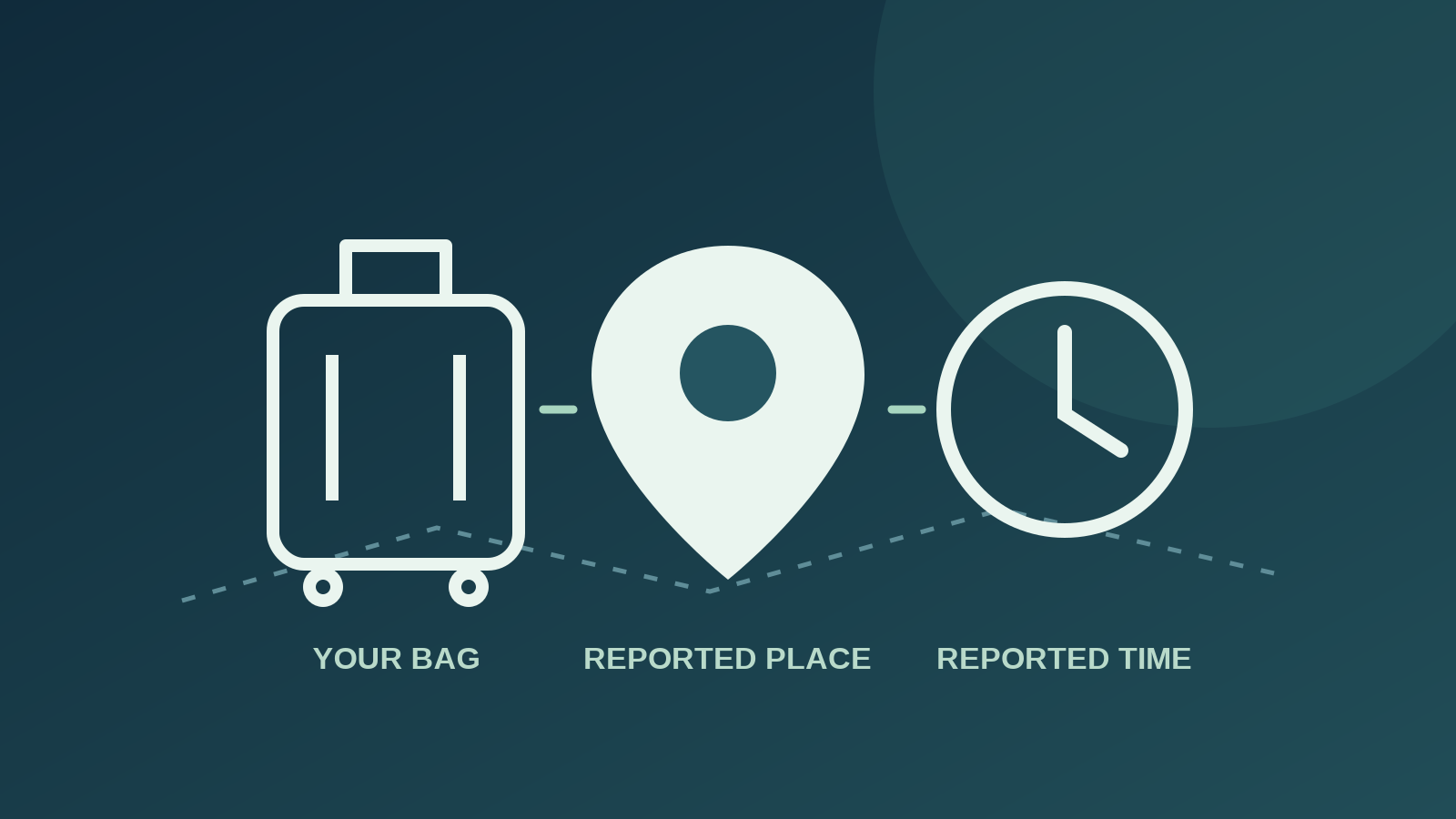
Prepared with AI assistance and separately edited against the linked Google documentation. No device, parcel, flight, network-speed or recovery tests were performed. No sponsorship or affiliate links are included. The cover is an original Techotick conceptual diagram, not a Pixel Tag photograph or Find Hub screenshot.
Sources
- Find items and share Google Pixel Tags — Google
- How Find Hub protects your data — Google
- Fix issues with Find Hub — Google
- Set up and connect your Google Pixel Tag — Google
- Pixel Tag serial number and firmware — Google
- Share and manage devices with Find Hub — Google
- November 2026 Pixel Drop — Google
- Pixel Tag United States store — Google
- Pixel Tag Australian store — Google
- Google Pixel Tag introduction — Google