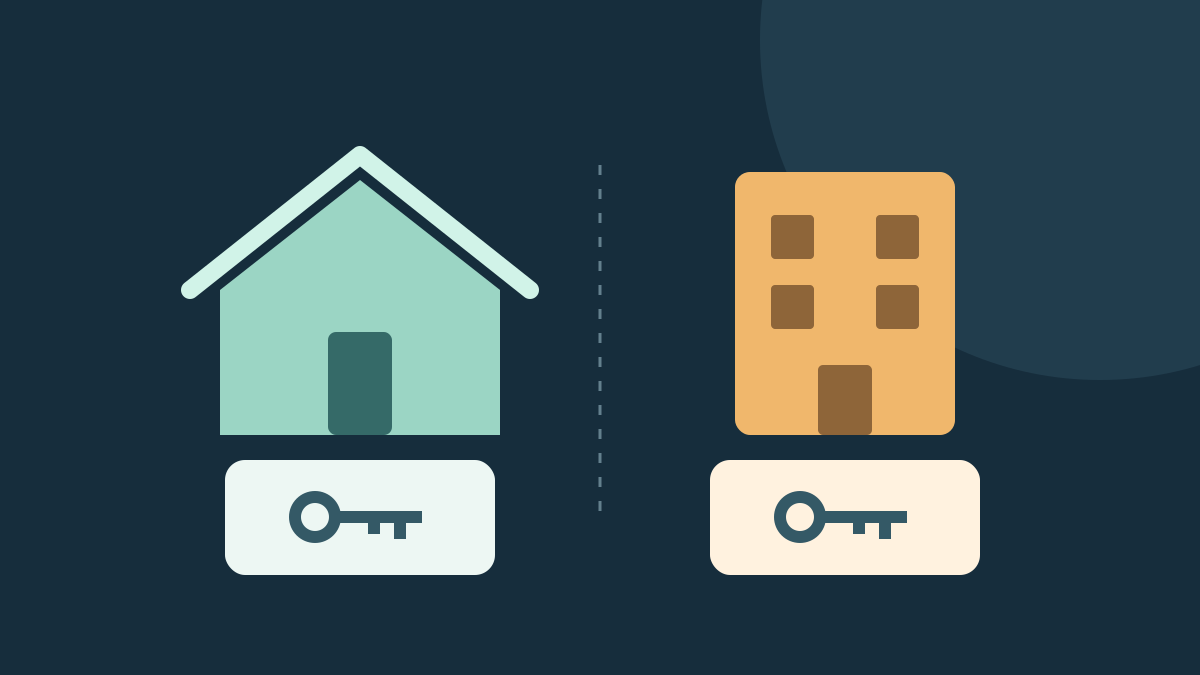
Before removing a residential key from Google Wallet, check how you added it. A key created through Google Home and one issued by your building's property manager have different removal rules. The same-looking cleanup action can affect one device or several.
This matters if you're replacing a phone, tidying Wallet or moving out. Start with the outcome you want: clearing a particular screen is a different task from ending someone's ability to open a door.
Google Home keys are now arriving in Wallet. Nuki's 12 November announcement confirms Google Wallet support for its Keypad 2 NFC setup, initially through Google Home's preview programme. That is not a promise that every lock or account already supports it.
Identify which kind of key you have
Look back at the setup route: did you add the key through Google Home, or through your building manager's website, app or email? If you cannot tell, ask the issuer before removing it.
| Key source | Removal effect |
|---|---|
| Google Home | Also removes the key from compatible devices using the same Google Account. |
| Property manager | Manual removal affects that device. The manager controls deactivation. |
These are the separate cases in Google's residential-key help. For a Google Home key, Google lists Wallet > key > More > Remove, followed by confirmation. Do not use that as a way to clear only your old phone while assuming the key will stay on your new one.
A building-issued key needs a different check. Removing it from a phone does not automatically remove it from a watch, and removing its Wallet entry does not disable the underlying key. Contact the property manager when your goal is to end access.
A two-phone example
Imagine Alex has a Google Home key on an old phone and a replacement, both using the same Google Account. Alex wants to keep entering with the replacement but clean up the old handset. Removing the key in Wallet is broader than that goal: the documented removal also covers the other compatible device.
Before changing anything, Alex should record the key's source, the account and the devices that need to keep working. Keep a physical key available, then confirm the appropriate phone-retirement procedure with the device and lock guidance. This is a planning example, not a tested phone-transfer procedure.
A missing Wallet card is not the whole access check
Google's lock-control documentation warns that a digital key may remain active on a device if the lock cannot be reached. It also says a disconnected lock may need a factory reset to fully remove the key.
That caveat matters when access must actually stop. Do not treat a disappearing Wallet card as proof of completed revocation. If the lock is offline or the result is unclear, use the lock manufacturer's support or your property manager to resolve it. Ask support to confirm the procedure before resetting the lock and disrupting other access.
For a support request, give the exact lock model, how the key was issued, which devices hold it, whether the lock is reachable, and the result you need. For example: “Remove this former device's access while keeping my replacement working.” Do not send passcodes or screenshots containing credentials.
Keep other Wallet items separate
Google's general Wallet guidance distinguishes account-linked passes, device-specific passes and payment cards. Their deletion behavior varies. A method you used for a bank card is not evidence that a home key will behave the same way.
After an authorised change, check both sides of the result: the devices that should still work and the access that should have ended. Keep your backup entry method with you while checking.
Method: documentation checked on 13 November 2026; no lock, account, transfer or revocation test performed. Alex is a hypothetical example. This guide covers keys already added to Wallet; rollout and compatible hardware vary. AI assisted drafting, followed by separate editorial review. No sponsorship or affiliate links. The cover is an original conceptual diagram, not a Google Wallet screenshot.