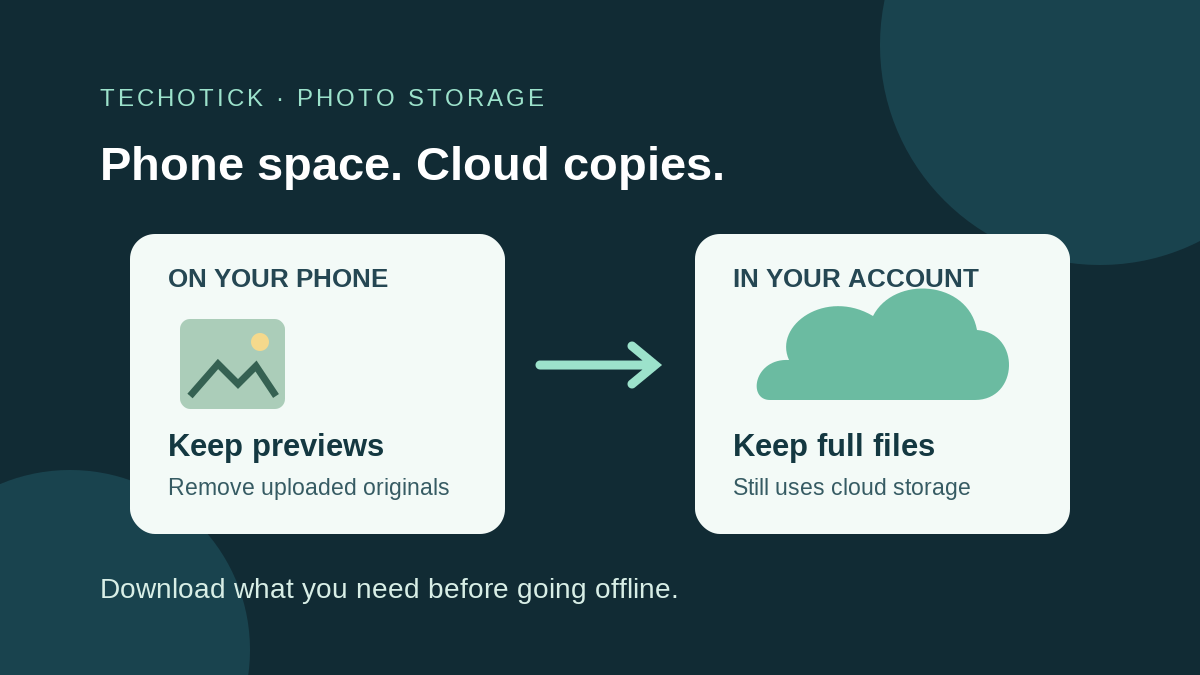
If you want more room on your Galaxy phone without losing your photos, check whether the next button changes phone storage or cloud storage. Samsung Gallery's new Free up space option removes uploaded originals from the phone and keeps previews. Treat ordinary deletion separately: deleting a synced item can also remove its cloud copy.
Samsung announced the feature on 10 November 2026. Here is how to decide whether it solves your problem, including what to keep available before a trip.
Choose the result before the button
| Your goal | What to check |
|---|---|
| More phone space | Use the device-space option after upload completes; the cloud copy remains. |
| More cloud space | Review account storage separately. Removing a local original does not remove the uploaded copy. |
| Photos without internet | Download the files you need and check that they open offline. |
| Remove a photo everywhere | Review synced deletion carefully; this is a different intention from clearing phone space. |
Gallery can still look full after local originals are removed because its thumbnails remain. That is useful for browsing, but it does not mean every full-resolution file is still on the phone.
Check the account and upload first
Open Gallery's settings and look for Sync photos and videos. Check the linked account, the albums included and whether the upload has finished. Google's current integration guide requires a compatible device, Android 17 and a personal Google account; Workspace and parent-supervised accounts are excluded. Samsung describes a phased rollout on selected One UI 9 devices, with availability varying by model and market. A missing option is not a reason to start deleting files manually.
Use photos.google.com in that same account to inspect a few recent photos and play a recent video. This is a useful spot check, not proof that an entire library has uploaded. If a recent item is missing, check its selected album and account and wait for sync to finish. Keep the local original until its backup is verified.
Work out which storage is actually full
Gallery sync uses the Google storage you already share with Gmail, Drive and Photos. It does not provide another free allowance. The starting allowance is up to 15 GB, so existing usage matters more than the headline capacity.
Consider a hypothetical account with a 15 GB allowance and 12 GB already used. It has 3 GB left. If another 8 GB of previously unuploaded media needs backing up, the shortfall is 5 GB. Clearing 4 GB of already-backed-up originals from the phone can help its local storage, but does not create another 4 GB in the cloud.
These are planning figures, not measured upload sizes or a prediction of Samsung's displayed totals. Use your account's actual quota and the pending upload size. Decide whether to reduce what needs uploading, retain a separate verified copy elsewhere, review cloud content you no longer need, or consider more storage. Do not treat ordinary Gallery deletion as a shortcut to any of those decisions.
Google documents synced deletion across Gallery and Photos. It also says switching Gallery sync off stops new backups but leaves previously uploaded media in the account. Turning it off therefore does not reclaim the space already used.
If you already use Storage saver
Check which app is doing the uploading. When linked to the same account, Samsung Gallery sync and Google Photos backup share its storage allowance. Their upload-quality behavior differs. Samsung says Gallery sync stores original-quality media, even when Google Photos backup uses Storage saver. Setting Storage saver in Google Photos therefore does not make Gallery uploads smaller.
Before treating a rising quota as duplicate files, open a recent photo or video on photos.google.com and select Info. Google documents the backup quality and size in its details. Check which upload route you enabled before interpreting that result. An Original-quality item can use more space than a compressed copy without appearing twice in the library.
If you enabled Gallery sync expecting compressed uploads, reconsider that choice against your available cloud space. Turning sync off does not shrink items already stored. Google Photos has a separate Recover storage operation for eligible existing originals; it does not change future upload quality, and some files cannot be compressed. Preserve important originals in a separate, verified copy before considering a quality reduction. Do not delete cloud copies just to test whether the apps are uploading twice.
Keep trip photos available offline
Google Photos' device cleanup guidance distinguishes access to backed-up media online from access without a connection. A cloud preview is not a dependable offline copy.
Before a flight or a trip with patchy coverage, choose the files you will actually need. In Google Photos, open an item and use More → Download; Google says the option is absent when the item is already on the device.
For a practical check, disconnect both Wi-Fi and mobile data, reopen the chosen image, and play the video through the part you need. Restore connectivity afterward. Do this after your final cleanup: a successful check yesterday does not establish that today's cleanup left the same files available.
For example, a traveller might keep five reference photos and a short family video as local downloads while leaving the rest in the cloud. The useful result is that those six chosen files work offline and the phone has room for new pictures—not that every thumbnail still appears.
If the screen does not match
Read the confirmation screen for the operation it proposes. If it describes deleting cloud items when you only want phone space, stop and check the relevant app's help. Avoid substituting a bulk delete or an unverified file-manager workaround for the documented device-space feature.
Updated 15 November 2026: added the difference between Gallery upload quality and Google Photos Storage saver.
Method: documentation-based guidance with a hypothetical storage example; no phone, account, deletion or recovery testing was performed. Prepared with AI assistance and editorial review. No sponsorship or affiliate links. Cover: original Techotick vector illustration of local and cloud storage, not a Samsung screenshot.