A drive that copies quickly at the back of your PC and crawls at the front is worth comparing carefully. Before buying a hub or replacing the case, compare the two connections with the same drive, cable and files. A consistently faster result identifies a better path for that job; it does not, by itself, prove that the front panel is faulty.
This guide is for file transfers on desktop PCs. It helps you separate a lower specified connection speed from a possible connection problem, then give support useful evidence if the difference persists.
Check the exact port, not just its position
Read the PC or motherboard specification and, for a custom build, the case specification. Look for the front connector or header as well as the rear ports. A header is the internal motherboard connection used by the case's front ports.
For example, ASUS lists both a USB 3.2 Gen 2x2 front connector and slower front headers on the ROG Maximus Z790 Hero. That is a reason to identify the particular socket and case connection, instead of assuming every front socket has the same limit. It is a specification example, not a recommendation to buy this older board.
USB-IF explains that USB 3.2 includes 5, 10 and 20Gbps rates and operates at the lowest shared capability. Merely seeing “USB 3.2” does not identify the rate. A faster component cannot remove another component's limit.
Check the cable's data specification too. A wattage marking describes power capability. USB-IF's cable rules distinguish power markings from data-rate markings, including USB 2.0 cables that need not carry the faster data-rate logo. A cable that charges a laptop is not automatically suitable for a fast SSD transfer.
Make one comparison you can explain
Start with copies of files that are backed up elsewhere. Leave the originals in place. Use a separate destination folder with enough free space, and wait for copying to finish before safely ejecting the drive and changing ports.
ASUS recommends trying a direct connection when a hub is involved. For this comparison, connect the drive directly and use its supplied cable if available and undamaged. Check for visible port or cable damage; stop using damaged equipment and ask the manufacturer for help.
- Write down the setup. Note the drive, cable, source folder, destination, copy direction and the exact front and rear sockets. A phone photo of the socket positions can prevent confusion.
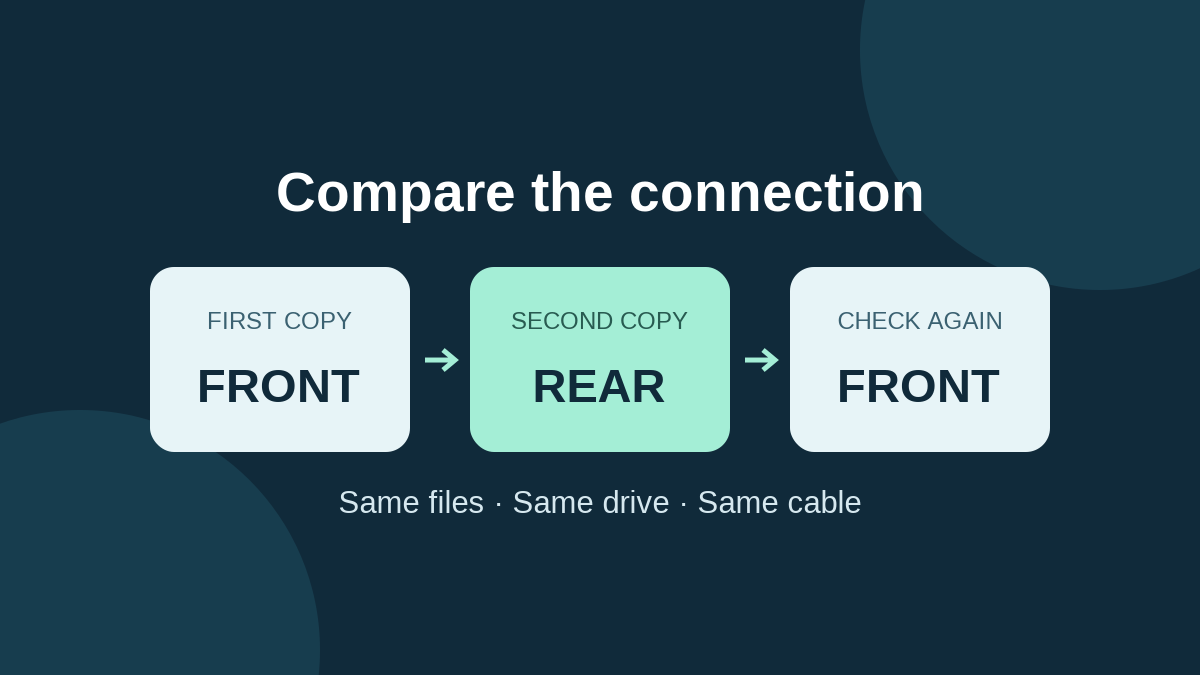
- Copy the same sample through the front socket. Record total elapsed time, approximate speed after the initial burst, and any disconnects or errors. Avoid running another large transfer alongside it.
- Repeat through the rear socket. Keep the files, drive and cable unchanged. Use another empty test folder rather than mixing a fresh copy with an overwrite or a skipped-file operation.
- Return to the front socket. This extra comparison helps reveal whether the first result was an outlier. If the results keep changing, record that uncertainty instead of declaring a winner.
This is a practical comparison, not a controlled laboratory benchmark. Caching, background work and the drive's changing state can affect repeated runs. Choose a sample that resembles the job you actually need to finish: a folder of tiny documents and a large video are different workloads.
Read the result before buying anything
| What you observe | What to check next |
|---|---|
| The rear socket repeatedly finishes sooner. | Compare the specified speeds. A lower-rated front connection may be working normally. |
| Both sockets are similarly slow. | Check the cable, source and destination drives, and whether a different file sample behaves differently. |
| The copy starts fast, then slows on both. | Record when it happens. Investigate the drive and workload before blaming port position. |
| The drive disconnects only at the front. | Stop relying on that connection for important transfers and send the recorded comparison to the case or PC maker. |
Seagate's performance guidance identifies cache exhaustion, file size, the cable, shared resources and source/destination limitations as factors. A copy-speed reading alone is therefore not a reliable identification of the negotiated USB mode. Nor is an advertised interface rate a promised file-copy speed.
NZXT's front-I/O guidance uses a rear motherboard connection to help isolate connectivity problems. Treat a successful rear test as evidence about the connection path, then let support distinguish the front module, wiring and controller. It is not a reason to replace parts blindly.
A useful result can be modest
Imagine a backed-up folder takes 100 seconds at the front, 50 at the rear, then 98 at the front. Those are invented results, not measurements of a product. They support using the rear socket for that folder while investigating the front path. They do not establish that every device will run twice as fast, or that the case is defective.
Before spending money, send support the component models, port ratings, cable details, file sample, copy direction, three timings and any error messages. Ask whether the observed difference matches the specified configuration. A replacement cable, hub or front panel should solve an identified limitation, not just move the same uncertainty to a new accessory.
Method and disclosure: Prepared with AI assistance and editorial review from manufacturer documentation. No hardware benchmark, repair or USB negotiation test was performed. The timing example is hypothetical. No sponsorship or affiliate links. The cover is an original Techotick vector illustration of a comparison method, not a product photograph.
Sources
- ROG Maximus Z790 Hero specifications — US — ASUS
- USB 3.2 — USB-IF
- Cables and connectors — USB-IF
- Troubleshooting USB functionality — ASUS
- External drive performance — Seagate
- Troubleshooting front I/O — NZXT