If Adobe Photoshop is working well for a project you need to finish, check the update settings before installing a new major release. Adobe says that a major upgrade removes the previous version by default. Keeping that installation gives you a fallback while you check the new release with your own files and plug-ins.
Photoshop 28.0 arrived in November 2026 with changes including Relight, Generative restyle and an AI Assisted Editor. The release notes describe what changed. This guide is about managing the installation; keeping an older version does not certify that an image was edited without AI or meets a client's rules.
Know what each setting preserves
Three choices can look like one decision in an update window. They protect different things:
| Choice | What it means for your work |
|---|---|
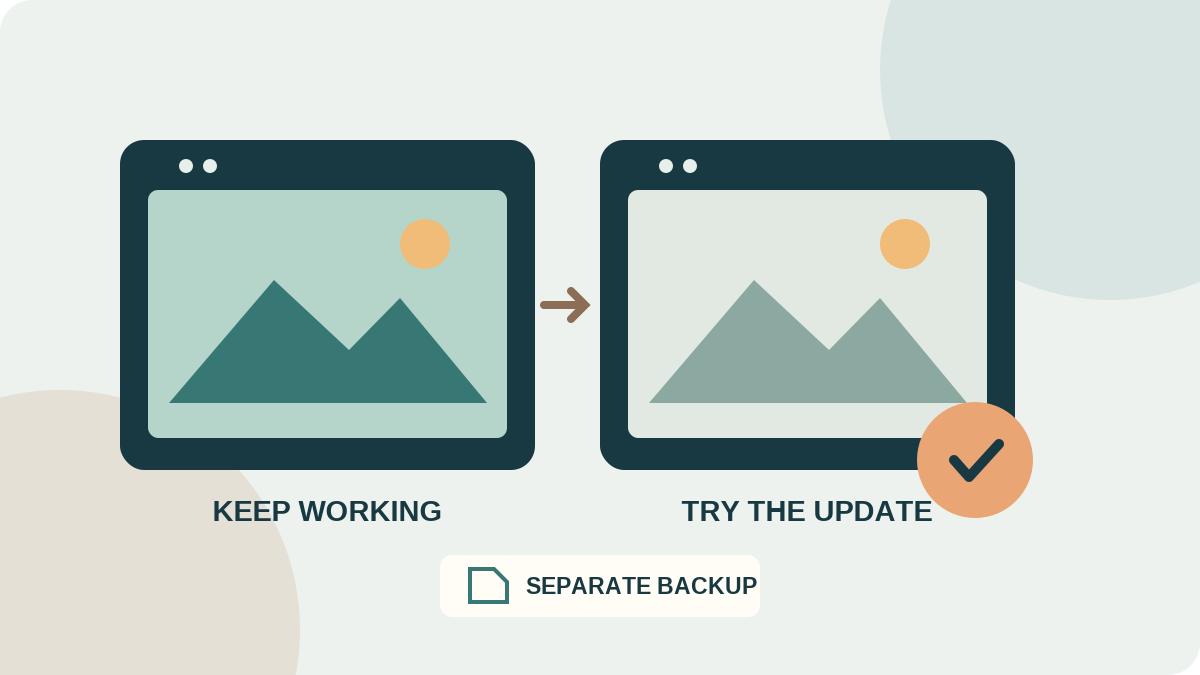
| Keep the older app | Retains an earlier major installation. It does not save a separate copy of your project. |
| Import settings and preferences | Transfers supported customizations into the new installation. It does not keep the old app by itself. |
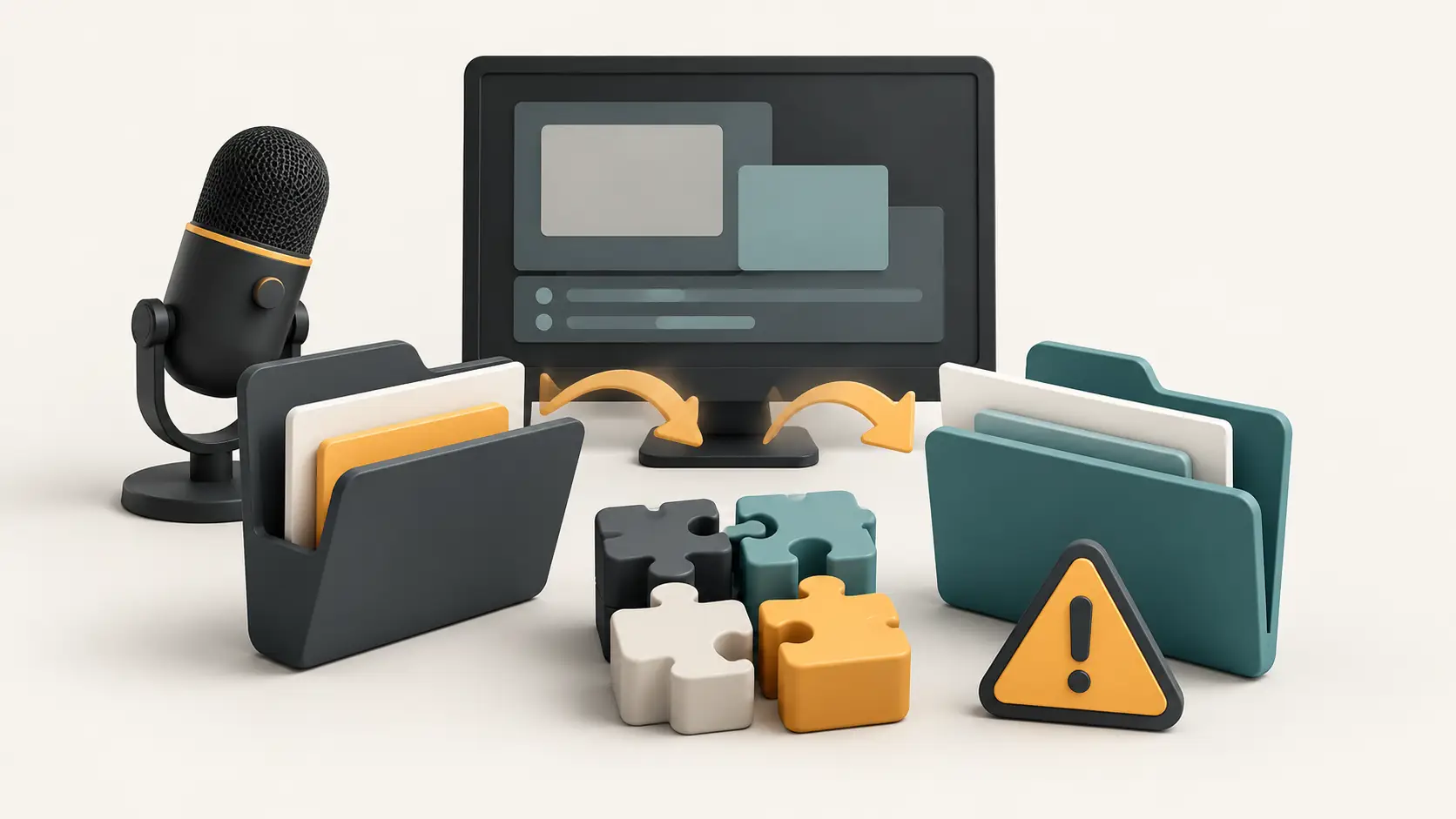
| Back up project files | Preserves your work separately before you try the update. It does not install or restore Photoshop. |
Adobe documents preset and settings migration separately from preparing for an upgrade. Decide on all three before starting, then check each result after installation.
Keep the previous major version
For a manual major upgrade, Adobe's Photoshop support guidance says to open Advanced Options during installation and clear Remove old versions. Read the confirmation before proceeding.
If you already use automatic updates, open the Creative Cloud desktop app and go to Apps → Manage updates. Choose Manage auto-updates, then inspect Photoshop's Advanced options. Leave Remove older versions unchecked and select Done. The separate Import previous settings and preferences option controls customization transfer.
Adobe's automatic-update instructions say Advanced options appear only when auto-update is enabled. If you are deliberately postponing an upgrade, do not enable automatic updates just to reveal that panel; use the retention choice when you are ready to perform the manual installation.
If the old installation has already gone
Keeping an existing installation and downloading one again are different routes. In Creative Cloud, open Apps → Your apps, find Photoshop, select its More actions menu and choose Other versions. Select Install beside an offered release. Adobe's older-version instructions caution that the available list depends on what it currently distributes and supports.
Check the available version before removing anything else. For a reinstall where preserving preferences matters, Adobe's guide describes uninstalling the current app first and choosing Keep when prompted. Back up your work and read that procedure before taking the uninstall step.
A missing or locked update control can be an organization policy. Adobe notes that work or school accounts can have automatic updates disabled or managed. Ask the administrator which version is approved and available; a different menu does not establish that the app is broken.
Test a project copy before switching over
Adobe advises completing current projects before upgrading where possible, making project backups, and checking system requirements and plug-in compatibility. Its upgrade checklist also notes that some extensions or customizations may need to be reinstalled or recreated.
For a practical trial, use a duplicate of a representative project. Open it in the new version, run the action or plug-in you actually depend on, save to a different filename and inspect the exported result. Record which version you used. This is a suggested rehearsal, not a guarantee that every file or feature is compatible.
Consider a hypothetical event photographer whose delivery workflow uses a sharpening plug-in and an export action. Seeing both Photoshop versions in Creative Cloud is only the first check. They can run the sharpening and export steps on a duplicate, then inspect the output before moving the live job. Keep the working installation until the result is satisfactory, subject to any workplace requirements.
Keep support in the decision
As checked on 27 November 2026, Adobe lists Photoshop 28.x as current and 27.x as prior. Its policy provides technical support and security fixes for both, but lists bug fixes only for the current version. Older versions are outside those listed support categories. Recheck the table when planning a later upgrade.
Verify the running app through Help → About Photoshop on Windows or Photoshop → About Photoshop on macOS. Keeping a fallback for a transition is a different decision from leaving an unsupported release in place indefinitely. Revisit the fallback once your normal workflow works in the supported version you intend to use.
Editorial disclosure: AI assisted research and drafting, followed by a separate editorial revision against Adobe documentation checked on 27 November 2026. Techotick did not test an installation, migration, plug-in or file recovery. The rehearsal and photographer example are editorial suggestions. No sponsorship or affiliate links. The cover is an original conceptual illustration, not a Photoshop screenshot.