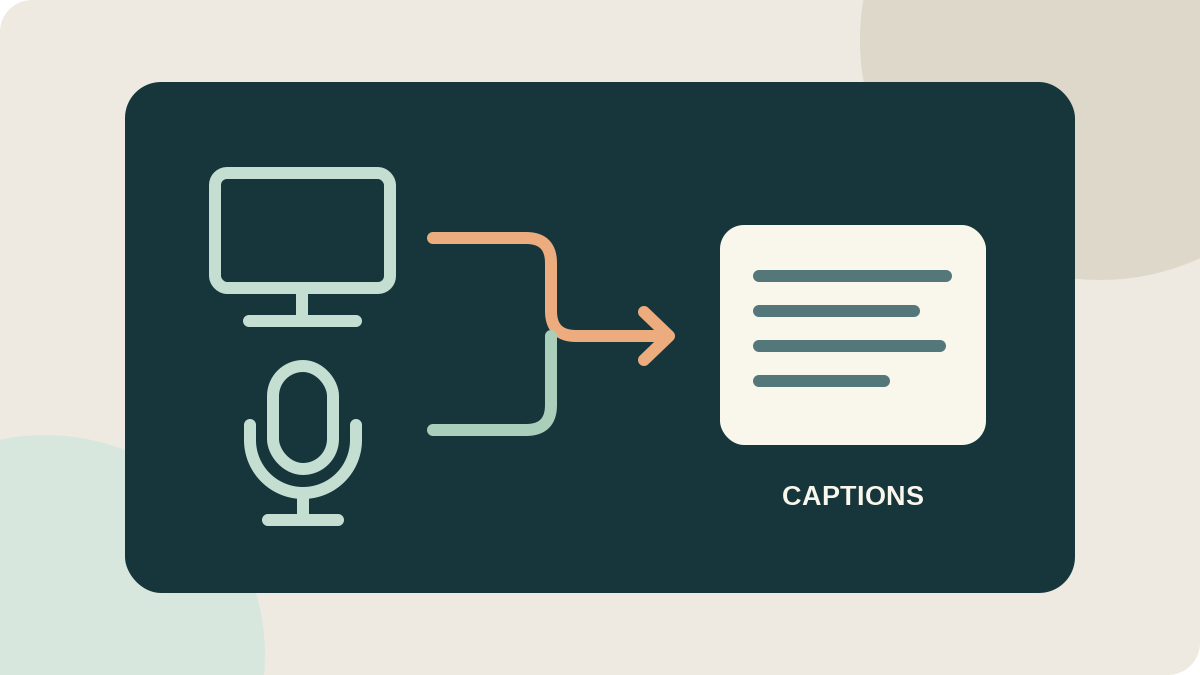
If Windows Live Captions shows a video's dialogue when you want to read what the person beside you is saying, check the audio source before replacing the microphone. PC playback and microphone input are separate audio paths.
Microsoft's 19 November 2026 KB5132057 preview notes add a choice between system audio, microphone audio or both. The change sits under gradual rollout, so the controls may reach PCs at different times. Check the menu actually present on your machine.
Choose the source for the conversation
Start by deciding whose words you need. This task table is our suggested starting point when the separate source controls are available:
| What you want to follow | Source to try first |
|---|---|
| A video or remote speaker playing through the PC | System audio. Leave microphone capture off if you do not need nearby speech. |
| Someone speaking in the room | Microphone audio. Exclude system audio to keep a separate video out of the caption input. |
| A meeting with remote and nearby speakers | Both, then check each source separately before relying on the combined result. |
In a hypothetical example, two people are discussing a repair while an unrelated tutorial plays on the laptop. Microphone-only capture separates the intended input from the computer's direct audio feed. It cannot prevent a physical microphone from hearing sound coming out of the speakers. Pause the tutorial during the conversation if it interferes.
Use the controls your PC has
Press Windows key + Ctrl + L to open Live Captions. The Centre for Accessibility Australia guide also documents enabling it through Settings → Accessibility → Captions.
Open the settings button in the caption bar and look for the available audio-source choices. Microsoft's release notes establish the new three-way choice, but its general help page still describes Preferences → Include microphone audio. If that is the menu you see, use the documented microphone option; do not assume a missing separate system-audio switch means the microphone is broken.
Check the two paths separately
Try this short rehearsal with non-sensitive speech before the conversation that matters:
- PC audio: play a short spoken clip. Check whether its words appear with system audio selected and microphone capture off.
- Room audio: pause the clip, enable microphone capture and say a different sentence. Look for that sentence rather than leftover captions from the clip.
- Combined use: if you need both, enable both available sources and take turns. Confirm that each speaker is represented.
Use deliberately different phrases, such as “the video says blue” and “the room says green.” This is a suggested diagnostic exercise, not a measured accuracy test. It helps you identify which path fails without changing several settings at once.
If only the microphone test fails, review Settings → System → Sound → Input and microphone access under Privacy & security → Microphone. If only PC audio fails after connecting a headset, check the default output device in Sound settings. Microsoft's help links caption capture to that default output.
Do not treat “both” as a promise of two complete transcripts. The current help says PC sound takes priority when speech overlaps. The new release notes do not say whether overlapping speech is handled differently. Taking turns is a more useful check than asking two people to speak at once.
A caption display is not meeting notes
Microsoft says Live Captions processes speech locally and does not save the resulting captions. If you need a record afterwards, arrange a suitable, agreed note-taking method before the meeting. Seeing words on screen does not mean a transcript will be waiting when you close the bar.
The Live Captions feature page lists both English (Australia) and English (United States) recognition. It also notes that the microphone starts off by default, so recheck it when beginning another session. Recognition covers speech; it is not a reliable captioner for song lyrics or non-speech sounds.
Microsoft's setup guidance distinguishes ordinary captions on Windows 11 version 22H2 or later from live translation on Copilot+ PCs running 24H2 or later. A missing translation option is a different question from a silent microphone. Initial language-file setup also needs access to the download service.
Check the options on the PC you will actually use, and leave time to establish a working setup before a class, call or conversation.
Editorial disclosure: AI assisted research and drafting, followed by a separate editorial revision against documentation checked on 24 November 2026. Techotick did not test caption accuracy, microphones, offline operation or the new Windows update. The task table and rehearsal are editorial suggestions. No sponsorship or affiliate links. The cover is an original conceptual audio-path diagram, not a Windows screenshot.
Sources
- November 19 KB5132057 preview release notes — Microsoft
- Use live captions to better understand audio — Microsoft
- Live Captions features and requirements — Microsoft
- Troubleshooting live captions setup — Microsoft
- Windows 11 accessibility setup — Centre for Accessibility Australia