You downloaded a YouTube video, but there is no file in your Downloads folder. The download may still be ready to watch. YouTube's offline feature keeps viewing inside YouTube; it is not an MP4 export for another player.
The useful check is whether the exact video plays from YouTube's Downloads on the device you plan to use. First find the video, then check its eligibility and try playing it without a connection.
Find the download inside YouTube
On a computer, sign in to the account with the membership, open YouTube and choose Downloads in the left menu. YouTube's computer instructions currently list Chrome, Edge, Firefox and Opera. For the first check, return to the browser you used to download. Do not assume a different browser has the same offline collection.
On a phone or tablet, look inside the YouTube app. Google's offline FAQ explains that mobile downloads are encrypted and viewed in the app, which is why they do not appear as ordinary gallery videos. A subscription is not a way to create an editable copy or move a video onto a USB drive.
If your goal is editing or keeping a separate media file, establish that requirement before paying for an offline-viewing feature. Ask the creator whether they offer an authorised downloadable file with suitable permission. That keeps a file-export requirement separate from a viewing subscription.
Check the plan and the particular video
Older advice that Premium Lite never includes downloads is out of date. YouTube announced the addition on 24 February 2026. This is an existing feature, not a new November launch.
According to the current Lite help page, downloads cover most videos, but exclude Shorts and music content. That can include a vlog containing a song from YouTube's music partners, not just an official music video. Lite also does not include YouTube Music Premium.
Imagine a fictional list containing a repair tutorial, a dance video and a concert clip. Success with the tutorial would not demonstrate that the other two are eligible. Check the actual videos you need before buying a subscription. A missing button on one title does not, by itself, show that the installation is broken.
YouTube lists both Australia and the United States among Premium Lite locations. Regional availability does not guarantee every video or account is eligible. Check your signed-in offer for the current local price; this guide quotes no USD or AUD subscription price.
Match the symptom to the next check
| What you notice | What to check first |
|---|---|
| No MP4 in the computer's Downloads folder | Open Downloads inside YouTube. Do not use the absence of a file as the failure test. |
| The required video is absent from your offline list | Check its download status, the signed-in account and the browser or app you used. |
| Some videos download, while others do not | Check the exact title and your plan's content exclusions before changing the whole setup. |
| Unchosen videos occupy the list | Inspect Smart Downloads separately from the videos you deliberately selected. |
Keep recommendations separate from your required viewing
Smart Downloads automatically adds recommended videos. On a computer, its controls are under YouTube Settings, then Downloads. It can be turned off, and individual recommendations can be removed from the Downloads shelf.
The Android instructions also say that new Smart Downloads replace the previous selection every seven days. Do not treat that rotating selection as your own permanent watchlist. Select required videos deliberately and confirm each is present; an allocation of storage space does not establish that a particular lesson or programme is ready.
Try the actual offline session before you need it
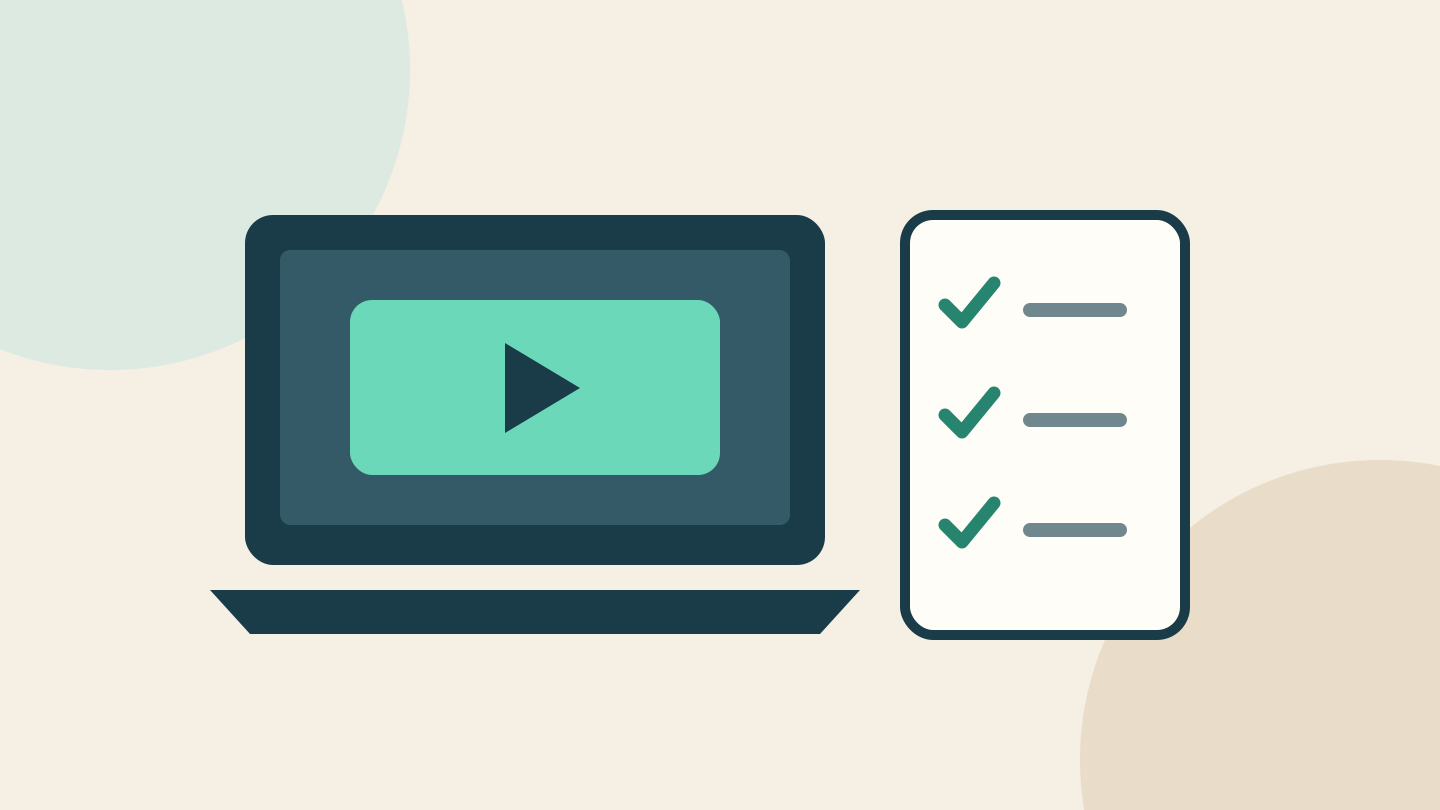
Before you rely on it, try one video: while you still have a connection, finish downloading one required video. Then disconnect Wi-Fi and any mobile data connection, open YouTube's Downloads and play it. Use the device, account and browser or app you intend to take with you. Reconnect afterwards to resolve any failure while help and another download are available.
Record the video title, device and where you opened it, plus whether it played with the network disconnected. Check the remaining essential videos as well. A successful sample is useful evidence about that setup at that time; it is not a guarantee for every title or a later trip.
Offline access needs periodic online checks. YouTube's computer help gives an upper limit of 29 days, with shorter limits in some regions, and says a title can disappear after a later availability check. Refresh before departure instead of treating a download as a permanent archive. Travelling abroad can also change membership benefits; consult the linked location and travel policy for your destination.
If the check fails, keep the error wording and the details above before contacting YouTube support. Avoid clearing app or browser data as your first experiment when you are about to lose internet access.
AI assisted the research and writing; the article received a separate editorial revision and source check. This is documentation-based guidance, not a device, subscription or playback test. The example is fictional and the cover is an original conceptual diagram, not a YouTube screenshot. No affiliate links, paid placement or supplied products are included.
Sources
- Computer offline downloads — YouTube
- Offline video FAQ — YouTube
- Premium Lite background play and downloads announcement — YouTube
- Premium Lite membership limits — YouTube
- Membership locations and travel policies — YouTube
- Computer Smart Downloads — YouTube
- Android Smart Downloads — YouTube