← All prompt libraries

Techotick / Prompt library

Image prompts

Create a product image or a PowerPoint background from your logo. Explore image prompts with visual examples, editable inputs and practical notes.

2 prompts to explore

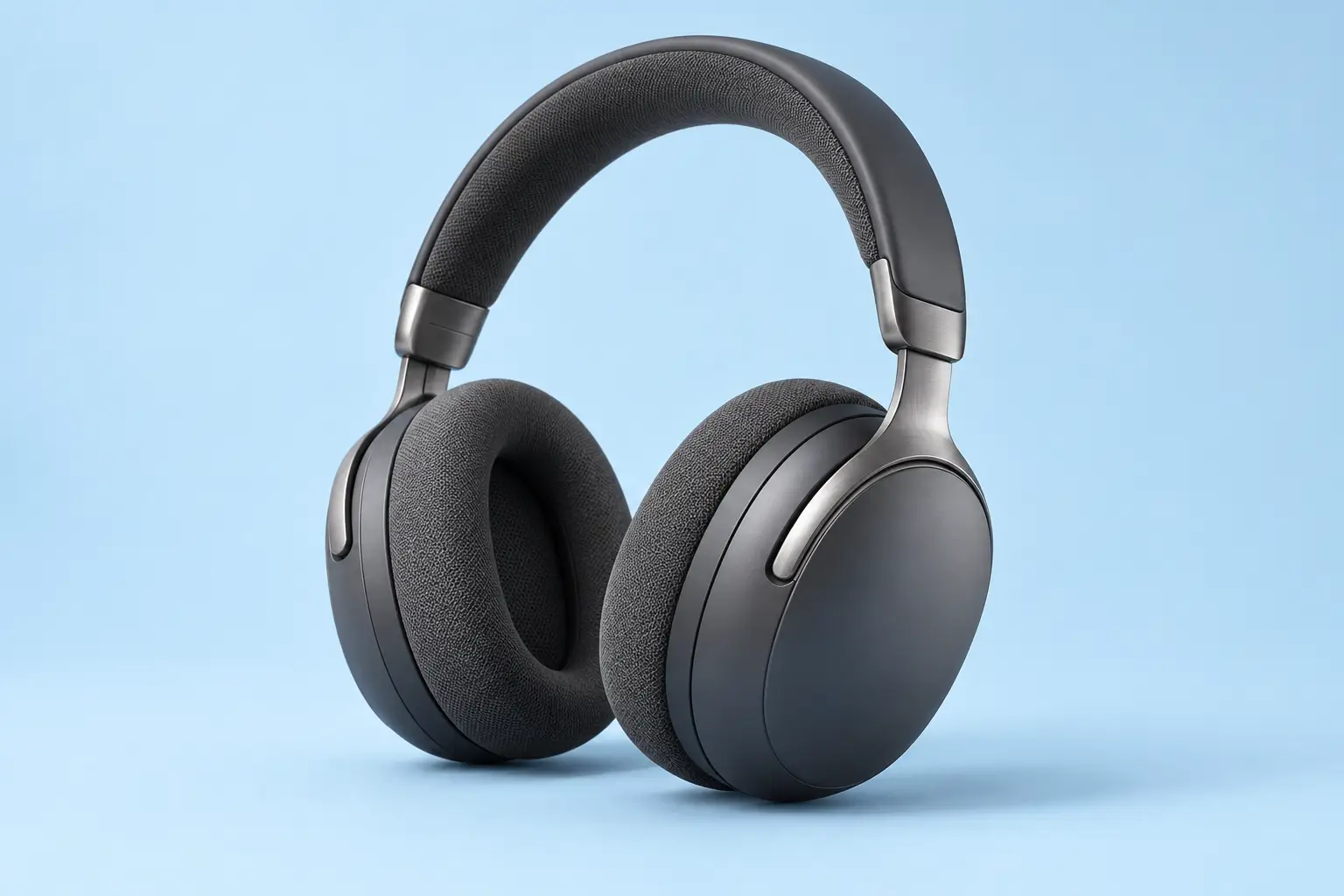
AI-generated matte graphite over-ear headphones with fabric cushions and brushed metal arms, shown at a three-quarter angle on a pale sky-blue studio background.
Result preview

Recorded test output

ImageGenerateBeginner

Create a studio headphone product image

Make a clean product-style image for a concept, mood board or presentation. Start with the graphite headphone example, then change the finish, lighting and background.

Use this prompt

What to provide

  • A description of the headphones and their visible materials.
  • Your preferred background and lighting. The example requests a landscape 3:2 composition.
Make it yours

Fill in what you know. Empty fields stay as placeholders.

Describe the headphones and their finish. Avoid relying on an exact brand match.

Choose a simple colour and studio setting.

State the light direction and softness.

Name the visible finishes you want the model to show.

Ready to copy

Example Recorded test output

Input

Product: unbranded matte graphite over-ear wireless headphones. Background: pale sky-blue seamless studio. Lighting: softbox from upper left with gentle fill. Materials: matte plastic earcups, brushed metal arms and soft fabric cushions. The defaults above reproduce the exact text used for the recorded image generation.

Output

This image was generated with the prompt and default inputs above. It shows a fictional pair of headphones with a clean background, soft shadows and visible material textures. The result was visually checked for framing, coherent structure and unwanted text or logos.

AI-generated matte graphite over-ear headphones with fabric cushions and brushed metal arms, shown at a three-quarter angle on a pale sky-blue studio background.
Result

Tool settings

Recorded run: 26 October 2026. Codex built-in image generation; the tool did not expose a model name or seed. Opaque background. The prompt requested landscape 3:2; the saved PNG is 1536 × 1024. No reference image was supplied.

Improve the result

  • Keep the headphones and composition. Change only the background to a warm off-white seamless studio.
  • Keep the framing. Use softer, more diffuse light and a less pronounced floor shadow.
  • Check both earcups, hinges and the headband at full size. Regenerate or edit any structural errors before using the image.


Tested with Codex built-in image generation (model name not exposed) on .

One recorded generation, not a guarantee of repeatable output or compatibility with every image model. Changing the inputs creates a new, untested variation. The fictional product image should not be presented as an accurate photograph of an item for sale. Prompt wording cannot guarantee the absence of artifacts or establish commercial clearance.

Revision 1.0

Techotick branding with a cyan geometric t symbol and a dark charcoal wordmark.
Before / reference
Techotick branding with a cyan geometric t symbol and a dark charcoal wordmark.
Result preview

Recorded test output

ImageGenerateBeginner

Create a PowerPoint background from your logo

Turn your logo and brand colours into a clean presentation background, with space for readable slide content. This example uses the Techotick logo.

Use this prompt

What to provide

  • A clear logo image that you own or have permission to use, ideally a transparent PNG.
  • Your brand name and approved colour values.
  • The purpose of your presentation and any space needed for content.
Make it yours

Fill in what you know. Empty fields stay as placeholders.

Use the spelling shown in your attached logo.

Describe the deck so the background suits its tone.

Use approved colour values when available; the generator may approximate them.

Ready to copy

Example Recorded test output

Input

Reference: Techotick's official outlined logo, rendered from the project SVG into a transparent PNG. Brand: Techotick. Purpose: technology presentations, product updates and practical guides. Colours: cyan #0EA5E9 and dark charcoal #101828. Requested layout: light widescreen background, open content area, angular accents at the right, one logo in the bottom-left footer.

Output

An AI-generated, light presentation background with cyan and charcoal angular shapes along the right edge, a Techotick logo in the bottom-left footer and a broad clear area for slide content. The saved output is an opaque PNG measuring 1672 × 941 pixels, approximately 16:9. No slide title or body text is included. This is a raster background, not an editable PowerPoint file.

Techotick branding with a cyan geometric t symbol and a dark charcoal wordmark.
Reference / before
Techotick branding with a cyan geometric t symbol and a dark charcoal wordmark.
Result

Tool settings

Use reference-image input and request a 16:9 landscape composition with an opaque background. The recorded run requested 3840 × 2160; the tool returned 1672 × 941. The saved image has not been resized or composited after generation. Exact dimensions, seed and model selection were not exposed as controls for this built-in run.

Improve the result

  • Keep the logo and palette, but make the right-edge shapes smaller and lighter to leave more room for a wide chart.
  • Keep the same layout and remove all decorative shapes from the central content area.
  • Remove the logo from the generated background while preserving the rest of the composition, so I can place the original logo separately in PowerPoint.

Tested with Codex built-in image generation (model name not exposed) on .

Image generators may redraw the logo, change its lettering or colours, and ignore requested dimensions. Inspect the logo against your original and check contrast with your actual slide content. This result was not verified as a pixel-identical logo reproduction or as exact brand colour values. It is 1672 × 941, not 4K, and only approximately 16:9. For exact logo fidelity, request a logo-free background and place the original SVG or PNG separately in PowerPoint. The background is flattened; add slide text and charts as editable objects. Only the Techotick example was tested; other logos and tools may behave differently.

Revision 1.0

Describe the image, then its constraints

Start with the subject and its setting. Add the composition, light and materials that matter to the result. For a product image, that might mean one pair of headphones, a pale seamless background, soft light from the left and enough space around the product for a crop.

Generating and editing need different instructions

For a new image, describe the entire scene. For an edit, supply the reference image and name the change explicitly. State what should remain, such as the product shape, viewpoint or existing text. Check those details in the result rather than assuming they were preserved.

Use examples as a starting point

The example label tells you whether an image came from a recorded test or illustrates an intended outcome. Keep aspect ratio and other tool settings separate from the description. Inspect edges, lettering, reflections and fine details before using an output.

Questions about image prompts

Name the change and the features to preserve in separate sentences. For example, ask for a different background while keeping the product silhouette and camera angle. Use a mask or selection if your tool supports it, and compare the result with the reference.

It may produce a different result. The tool, model, settings and reference image can affect the output. Recorded test details belong to that specific example; use them to understand its context rather than as a guarantee.