A social graphic has to do a specific job: introduce a video, explain an idea, present campaign copy or show a comparison. Name the format, intended message and layout before choosing colors or effects. This second set of ChatGPT social media image prompts covers six labels: /reelcover, /thumbnail, /ad, /infographic, /quote and /beforeafter.
Below are five newly generated examples and the full prompts that produced them. The ad and quote labels share one example. A simple desk-reset theme keeps the subject familiar while the format changes from portrait to landscape, square and a comparison layout.
As in Set 1: design, product, technology and cinematic prompts, these slash labels are informal shorthand. They are not a documented set of built-in image commands. The useful instructions are the words describing the layout, subject and copy. We did not test whether adding slash syntax improves a result.
Choose the job before writing the prompt
/reelcover— A portrait cover for a short video. Name the subject, headline and the details that should survive a crop./thumbnail— A small preview image with a clear focal subject. Specify its orientation and keep copy short./ad— A campaign creative concept. Supply the actual offer or message, the audience and any approved product assets./infographic— A visual explanation using facts or steps you supply. Define the reading order and check the rendered content./quote— A typographic graphic built around exact wording. State the source or say the words are your own campaign copy./beforeafter— A comparison layout. Say whether it illustrates an idea or presents documented source material.
OpenAI's image-prompting guide recommends specifying the result, visible details, exact text and constraints. It also treats formatting as a way to communicate intent, rather than a reason to rely on special syntax. Each prompt below uses those choices explicitly.
The requested ratios here are creative briefs, not a current specification sheet for Instagram, YouTube or another service. Check the destination's own upload and crop preview before publishing. A generated cover does not guarantee that all its details will be visible in every feed or profile view.
1. /reelcover: make a portrait cover with a clear center
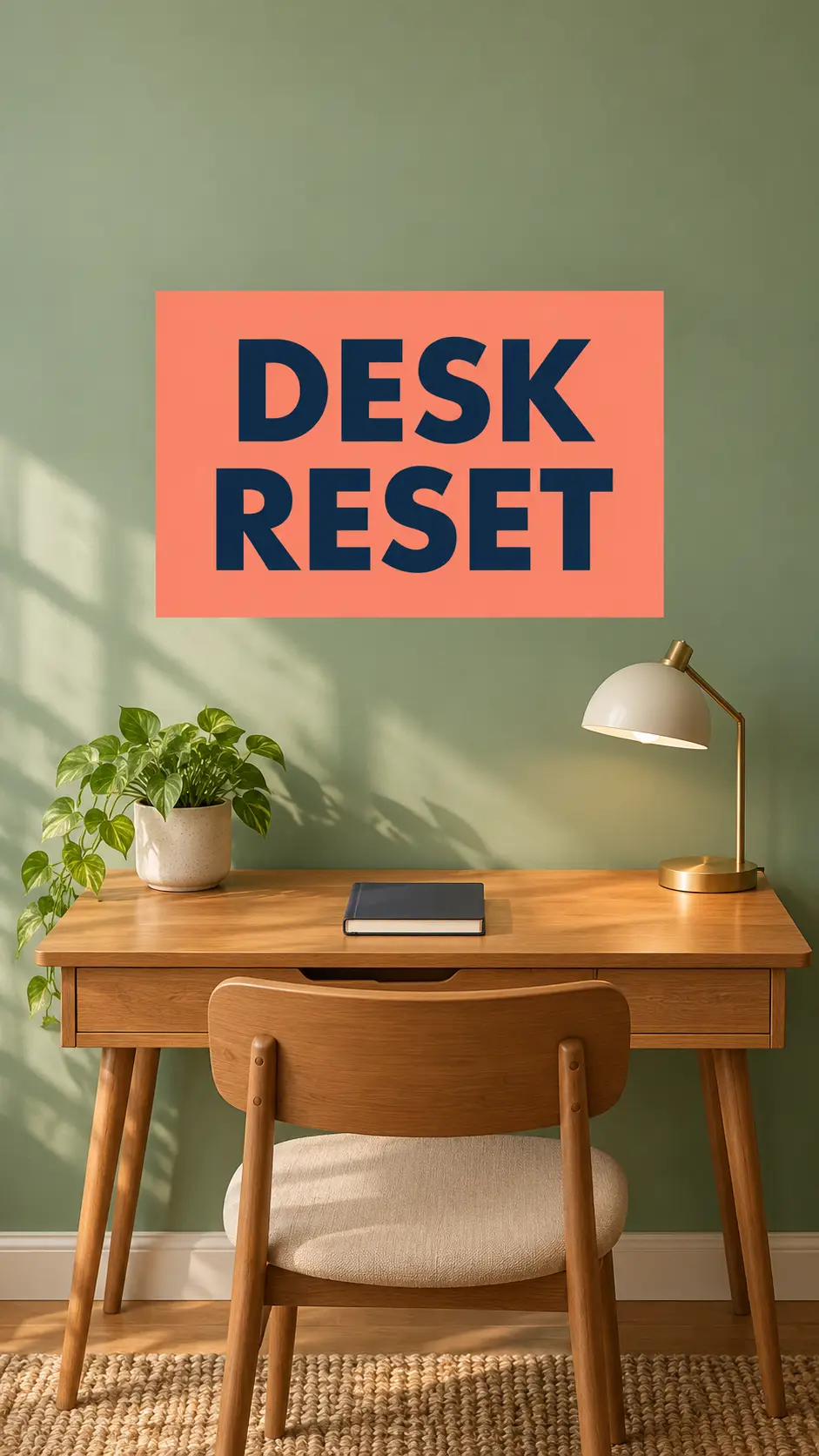
For the portrait example, the desk sits below a large title panel. The brief leaves breathing room at the edges and asks for the essential content to remain central. That gives you room to assess a destination crop before committing to it.
We supplied the exact headline, “DESK RESET,” rather than asking the generator to invent copy. The scene has only a desk, notebook, lamp and plant as its principal objects, so the title has little visual competition.
Exact prompt used
/reelcover Create a portrait 9:16 cover concept for a short video about resetting a home desk. Show a small warm-wood desk, one closed notebook, a simple desk lamp and a small plant against a sage-green wall. Frame the desk in the lower middle, with an uncluttered coral-colored title panel above it. Render the exact headline "DESK RESET" once in large bold deep-navy sans-serif lettering on two lines. Keep the title and essential desk objects in the central portion of the composition with generous margins; leave the outer top and bottom areas simple. Use soft daylight and an inviting editorial photography look. This is a fictional generated cover concept, not a screenshot of a social app. No extra words, logos, watermarks, play buttons, platform controls or slash-label lettering.
What to inspect
The two-word headline is spelled correctly and remains the strongest element. The desk objects are easy to distinguish. The generator also added a chair and rug, even though they were not central to the brief. If you need a stricter scene, request their removal and name the title, colors and remaining objects to preserve.
Before upload, look at the cover in the actual destination preview. If the title competes with an overlay or falls outside the visible crop, move it within your design. The portrait sample here shows the whole generated file; we have not validated every platform's crop behavior.
2. /thumbnail: rebuild the composition for landscape
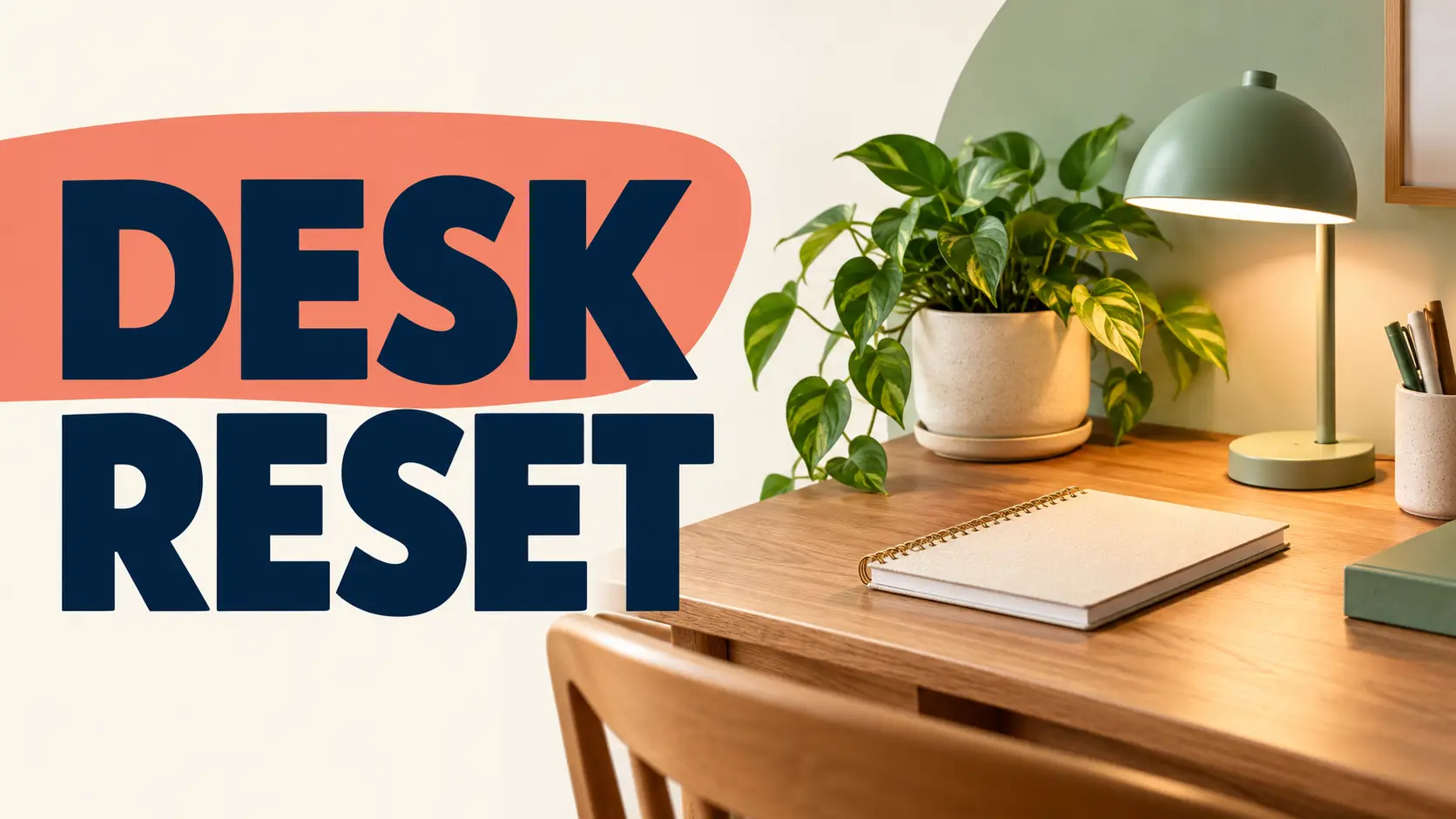
A landscape thumbnail benefits from a different arrangement, rather than a sideways crop of the portrait image. Here the words fill the left side and the desk subject occupies the right. Both remain identifiable when the image is reduced.
The prompt asks for a clear silhouette and avoids tiny supporting details. It does not promise a higher click-through rate: the image is one creative concept, and no audience or campaign experiment was run.
Exact prompt used
/thumbnail Create a landscape 16:9 thumbnail concept for an imaginary desk-reset video. Make a warm-wood home desk with a notebook, a small lamp and a plant the large clear subject on the right half. Use an ivory background with a restrained sage accent. On the left half render the exact words "DESK RESET" once in very large bold deep-navy sans-serif letters on two lines, with a simple coral block behind part of the headline. Keep the image readable at small preview size, with a strong silhouette and no tiny supporting details. Use crisp soft studio lighting and a practical approachable mood. This is newly generated concept art, not an actual video thumbnail or a promise of clicks. No faces, fake shocked expressions, arrows, extra text, logos, watermarks, play buttons or platform interfaces.
What to inspect
The large navy headline and coral shape remain readable, while the lamp and plant establish the subject. The furniture and objects differ from the portrait example because both were generated independently from text. They demonstrate a shared theme, not exact object preservation.
If you need the same room or product across a campaign, provide an approved reference image and explain which details must stay consistent. For this layout, an appropriate next revision would be to simplify the desk accessories while keeping the headline and main subject placement. That follow-up is a suggestion, not an edit demonstrated here.
3. /ad and /quote: give the message priority
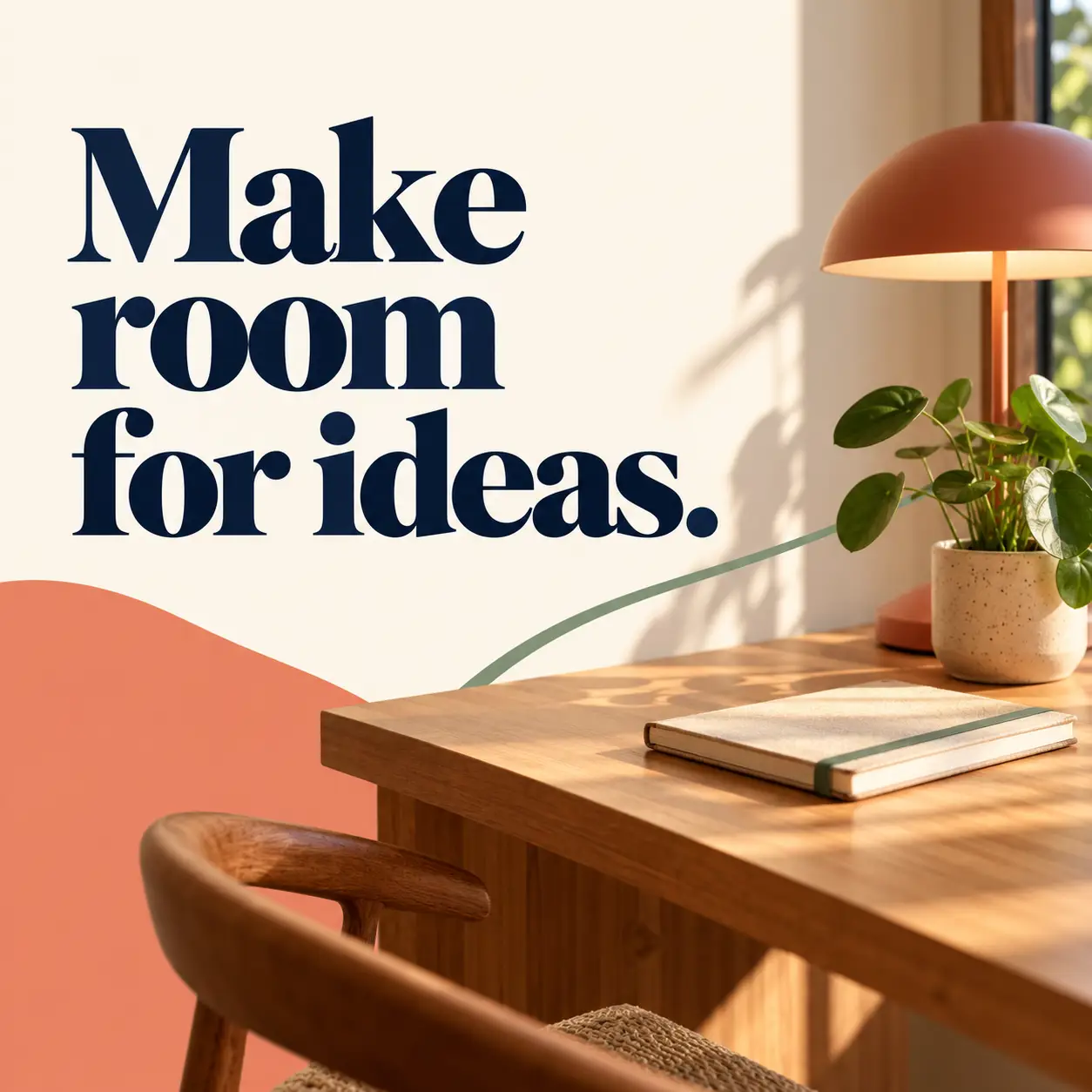
These labels can work together when an advertisement is built around a short line of copy. In this example, “Make room for ideas.” is an original campaign headline supplied in the prompt. It is not a customer testimonial or a quotation attributed to someone else.
A real campaign would also need its approved brand, offer and supporting assets. The example keeps those out so the layout can be assessed on its own: clear wording, readable contrast and enough separation between the message and the workspace scene.
Exact prompt used
/ad /quote Create a square 1:1 social advertising concept for an imaginary workspace-inspiration campaign. Use a warm ivory background, a large deep-navy typographic headline on the left and a thoughtfully lit warm-wood desk corner on the right with one notebook, a lamp and a small plant. The exact headline is "Make room for ideas." Render it once in clear bold editorial typography, arranged across three short lines, with the period included. Add one restrained coral shape and a sage accent to connect the text and photograph. Treat this original sentence as campaign copy, not a quotation attributed to a real person or a customer testimonial. Keep generous margins and strong contrast. No brand, product price, discount, performance claim, attribution, call-to-action button, extra text, watermark, social app interface or slash-label lettering. This is fictional AI-generated campaign concept art.
What to inspect
The words and final period are correct, and the three-line composition gives the headline room. The square frame combines large type with a desk corner without adding a fake button, discount or performance claim.
To use this approach for an attributed quotation, supply the exact verified wording and the attribution you are entitled to use. Keep long passages out of the image when they become hard to read. For final brand typography, use approved fonts and artwork in your design tool rather than assuming a generated rendering is the finished brand asset.
4. /infographic: supply the information yourself
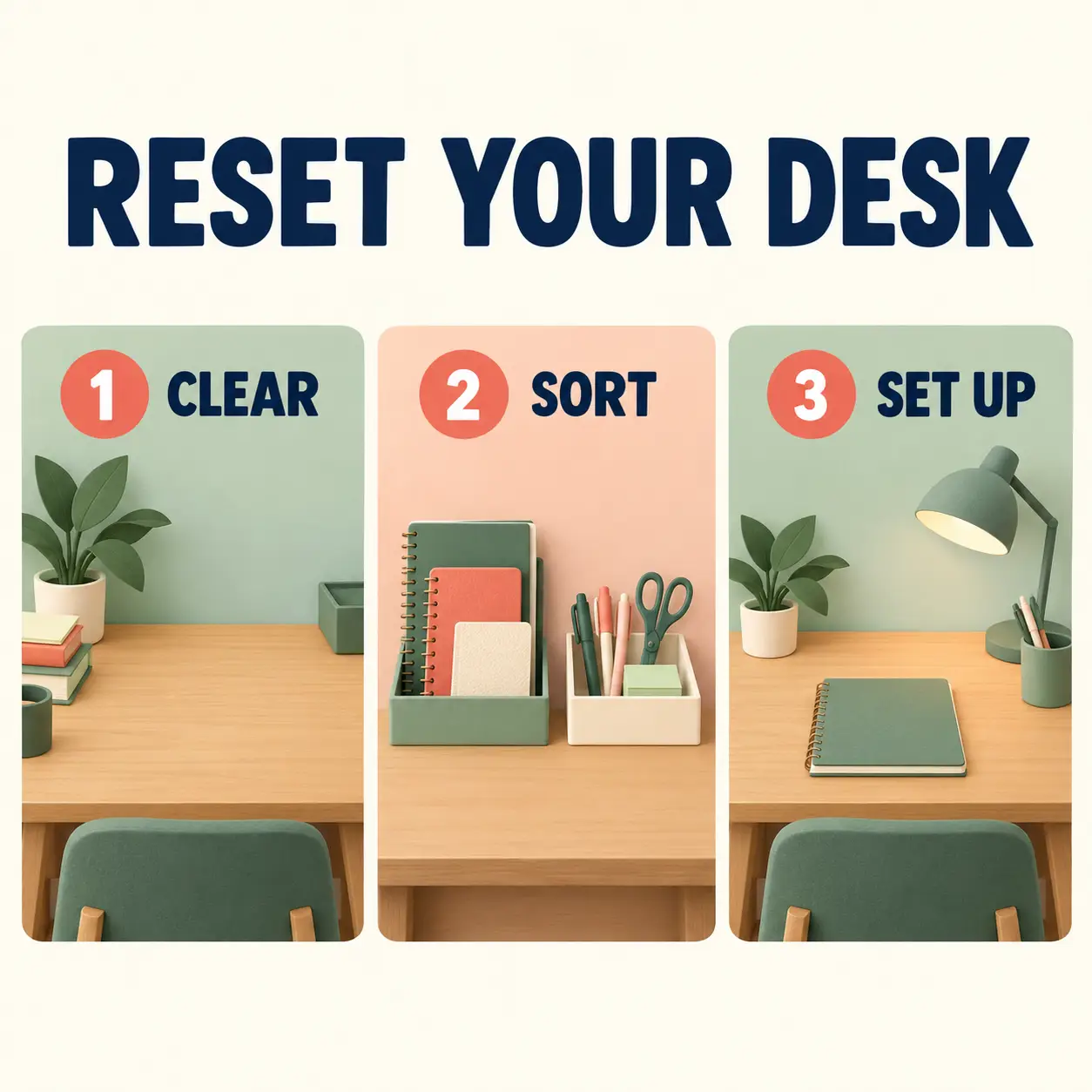
An attractive infographic can still be wrong. Supply the steps, labels and reading order before asking for the visual treatment. Our example uses a small editorial checklist, “Clear, Sort, Set Up,” so it needs no invented statistics or claims about productivity.
The suggested sequence is to clear the usable surface, group loose supplies and put back what you need. These are organizing suggestions, with no claim about time saved or productivity. The short labels make the result straightforward to inspect.
Exact prompt used
/infographic Create a square 1:1 simple educational graphic with an ivory background, deep-navy text and sage and coral illustrations. Put the exact title "RESET YOUR DESK" at the top. Below it create three large equally spaced panels in reading order from left to right. Label them exactly "1 CLEAR", "2 SORT" and "3 SET UP". Under the first label show hands-free simple icons of a desktop with objects moved aside; under the second show notebooks and pens grouped in two trays; under the third show a clean desk with a lamp and one notebook. Use original clean dimensional paper-cut illustrations, generous spacing and readable bold sans-serif typography. Show only the title and three labels, each once. No statistics, timings, percentages, arrows implying measured outcomes, extra words, logos, watermarks, social interfaces or slash-label lettering. This is an illustrative organizing checklist supplied by the prompt, not a research result.
What to inspect
The title and all three numbered labels are spelled correctly and appear in left-to-right order. The middle panel shows grouped stationery in two containers, while the last panel gives the notebook room on the desk. The illustrations include incidental objects and should not be read as an exact inventory of the same desk across every step.
The checklist is repeated in this article's text and caption so its meaning is available outside the image. OpenAI's image-generation guidance advises concise labels and reviewing every word in dense layouts. For a chart or technical explanation, check the underlying facts, quantities and relationships as well as the lettering. A polished visual cannot verify its own data.
5. /beforeafter: distinguish a concept from evidence
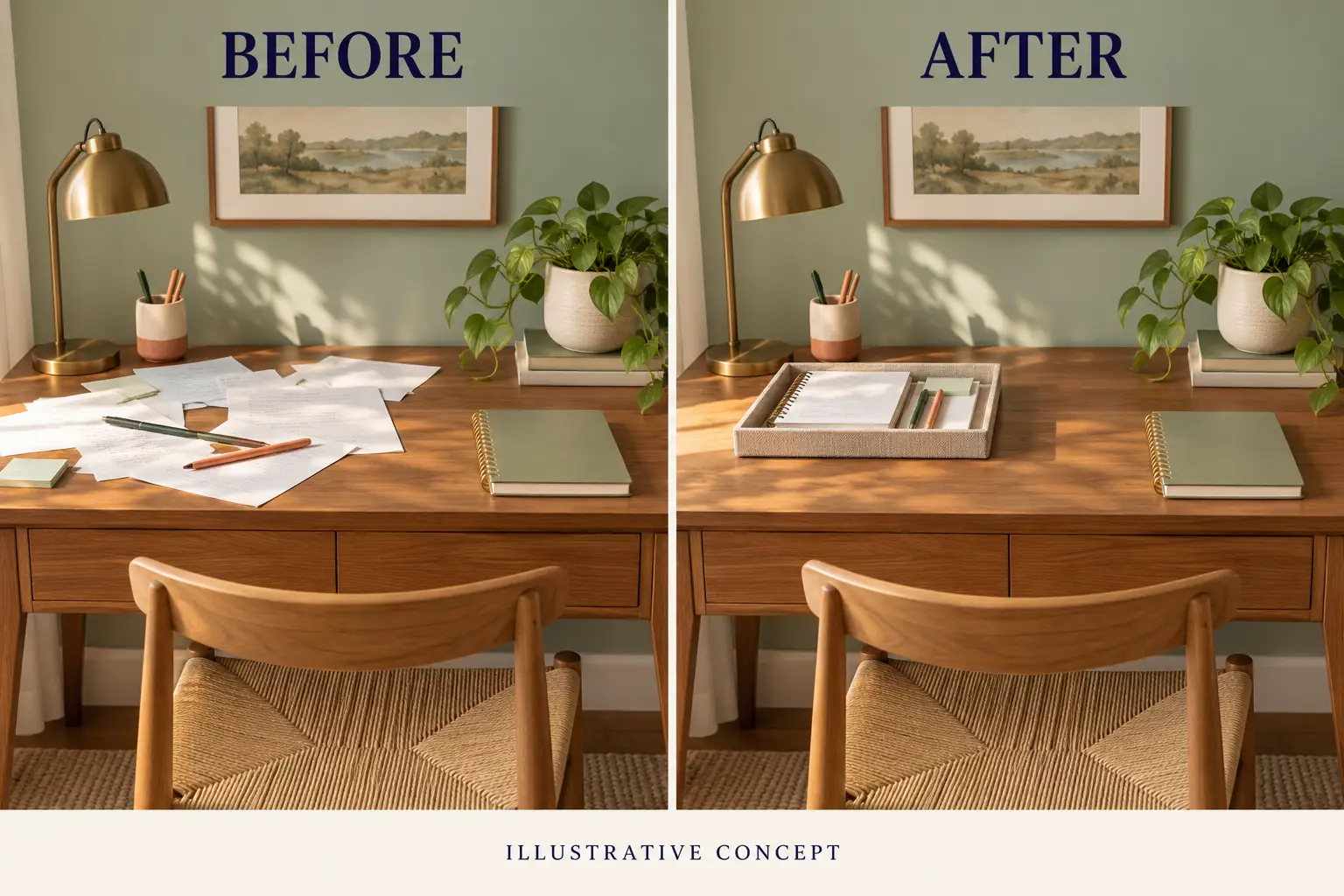
The final sample is one generated image containing two panels. Both were created together from a single text prompt. It illustrates a possible desk arrangement; it is not a source photograph followed by a verified edit, and it does not document a real clean-up or product result.
The brief asks for matching furniture, viewpoint and lighting so the comparison is easier to read. It also puts “ILLUSTRATIVE CONCEPT” inside the image, where the disclosure can travel with it.
Exact prompt used
/beforeafter Create one landscape 3:2 comparison graphic with two equal side-by-side panels of a fictional home desk. Keep the same eye-level camera view, desk dimensions, sage wall, daylight direction, desk lamp, notebook and plant placement across both panels as closely as possible. In the left panel scatter loose papers and pens over the usable desktop. In the right panel gather those same loose items into a single neat tray, leaving the notebook accessible. Use a warm-wood desk and an ivory and sage palette with a restrained coral detail. Render "BEFORE" once above the left panel and "AFTER" once above the right panel in matching deep-navy type. Across the bottom render the exact disclosure "ILLUSTRATIVE CONCEPT" once, readable and smaller than the two panel labels. Keep the lighting and image quality matched; do not exaggerate grime or change the furniture. No people, brand marks, statistics, product claims, extra text, watermarks, social interfaces or slash-label lettering. Both panels are newly AI-generated together; this must not look like documented proof of a real transformation.
What to inspect
The labels and disclosure are readable, and the major furniture, wall art and lighting remain broadly aligned. The loose paper on the left becomes a tray arrangement on the right. Fine details differ, so the image should not be described as proving that precisely the same individual items were moved.
For a documented comparison, keep the real originals and explain any edits. Match the viewpoint and presentation where possible, and avoid presenting generated panels as customer results. If your goal is a photo-edit demonstration, start with the actual source image and preserve it; a text-generated split scene answers a different question.
A practical review before you publish a graphic
Open the image at its intended display size. Read every word, including small labels and disclosures. Inspect the destination crop and any overlays. Check whether the visual implies something your content cannot support, such as a measured transformation, a testimonial, a discount or a product capability.
For repeated campaign assets, compare colors, object shapes, copy and brand marks across the set. Our samples share a sage, navy and coral direction, but each was generated independently; consistent wording in a prompt does not establish pixel-identical furniture or a finished brand system.
If a result needs a correction, request one focused change and restate the details to preserve. For example: “Keep the desk image, headline wording and navy text. Move the headline farther from the left edge.” This is a proposed next step, not an additional tested output.
Sources and generation notes
The six-label selection comes from the social-media slide in aio.talent's Persian carousel, supplied for this series. The English guidance, desk-reset briefs and images here were developed for Techotick. We have not reproduced the original slide artwork. The /quote label appeared in Set 1's cinematic group; here it serves a specific typographic social-graphic task.
All five worked images and the cover were generated with the built-in image-generation tool on 29 October 2026. The full prompts above were used as written, including their slash labels. No reference photos, platform screenshots, campaign measurements or controlled slash-syntax comparisons were used. The cover is a separately generated editorial arrangement, not a composite of the five sample files.
For more background, read which image commands are official and what informal labels do, or return to Set 1's broader creative examples.
Editorial disclosure: AI tools assisted with research, drafting and image generation. This article received a separate AI-assisted editorial revision. All six illustrations are generated concepts. No sponsorship, affiliate links, supplied products or paid campaign results are involved.
Cover image prompt
Sources
- Image prompting — OpenAI
- Image generation — ChatGPT Learn
- Slash commands — ChatGPT Learn
- Social-media image-prompt labels — aio.talent on Instagram