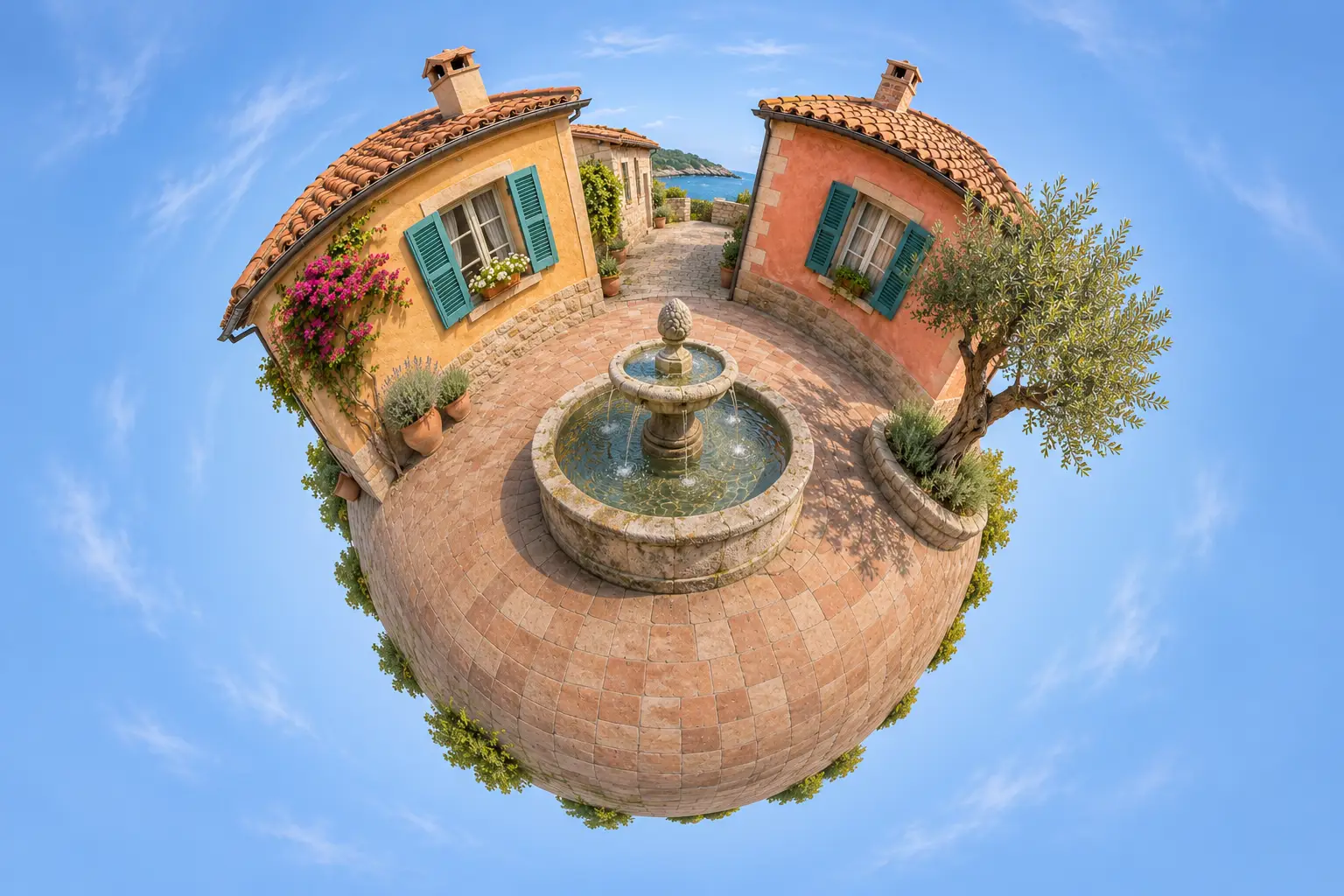
A tiny planet, a glass snow globe and a sunset version can all start with the same photo. The useful part of the prompt is deciding which details may change: a new camera angle needs new geometry, while a lighting edit should keep the original viewpoint.
This guide covers five effects and includes four recorded edits of one fictional courtyard. The source and results were generated with Codex’s built-in image tool; they are examples of the written prompts, not a controlled test of ChatGPT’s web interface. The tool did not expose a model name. Ghost walk is a suggested variation that we have not run.
Start with one reference and a clear change
OpenAI’s image-generation guidance describes attaching a reference and stating both the change and the details to retain. In ChatGPT, upload a photo you have permission to edit and ask for one effect in ordinary language. Interface options and access depend on your plan and workspace.
Keep an untouched source and list a few visible anchors. Ours are a round fountain, an ochre house on the left, a coral house on the right, teal shutters and an olive tree. These make drift easier to spot than a vague instruction to “keep everything the same.” Start each effect from that source rather than stacking every edit onto the last result.
Labels such as /tinyplanet and /sunsetviews can describe an idea, but the documentation we checked does not establish them as built-in ChatGPT photo commands. The reusable prompts below explain the desired image without relying on a label.
1. Tiny planet: allow the scene to bend
The goal is a compact spherical world, with paving wrapping around the center and buildings rising along its rim. Asking for that transformation while also demanding the original perspective creates conflicting instructions. Preserve recognizable shapes and colors instead.
In the tiny-planet prompt, replace the landmark list with objects in your photo. Keep the entire sphere in view and leave sky around it. A wide scene with visible ground gives you clear features to compare; a tightly cropped face offers much less environmental information.
Original synthetic reference
An invented courtyard generated for this tutorial. It is not a photograph of a real destination.
Recorded tiny-planet edit
The paving becomes spherical and the rooflines tilt. Familiar landmarks remain, while geometry and fine details change.
What the run showed: the result keeps the fountain, two house colors, shutters and tree recognizable. It reconstructs paving and vegetation and changes the rooflines. Treat the image as a creative interpretation: one ordinary view cannot establish the unseen side of a complete panorama.
2. Snow globe: describe the object around the scene
A snow-globe edit needs two layers: the miniature inside and the glass object around it. Specify a full visible sphere, a base, a background and restrained snow. Otherwise a request for “snow” may simply change the weather in the original scene.
The snow-globe prompt uses a dark wooden base and a pale studio surface. Change those inputs for your composition. Keep reflections subtle enough to see the miniature, and inspect where the glass meets the base.
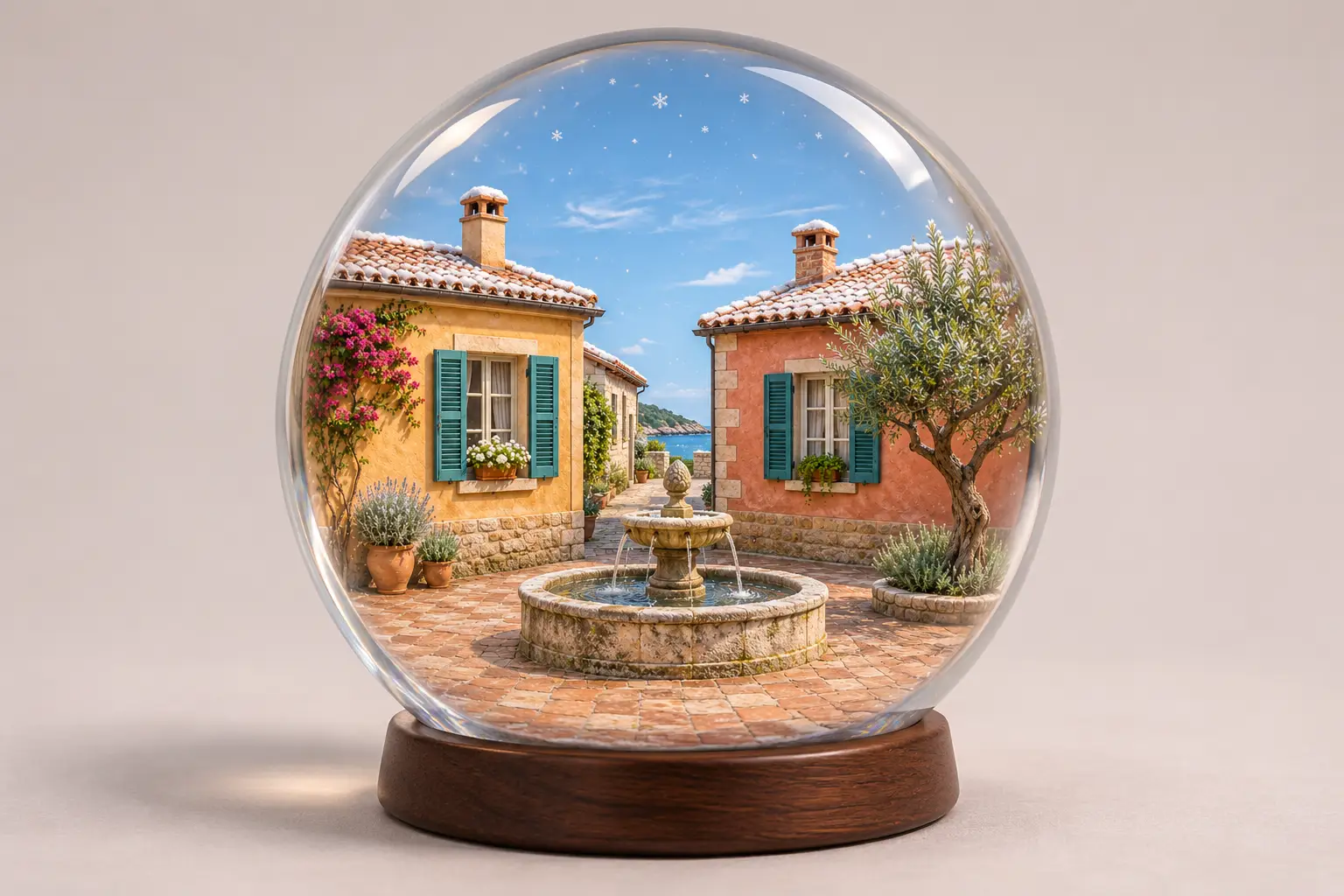
What the run showed: a single globe, wooden base, light roof snow and sparse flakes are visible. The fountain and houses remain readable, but their scale and framing change. Broad glass highlights are part of the result; the miniature is a reconstruction rather than the original pixels placed behind glass.
3. Aerial view: accept invented roofs and surroundings
A drone-style still moves the imagined camera above the scene. State the direction and height in visible terms: an elevated three-quarter view that reveals roofs and courtyard paving is clearer than “make it cinematic.”
The aerial-view prompt permits perspective and crop to change while retaining broad landmark relationships. Do not ask it to keep every pixel or preserve the original camera position. New surfaces cannot be verified from a single front-facing reference.
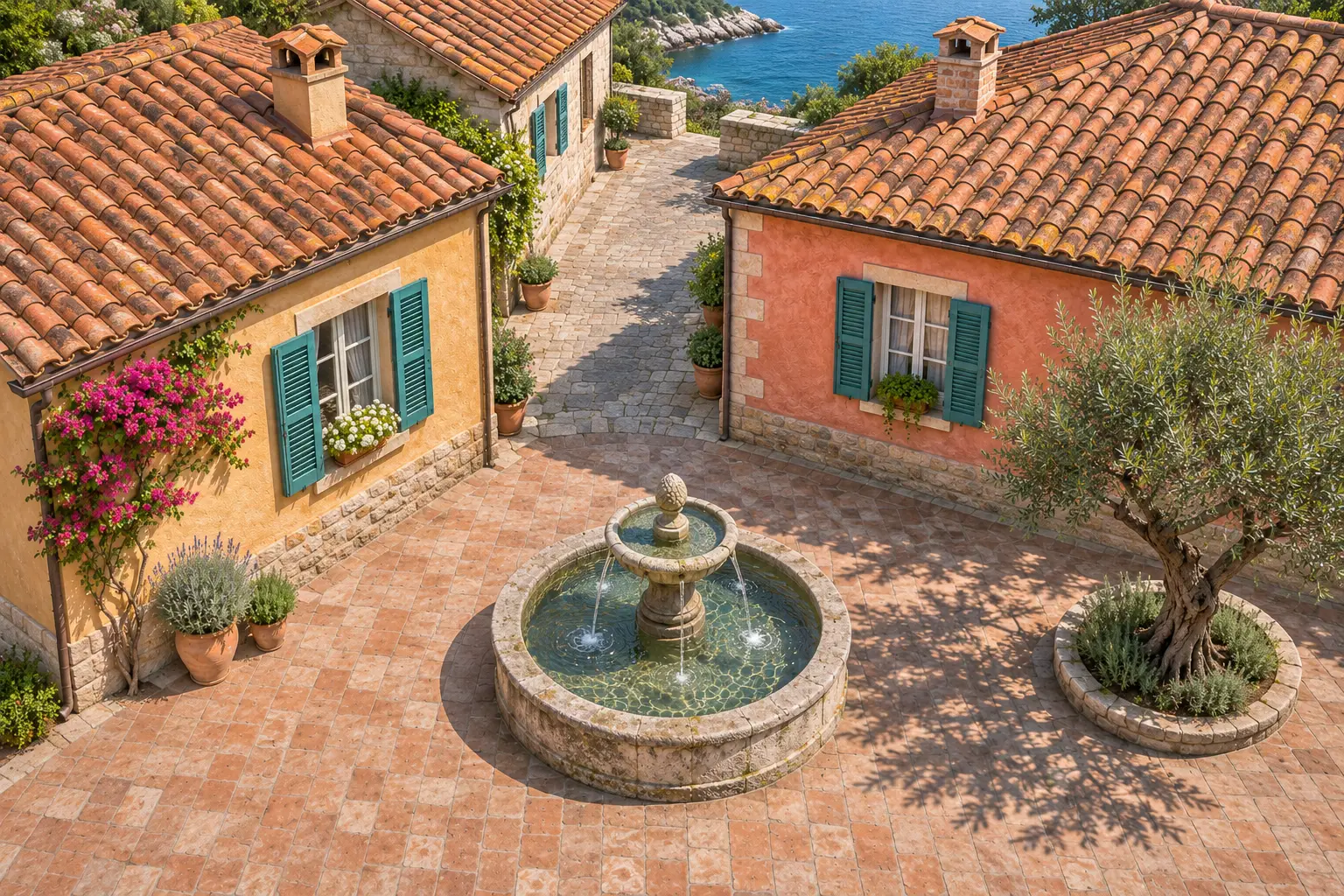
What the run showed: more roof and ground are visible, with the fountain still central and the two houses on their familiar sides. Roof extents and surrounding detail are newly interpreted. We did not measure the requested camera angle. Use this for a concept image, not a property survey, a route map or evidence of a location’s actual layout.
4. Sunset: change light without moving the camera
Relighting is a more conservative request. Name the sun’s direction, the desired sky and what should happen to shadows. A uniform orange cast may look warm without making the scene’s lighting coherent.
The sunset-relighting prompt asks for low light from the left, longer shadows toward the right and a peach-to-blue sky. Retain the source viewpoint, crop and object list. Compare recognizable edges before accepting the result.
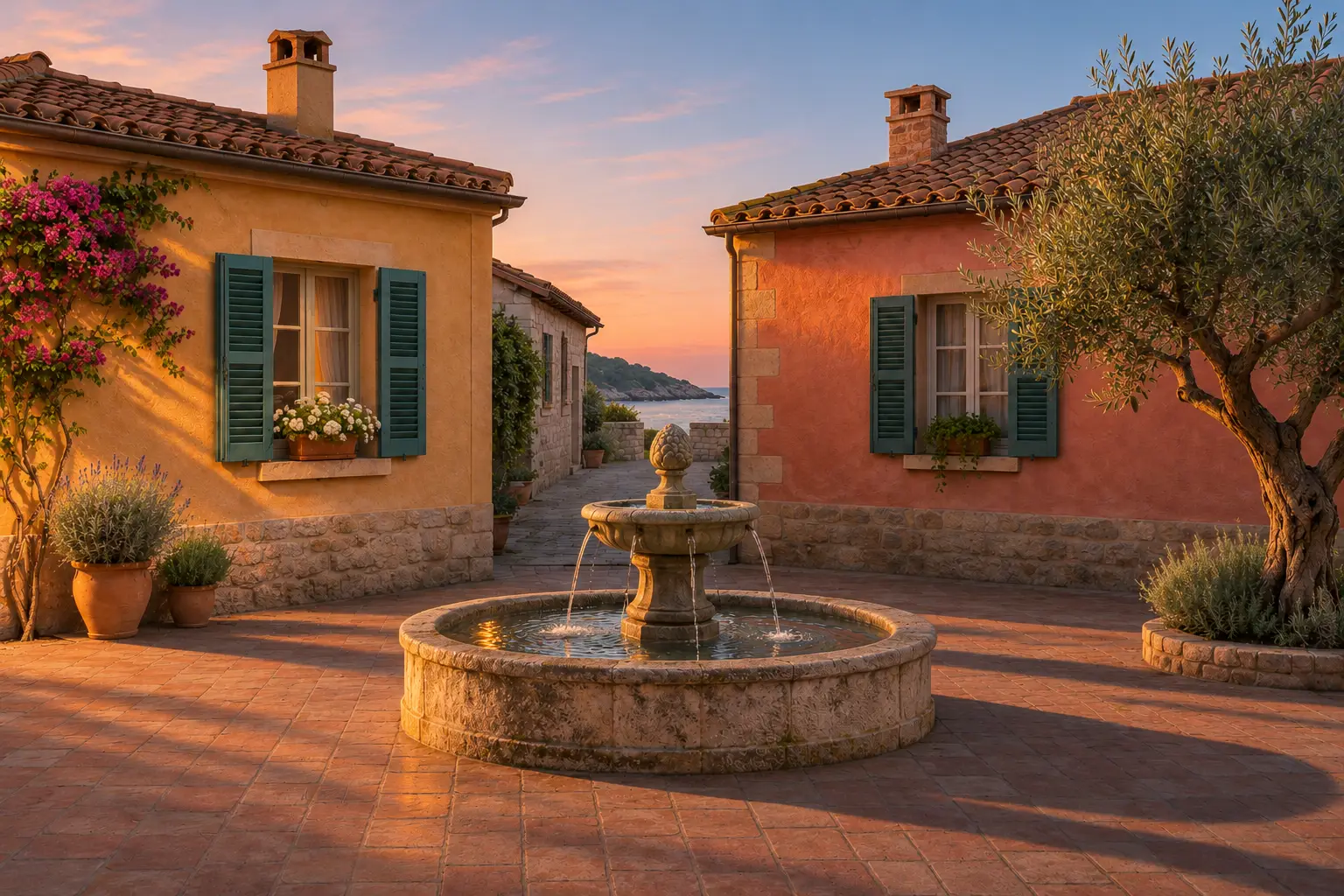
What the run showed: the composition stays similar while the sky, wall illumination and shadows shift toward evening. Roofs become darker and small surface and plant details differ. The evening mood is convincing, but small changes mean this is not a pixel-preserving edit or a recovered sunset photograph.
5. Ghost walk: define a motion trail
“Ghost walk” is an ambiguous effect label. One useful interpretation is a long-exposure look: a walking subject leaves a faint translucent trail while the surroundings remain sharp. This is a proposed variation, not a recorded test in this guide.
For a photo containing a consenting adult walker, reuse the surreal photo-effect prompt. Set the effect to “a subtle translucent motion trail behind the walking person”; put it along the path behind them; ask for low-opacity, slightly blurred echoes that match the scene’s light. In the preservation field, name the main person’s face, clothes, pose and the original viewpoint.
Check for extra limbs, duplicated faces and a trail that obscures the main subject. If your photo has no walker, use a different reference rather than expecting a motion effect to preserve a person who was never there. The library’s recorded example for this general prompt is a clockwork effect; it does not validate this ghost-walk variation.
Choose the effect by what you can afford to change
Choose sunset when keeping the view matters most. Choose a snow globe when you want the scene presented as a small object. Choose tiny planet or aerial view when invented geometry is acceptable. A motion trail needs a suitable moving subject and closer checks of anatomy and identity.
Inspect the fountain rim, shutters, roof corners, tree outline, reflections and crop at full size. If one detail fails, return to the source and ask for a specific correction. OpenAI’s prompting guide recommends inspecting required details and checking whether an edit changed only the requested features; a preservation instruction alone is not proof that it did.
Production note: Techotick used AI assistance to draft and revise this guide and to generate the fictional reference and four example edits. The prompts and outputs were reviewed for the observations described here. The examples depict a fictional place and do not document a real event.
Sources
- Image generation — OpenAI
- Image prompting — OpenAI