If Intel One Mono looks right in VS Code but operators still appear as separate characters, check the font's optional feature setting. Selecting the font family does not, by itself, turn on its programming ligatures. Intel documents a specific setting for that: ss01.
Ligatures draw character sequences as joined shapes while leaving the underlying text intact. You can compare them without changing your theme. Start with the documented switch, then inspect overrides if the result differs between files.
Start with the released font
Use the desktop OTF or TTF files from Intel's official releases, installing them through your operating system's font controls. The repository's editable source files are not installable fonts. In VS Code Settings, search for Font Family and enter Intel One Mono, as Intel instructs.
At our 27 November 2026 check, the latest release was version 1.5, dated 4 November. It adds Braille and Powerline support, among other symbols and refinements. Programming ligatures have been available since version 1.4.
Enable the optional operator shapes
Open Preferences: Open User Settings (JSON) from VS Code's Command Palette. First save the current values of any font settings you plan to change. In the existing settings object, set these two entries:
"editor.fontFamily":
  "Intel One Mono",
"editor.fontLigatures":
  "'ss01'"
Merge the entries into your existing object, keeping valid commas between properties; do not replace the whole file. If either key is already present, edit its value instead of adding another copy. The inner single quotes around ss01 are part of Intel's documented value.
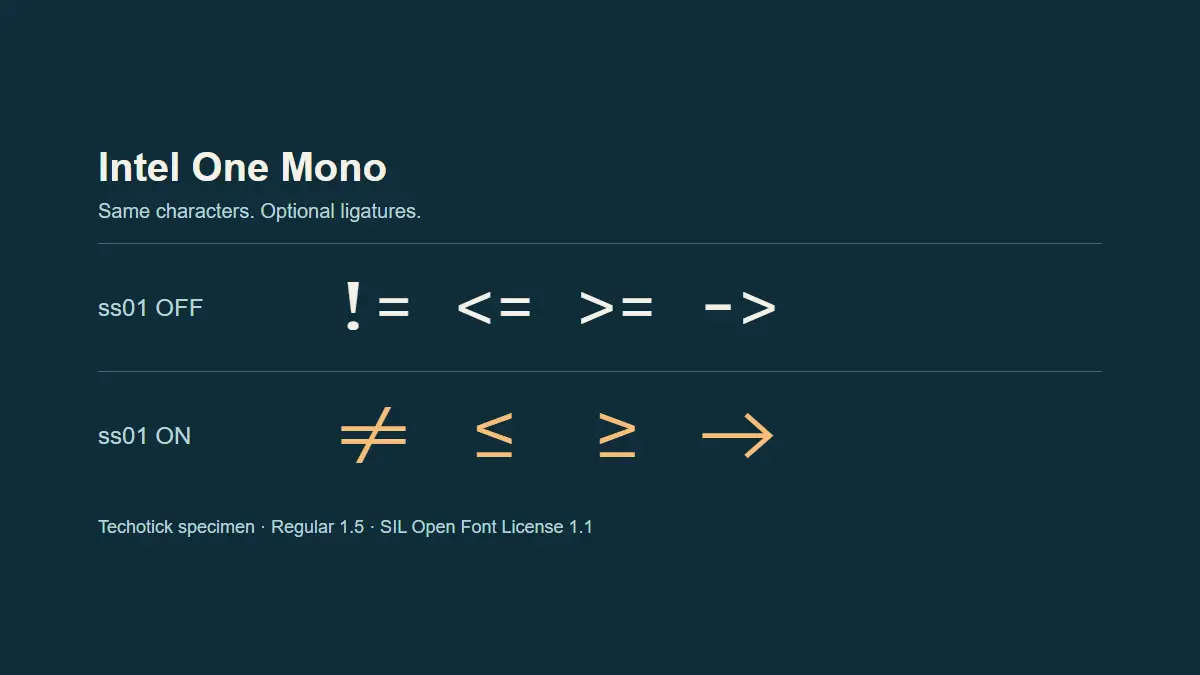
Try a scratch file containing != <= >= ->. Look at the operators before and after the change, with the same theme, zoom and font size. Our cover uses that same text in the actual 1.5 Regular webfont with the feature off and on. It is a browser-rendered specimen, not a VS Code screenshot.
For a useful personal comparison, read a small function you already understand. Ask whether the conditions are quicker for you to recognise, and whether you still distinguish similar operators comfortably. A striking specimen is not evidence that a font improves everyone's reading speed.
If the result is different from what you expected
| What you see | Where to look next |
|---|---|
| Letters changed, but operators did not | Inspect the effective ligature setting and confirm the installed release includes ligatures. |
| It works in one project but not another | Compare User and Workspace settings for those font entries. |
| Only one programming language looks different | Inspect that language's settings block before changing the global value again. |
| The editor changed but the terminal did not | Check terminal appearance separately; its font and ligature controls have their own setting names. |
Microsoft's settings documentation explains that Workspace values override User values, and language-specific editor settings override general editor settings. That makes an override a plausible explanation when the same installation behaves differently between files. The table identifies checks to make, rather than a confirmed diagnosis of your installation.
Keep a personal font preference in User settings unless you intend to share it with the project. Workspace settings can live in the repository's .vscode folder and affect colleagues when committed. Check the scope before saving a trial there.
For the integrated terminal, Microsoft documents terminal. and separate terminal. controls. Do not assume an editor setting configures both surfaces. If a prompt icon is missing, investigate the required glyph and selected terminal font rather than treating every blank box as a ligature issue.
Keep the change only if it helps
Our recommendation is to trial the base font first, then the optional ligatures, keeping other display choices steady. If you dislike the joined forms, restore the previous ligature value while retaining the family if you like its letter shapes. If neither helps, restore both recorded values. VS Code's Reset Setting command returns a setting to its default, which may differ from your earlier custom setup.
Editorial disclosure: AI assisted research and drafting, followed by a separate editorial revision. Techotick rendered the official 1.5 Regular webfont in Chromium; we did not test font installation or settings in VS Code, or measure accessibility or reading performance. The troubleshooting table and trial are editorial suggestions based on the linked documentation. No sponsorship or affiliate links. Specimen design by Techotick, using Intel One Mono under the SIL Open Font License 1.1.
Sources
- Intel One Mono: installation and ligature settings — Intel
- Intel One Mono V1.5.0 release notes — Intel
- VS Code user and workspace settings — Microsoft
- VS Code terminal appearance — Microsoft
- Intel One Mono SIL Open Font License — Intel